
iOS UITextView Text Wrap Editor (Swift)
Practical Approach
Target Features:
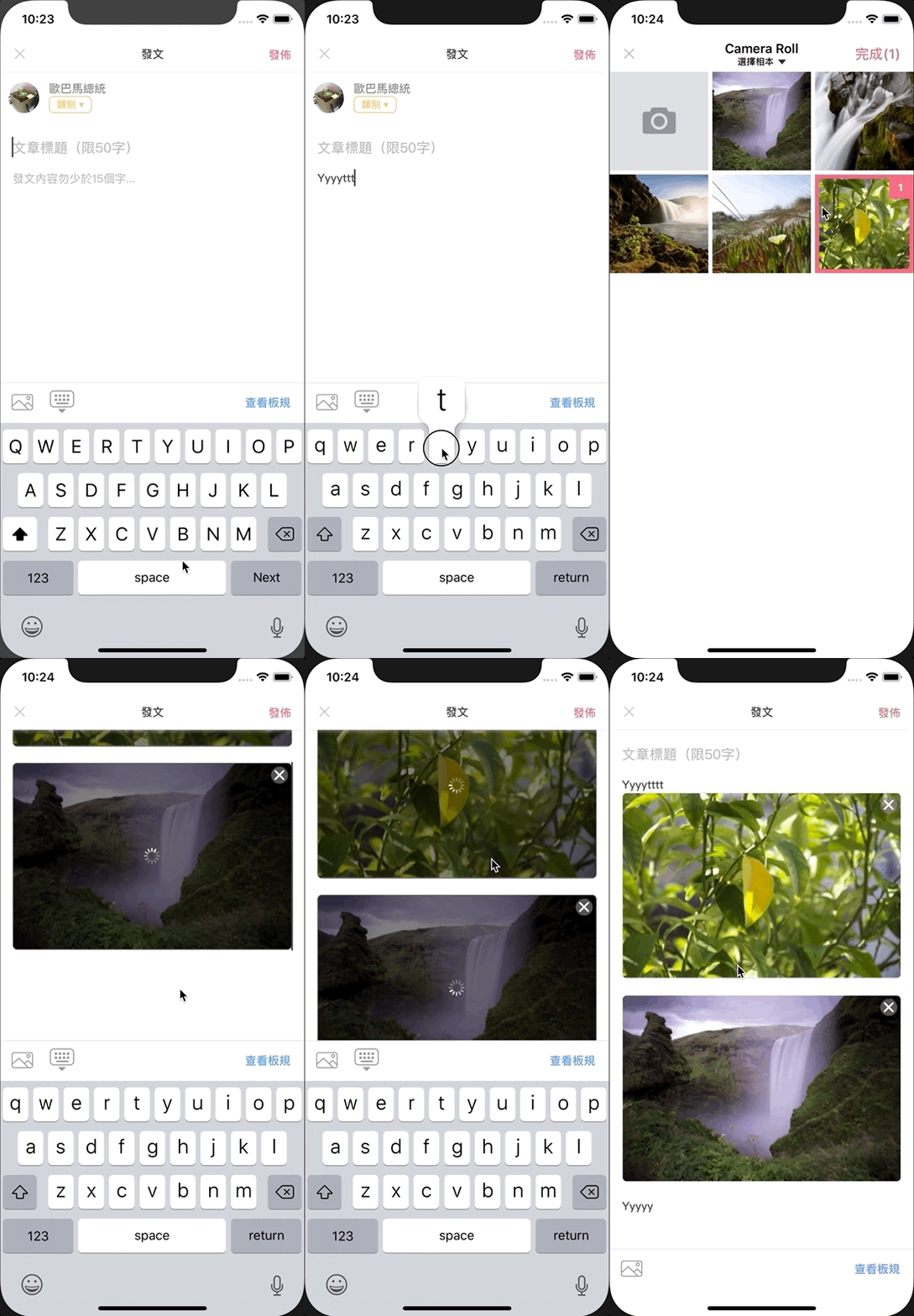
The app has a forum feature where users can post articles. The posting interface needs to support text input, inserting multiple images, and text wrapping around images.
Functional Requirements:
-
Can input multiple lines of text
-
Insert images inline within text lines
-
Can upload multiple images
-
Can freely remove inserted images
-
Image upload success/failure handling
-
Can convert input content into transmittable text, e.g., BBCode
First, here is a screenshot of the final result:
Start:
Chapter 1
What? You said Chapter One? Isn’t using UITextView enough to create an editor, so why divide it into “chapters”? Yes, that was my initial reaction too, until I started working on it and realized it wasn’t that simple. It troubled me for two weeks, flipping through various domestic and international resources before finally finding a solution. Let me share the journey of my implementation…
If you want to know the final solution directly, please scroll down to the last chapter.
At the Beginning
The text editor naturally uses the UITextView component. According to the documentation, UITextView’s attributedText comes with NSTextAttachment objects that can attach images to achieve text wrapping. The code is also very simple:
let imageAttachment = NSTextAttachment()
imageAttachment.image = UIImage(named: "example")
self.contentTextView.attributedText = NSAttributedString(attachment: imageAttachment)
Back then, I naively thought it was quite simple and convenient; the real problems were just beginning:
-
Images must be selectable from local storage & uploadable: This is easy to solve. For the image picker, I used the TLPhotoPicker library (supports multiple selection/custom settings/camera toggle/Live Photos). The specific approach is to convert PHAsset to UIImage after TLPhotoPicker finishes selecting images, assign it to imageAttachment.image, and upload the image to the server in the background in advance.
-
Image upload should have effects and support interactive actions (tap to view original image / tap X to delete): not achieved, couldn’t find a way to do this with NSTextAttachment. However, this feature is not critical since images can still be deleted (pressing the “Back” key on the keyboard after the image deletes it). Let’s continue…
-
Original image files are too large, causing slow upload, slow insertion, and high resource usage: resize images before inserting and uploading using Kingfisher’s resizeTo.
-
Insert image at the cursor position: Here, the original code needs to be changed as follows
let range = self.contentTextView.selectedRange.location ?? NSRange(location: 0, length: 0)
let combination = NSMutableAttributedString(attributedString: self.contentTextView.attributedText) // Get current content
combination.insert(NSAttributedString(attachment: imageAttachment), at: range)
self.contentTextView.attributedText = combination // Write back
- Image Upload Failure Handling: Here, I want to mention that I actually wrote a separate class to extend the original NSTextAttachment, aiming to add an extra property to store an identifier value.
class UploadImageNSTextAttachment:NSTextAttachment {
   var uuid:String?
}
Change to when uploading images:
let id = UUID().uuidString
let attachment = UploadImageNSTextAttachment()
attachment.uuid = id
If we can identify the corresponding NSTextAttachment, we can search for the NSTextAttachment in the attributedText for images that failed to upload, then find and replace them with an error placeholder image or remove them directly.
if let content = self.contentTextView.attributedText {
    content.enumerateAttributes(in: NSMakeRange(0, content.length),  options: NSAttributedString.EnumerationOptions(rawValue: 0)) { (object, range, stop) in
        if object.keys.contains(NSAttributedStringKey.attachment) {
            if let attachment = object[NSAttributedStringKey.attachment] as? UploadImageNSTextAttachment,attachment.uuid == "targetID" {
                attachment.bounds = CGRect(x: 0, y: 0, width: 30, height: 30)
                attachment.image =  UIImage(named: "IconError")
                let combination = NSMutableAttributedString(attributedString: content)
                combination.replaceCharacters(in: range, with: NSAttributedString(attachment: attachment))
                // To remove directly, use deleteCharacters(in: range)
                self.contentTextView.attributedText = combination
            }
        }
    }
}
After overcoming the above issues, the code roughly looks like this:
class UploadImageNSTextAttachment:NSTextAttachment {
    var uuid:String?
}
func dismissPhotoPicker(withTLPHAssets: [TLPHAsset]) {
    // Callback for TLPhotoPicker image picker

    let range = self.contentTextView.selectedRange.location ?? NSRange(location: 0, length: 0)
    // Get cursor position, default to start if none

    guard withTLPHAssets.count > 0 else {
        return
    }

    DispatchQueue.global().async { in
        // Process in background
        let orderWithTLPHAssets = withTLPHAssets.sorted(by: { $0.selectedOrder > $1.selectedOrder })
        orderWithTLPHAssets.forEach { (obj) in
            if var image = obj.fullResolutionImage {

                let id = UUID().uuidString

                var maxWidth:CGFloat = 1500
                var size = image.size
                if size.width > maxWidth {
                    size.width = maxWidth
                    size.height = (maxWidth/image.size.width) * size.height
                }
                image = image.resizeTo(scaledToSize: size)
                // Resize image

                let attachment = UploadImageNSTextAttachment()
                attachment.bounds = CGRect(x: 0, y: 0, width: size.width, height: size.height)
                attachment.uuid = id

                DispatchQueue.main.async {
                    // Switch back to main thread to update UI and insert image
                    let combination = NSMutableAttributedString(attributedString: self.contentTextView.attributedText)
                    attachments.forEach({ (attachment) in
                        combination.insert(NSAttributedString(string: "\n"), at: range)
                        combination.insert(NSAttributedString(attachment: attachment), at: range)
                        combination.insert(NSAttributedString(string: "\n"), at: range)
                    })
                    self.contentTextView.attributedText = combination

                }

                // Upload image to Server
                // Alamofire post or....
                // POST image
                // if failed {
                    if let content = self.contentTextView.attributedText {
                        content.enumerateAttributes(in: NSMakeRange(0, content.length),  options: NSAttributedString.EnumerationOptions(rawValue: 0)) { (object, range, stop) in

                            if object.keys.contains(NSAttributedStringKey.attachment) {
                                if let attachment = object[NSAttributedStringKey.attachment] as? UploadImageNSTextAttachment,attachment.uuid == obj.key {

                                    // REPLACE:
                                    attachment.bounds = CGRect(x: 0, y: 0, width: 30, height: 30)
                                    attachment.image = // ERROR Image
                                    let combination = NSMutableAttributedString(attributedString: content)
                                    combination.replaceCharacters(in: range, with: NSAttributedString(attachment: attachment))
                                    // OR DELETE:
                                    // combination.deleteCharacters(in: range)

                                    self.contentTextView.attributedText = combination
                                }
                            }
                        }
                    }
                //}
                //

            }
        }
    }
}
By this point, most issues were resolved, so what troubled me for two weeks?
Answer: “Memory” Issues
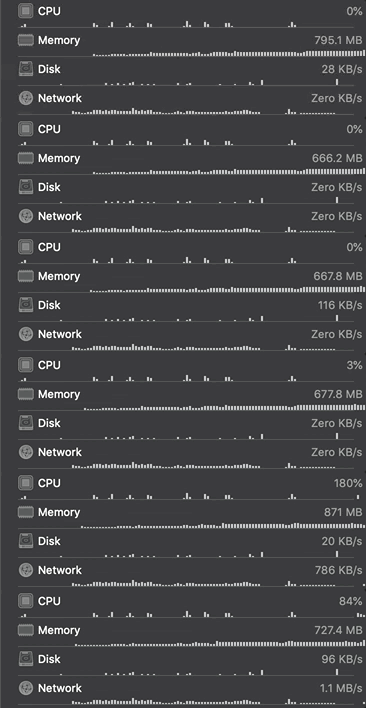
iPhone 6 can’t handle it!
Inserting more than 5 images using the above method causes UITextView to lag; beyond a certain point, the app crashes due to memory overload.
p.s Tried various compression/other storage methods, but the result was still the same
The suspected reason is that UITextView does not reuse NSTextAttachments for images, so all the inserted images are loaded into memory and never released; therefore, unless used for small icons like emojis 😅, it cannot be used for text-wrapping images.
Chapter 2
After discovering this “hard flaw” in memory, I continued searching online for solutions and found the following approaches:
-
Using WebView to embed an HTML file (<div contentEditable="true"></div>) and interact between JS and WebView
-
Using UITableView combined with UITextView allows reuse
-
Extending UITextView Based on TextKit 🏆
The first approach using WebView to embed an HTML file is not considered due to performance and user experience concerns. Interested readers can search for related solutions on GitHub (e.g., RichTextDemo).
2. Using UITableView Combined with UITextView
I have implemented about 70% of it. Specifically, each line is a cell, and there are two types of cells: one is UITextView and the other is UIImageView. Images and text each occupy one line. The content must be stored in an array to prevent loss during reuse.
Efficient reuse solved the memory issue, but we eventually gave up because controlling pressing Return at the end of a line to create a new line and jump to it and pressing Backspace at the start of a line to jump to the previous line (and delete the current line if empty) was very difficult to manage.
Interested readers can refer to: MMRichTextEdit 」
Final Chapter
By this point, a lot of time has been spent, causing serious delays in the development schedule; the current final solution is to use TextKit.
Here are two articles for those interested in researching further:
However, there is a certain learning curve, which is too difficult for a beginner like me. Besides, time is running out, so I can only aimlessly search on GitHub to borrow ideas from others.
Finally found the project XLYTextKitExtension, which can be directly integrated and used in code.
✔ Make NSTextAttachment support custom UIView so any interaction can be added
✔ NSTextAttachment can be reused without causing memory overload
The specific implementation is similar to Chapter 1, except that NSTextAttachment is replaced with XLYTextAttachment.
For the UITextView to be used:
contentTextView.setUseXLYLayoutManager()
Tip 1: Change the place where NSTextAttachment is inserted to
let combine = NSMutableAttributedString(attributedString: NSAttributedString(string: ""))
let imageView = UIView() // your custom view
let imageAttachment = XLYTextAttachment { () -> UIView in
    return imageView
}
imageAttachment.id = id
imageAttachment.bounds = CGRect(x: 0, y: 0, width: size.width, height: size.height)
combine.append(NSAttributedString(attachment: imageAttachment))
self.contentTextView.textStorage.insert(combine, at: range)
Tip 2: Change NSTextAttachment Search To
self.contentTextView.textStorage.enumerateAttribute(NSAttributedStringKey.attachment, in: NSRange(location: 0, length: self.contentTextView.textStorage.length), options: []) { (value, range, stop) in
    if let attachment = value as? XLYTextAttachment {
        //attachment.id
    }
}
Tip 3: Change deleting NSTextAttachment items to
self.contentTextView.textStorage.deleteCharacters(in: range)
Tip 4: Get the Current Content Length
self.contentTextView.textStorage.length
Tip 5: Refresh the Bounds Size of Attachment
The main reason is for user experience; when inserting an image, I first insert a loading image. The inserted image is replaced after background compression, and the TextAttachment’s bounds need to be updated to the resized size.
self.contentTextView.textStorage.addAttributes([:], range: range)
(Add empty property to trigger refresh)
Tip 6: Convert Input Content into Transmittable Text
Use Tip 2 to search all input content and extract the IDs of found Attachments, then combine them into a format like [[ID]] for transmission
Tip 7: Content Replacement
self.contentTextView.textStorage.replaceCharacters(in: range,with: NSAttributedString(attachment: newImageAttachment))
Tip 8: Use Regular Expression to Match the Range of Content
let pattern = "(\\[\\[image_id=){1}([0-9]+){1}(\\]\\]){1}"
let textStorage = self.contentTextView.textStorage

if let regex = try? NSRegularExpression(pattern: pattern, options: .caseInsensitive) {
    while true {
        let range = NSRange(location: 0, length: textStorage.length)
        if let match = regex.matches(in: textStorage.string, options: .withTransparentBounds, range: range).first {
            let matchString = textStorage.attributedSubstring(from: match.range)
            // FOUND!
        } else {
            break
        }
    }
}
Note: If you want to search & replace items, you need to use a While loop. Otherwise, when there are multiple search results, replacing the first one will cause the ranges of the following results to be incorrect, leading to a crash.
Conclusion
The product has been completed and launched using this method, and no issues have been encountered so far; I’ll take some time later to thoroughly explore the underlying principles!
This article is not a tutorial but a personal experience sharing on problem-solving. If you are working on similar features, I hope it helps you. Feel free to contact me with any questions or feedback.
The first official article on Medium

Comments