
Quick Integration Method for Google Apps Script x Google APIs
Using Google Apps Script with Firebase App Distribution API as an example
Background
Previously, I wrote several articles about using Google Apps Script. Among them, “Using Google Apps Script to Automate Daily Data Reports RPA” and “Simple 3 Steps — Build a Free GA4 Automated Data Notification Bot” introduced how to connect Google Analytics with Google Sheets, Web Apps, Slack, Telegram, etc., to quickly build visual data platforms and notification services. Additionally, last month’s article “Using Google Apps Script Web App Form to Connect Github Action CI/CD Workflow” demonstrated directly using Google Apps Script Web App to connect with the Github API as a CI/CD GUI form service. In all these cases, whether using built-in Google Apps Script services or connecting to external services (Slack, Github…), there was no need to connect to Google APIs.
This time, while optimizing the CI/CD GUI form, I wanted to display the Firebase Distribution download link directly on the Web App after packaging the internal test version. This can only be achieved by integrating Google APIs.
Google Apps Script x Firebase App Distribution API v1
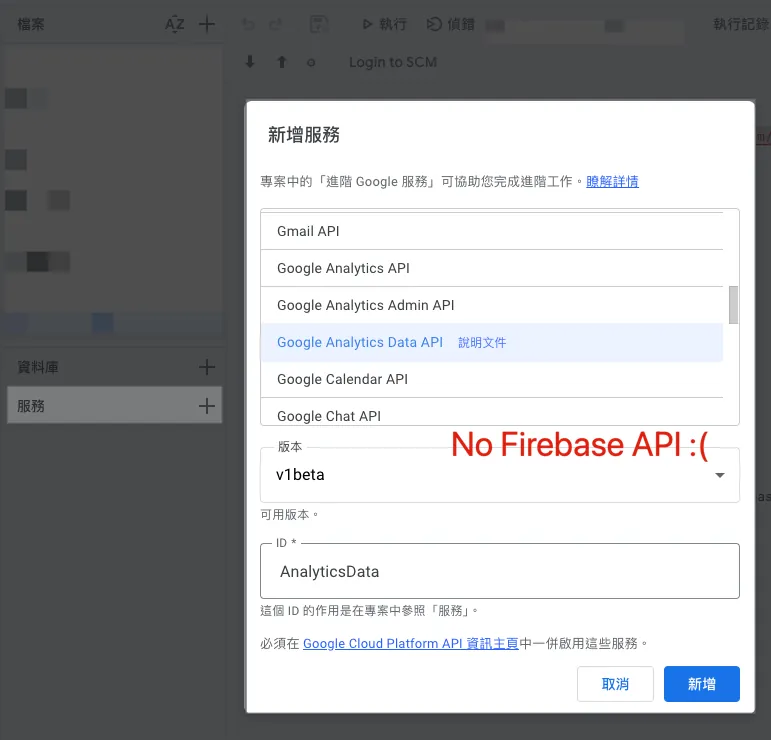
As shown in the image above, unlike the built-in service “AnalyticsData” for connecting to Google Analytics, Firebase App Distribution does not offer a built-in integration service, so it requires an advanced method for connection.
Originally, I thought I had to use a Service Account to generate and exchange the Access Token myself (which is a bit complicated; you can refer to my previous review bot open-source project), but it’s actually not that complicated.
Google Apps Script x Google APIs Advanced Service Integration
Integration Setup
Refer to the official documentation description; we need to follow these steps for advanced setup:
-
You must enable advanced services in your script project.
-
You must ensure that the API for the corresponding advanced service is enabled in the Cloud Platform (GCP) project used by the script.
-
If your script project uses the default GCP project created on or after April 8, 2019, the API will be automatically enabled once you enable the advanced service and save the script project. If you have not agreed yet, you may also be prompted to accept the Google Cloud and Google API terms of service.
-
If your script project uses a standard GCP project or an older default GCP project, you must manually enable the corresponding API for the advanced service in the GCP project. You need edit permissions for the GCP project to make this change.
1. Project Setup — Configure the Associated Google Cloud Platform (GCP) Project
Google Apps Script x Google APIs advanced service integration requires you to create a GCP project and link it to Google Apps Script. The permission to use Google APIs is based on the GCP settings.
Therefore, you need to create a GCP project (the same Firebase GCP project is also fine), note the “Project Number” on the info homepage, and ensure that this GCP project has the Google APIs you want to use enabled, and that the currently logged-in account or the account you want to use has permissions for this GCP project and Google APIs.
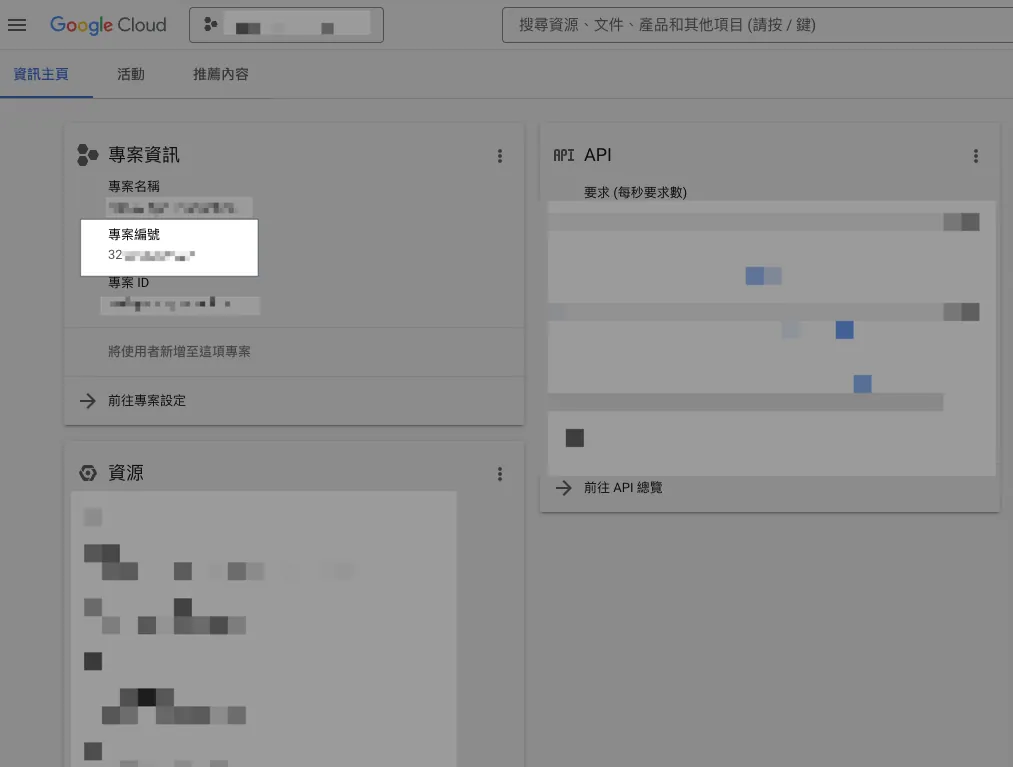
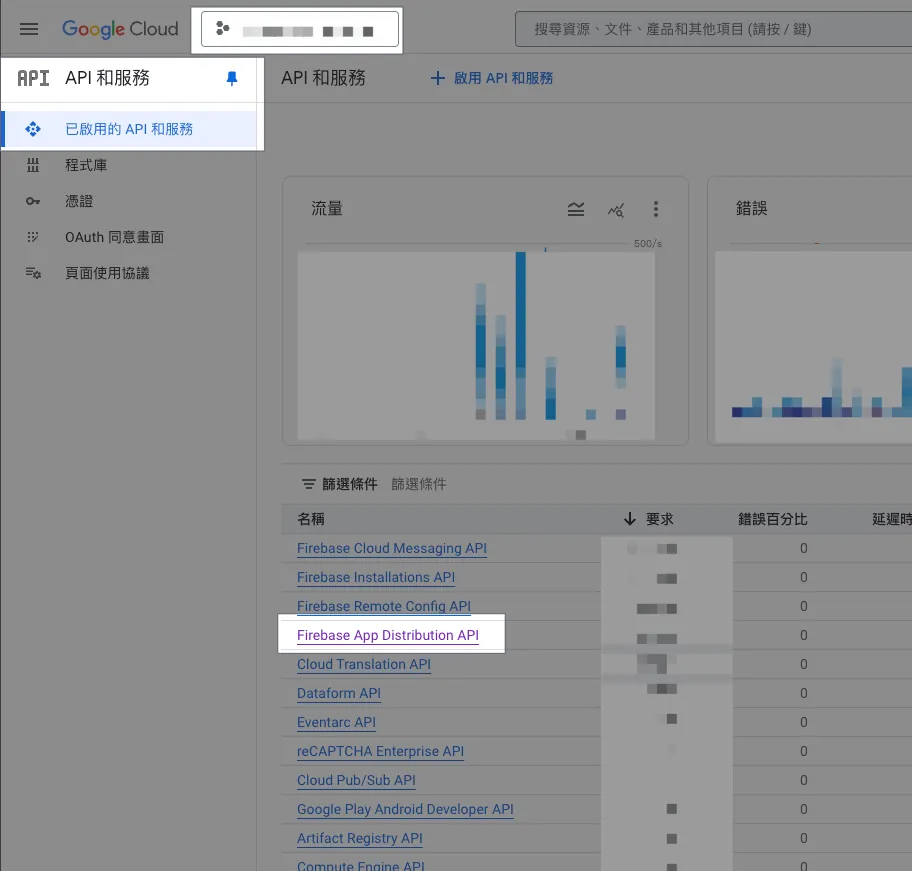
This article uses the Firebase App Distribution API as an example.
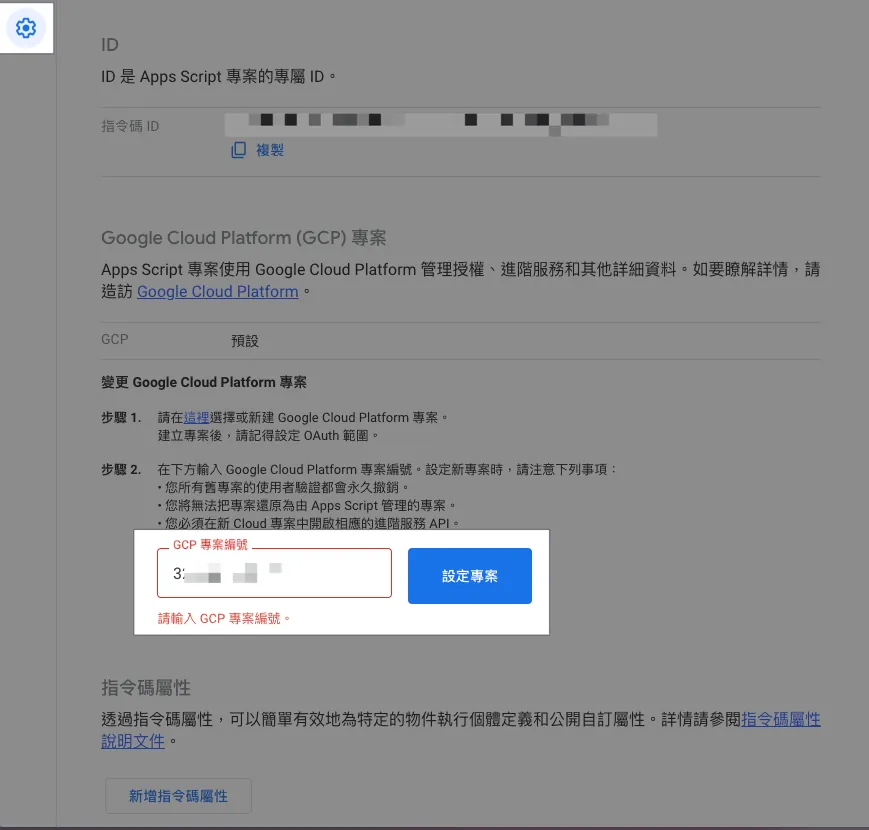
Enter the Project Number into the Google Cloud Platform project number field under the Google Apps Script project settings. If the currently logged-in account has permission for that GCP project, it will automatically bind and set up successfully.
2. Project Setup — Enable “appsscript.json” Manifest File Display in the Editor
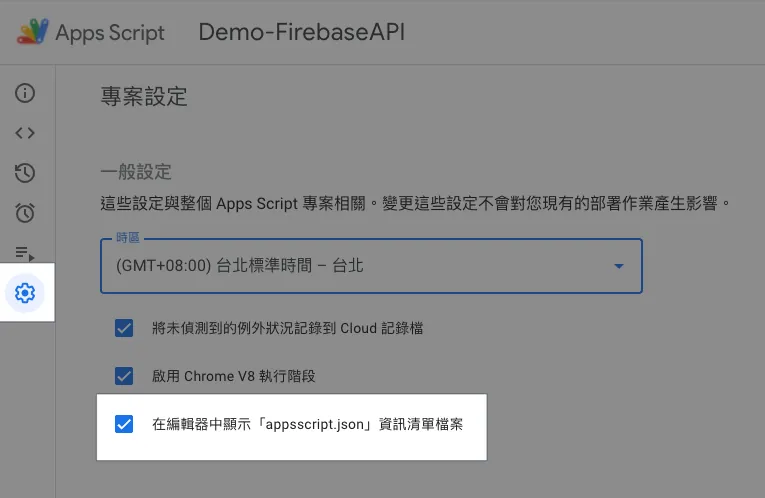
After enabling, return to the editor, and the file list will show the appsscript.json configuration file:
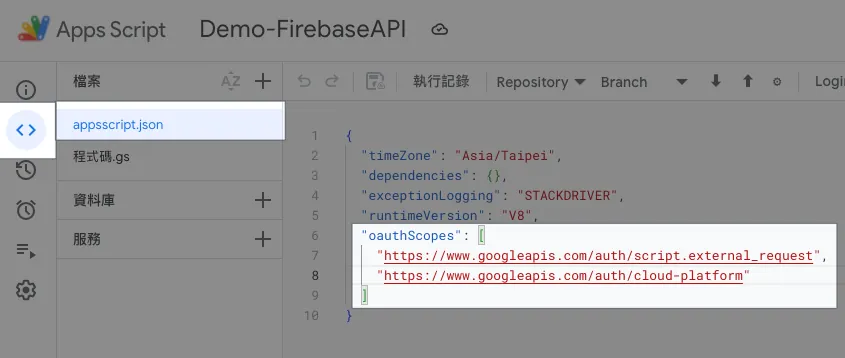
Make sure the oauthScopes include the following two descriptions:
  "oauthScopes": [
    "https://www.googleapis.com/auth/script.external_request",
    "https://www.googleapis.com/auth/cloud-platform"
  ]
If not, please manually paste and save.
3. Writing Integration Code
After setting up the GCP project, we can start writing the integration code by directly referring to the official documentation of the Google APIs we want to connect to, such as Firebase App Distribution API v1:
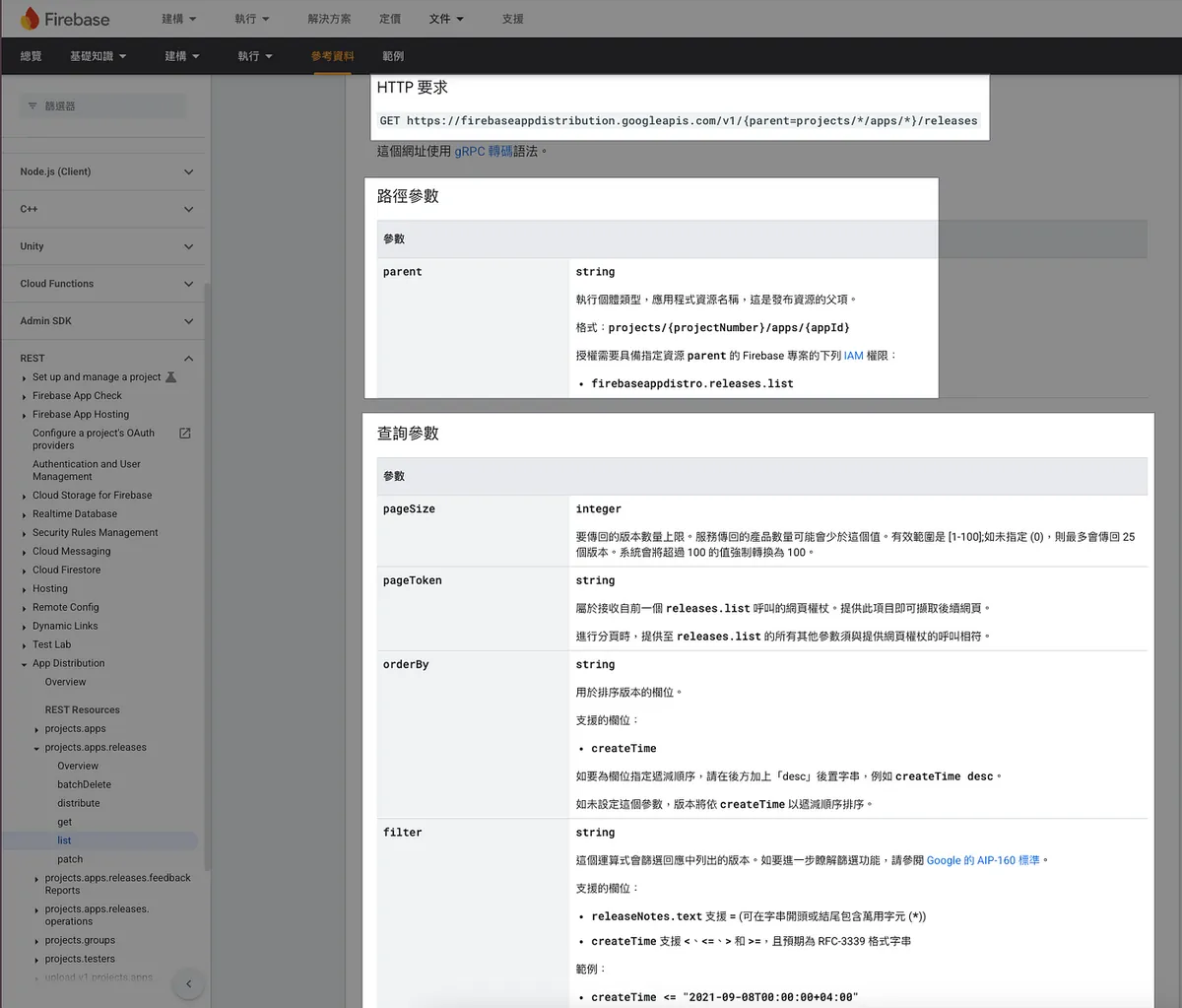
const project = "projects/[Firebase Project ID]/apps/[Firebase APP ID]"; // Please replace with your Project ID & App ID

function debug() {
  const releases = firebaseDistribution("");

  releases.forEach(function(release) {
    // Release Object: https://firebase.google.com/docs/reference/app-distribution/rest/v1/projects.apps.releases?hl=zh-tw#Release
    Logger.log(`${release.name} Download URL: ${release.testingUri}`);
  });
}

function firebaseDistribution(releaseNote) {
  const url = "https://firebaseappdistribution.googleapis.com/v1/"+project+"/releases?filter=releaseNotes.text%3D*"+releaseNote+"*";
  // Filter: https://firebase.google.com/docs/reference/app-distribution/rest/v1/projects.apps.releases/list?hl=zh-tw
  const headers = {
    "Content-Type": "application/json; charset=UTF-8",
    "Authorization": "Bearer " + ScriptApp.getOAuthToken(), // Use the current account to get the token directly
  };

  const options = {
    "method": "get",
    "headers": headers
  };
  const data = UrlFetchApp.fetch(url, options);
  const result = JSON.parse(data.getContentText()).releases;

  if (result == undefined) {
    return [];
  }

  return result;
}
[Firebase Project ID] and [Firebase APP ID] can be found in the Firebase project settings:
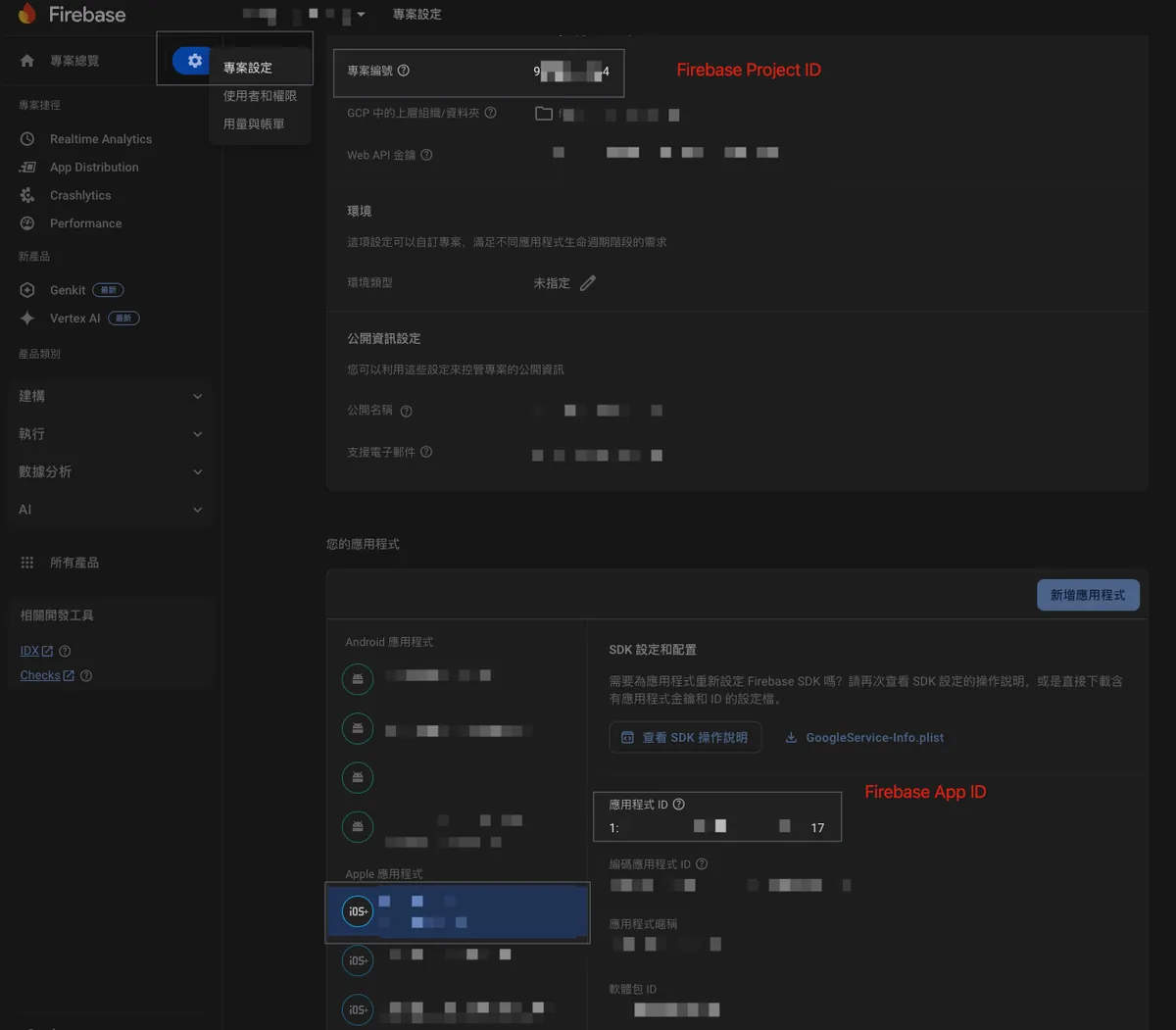
After pasting the code, the first run requires completing the permission authorization.
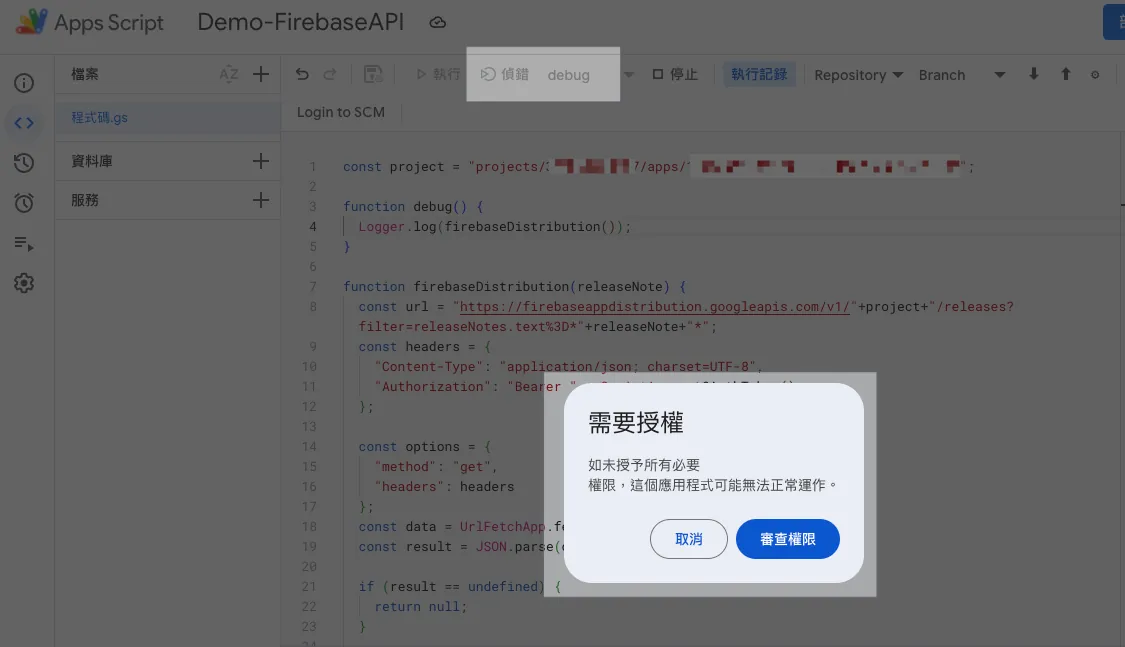
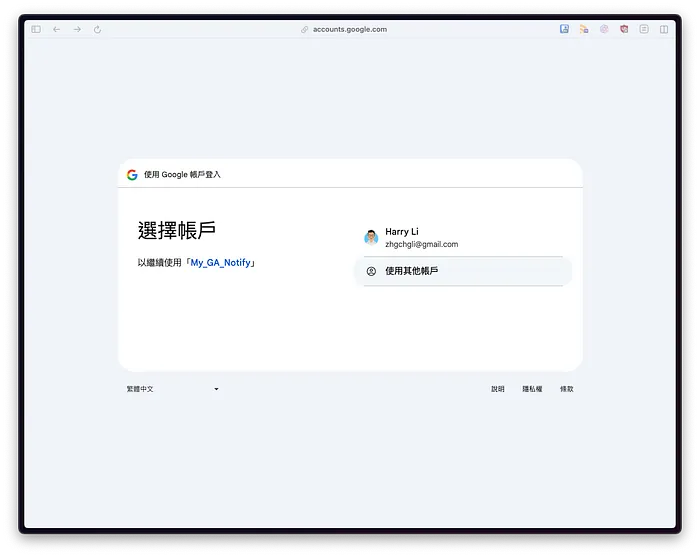
-
Click “Review Permissions”
-
Choose the account to execute, usually the current Google Apps Script account.
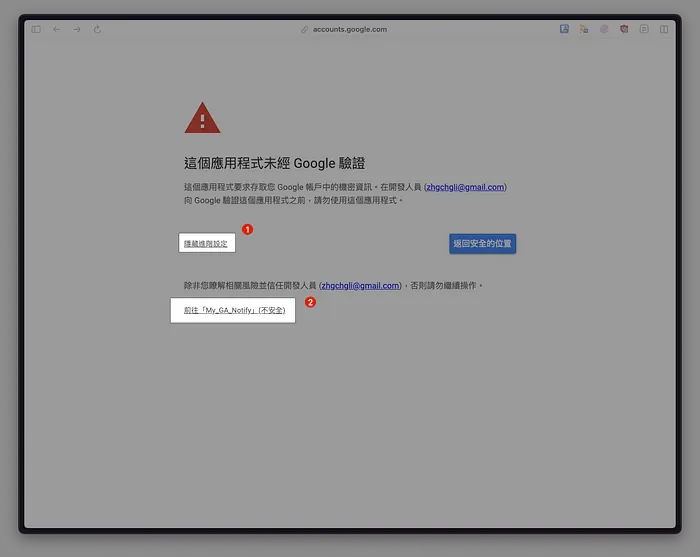
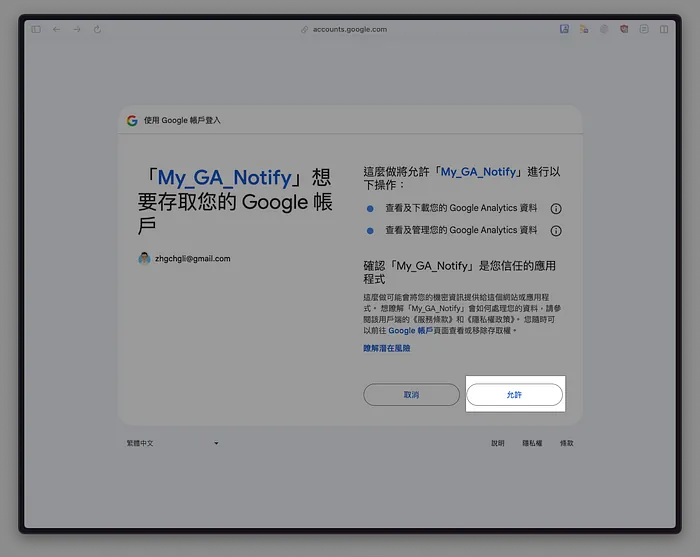
-
Select “Advanced” to expand -> Click “Go to XXX”
This is an app we wrote for our own use and does not require Google verification. -
Click “Allow”
The above screen may not always appear and can be ignored if absent.
Allow running the script later by clicking “Debug” or “Run”:
If an error occurs:
Exception: Request failed for https://firebaseappdistribution.googleapis.com returned code 403. Truncated server response: {
  "error": {
    "code": 403,
    "message": "Request had insufficient authentication scopes.",
    "status": "PERMISSION_DENIED",
    "details":... (use muteHttpExceptions option to examine full response)
...
or
Exception: Specified permissions are not sufficient to call UrlFetchApp.fetch. Required permissions: https://www.googleapis.com/auth/script.external_request
Please ensure that the appsscript.json oauthScopes include the following two entries (refer to Step 2):
"oauthScopes": [
    "https://www.googleapis.com/auth/script.external_request",
    "https://www.googleapis.com/auth/cloud-platform"
  ]
If an error occurs:
Exception: Request failed for https://firebaseappdistribution.googleapis.com returned code 401. Truncated server response: {
  "error": {
    "code": 401,
    "message": "Request had invalid authentication credentials. Expected OAuth 2 access token, login cookie or othe... (use muteHttpExceptions option to examine full response)
Indicates that the GCP project binding is not set (see step 1), or the GCP project has not enabled the Google APIs to be used, or the current account lacks permission for the GCP / Google APIs or the Firebase App. Please check the settings.
If an error occurs:
Exception: Request failed for https://firebaseappdistribution.googleapis.com returned code 404. Truncated server response:
or
Exception: Request failed for https://firebaseappdistribution.googleapis.com returned code 400. Truncated server response: {
  "error": {
    "code": 400,
    "message": "Request contains an invalid argument.",
    "status": "INVALID_ARGUMENT"
  }
}
Please verify if the Google APIs request path is correct.
Integration Successful 🎉🎉🎉
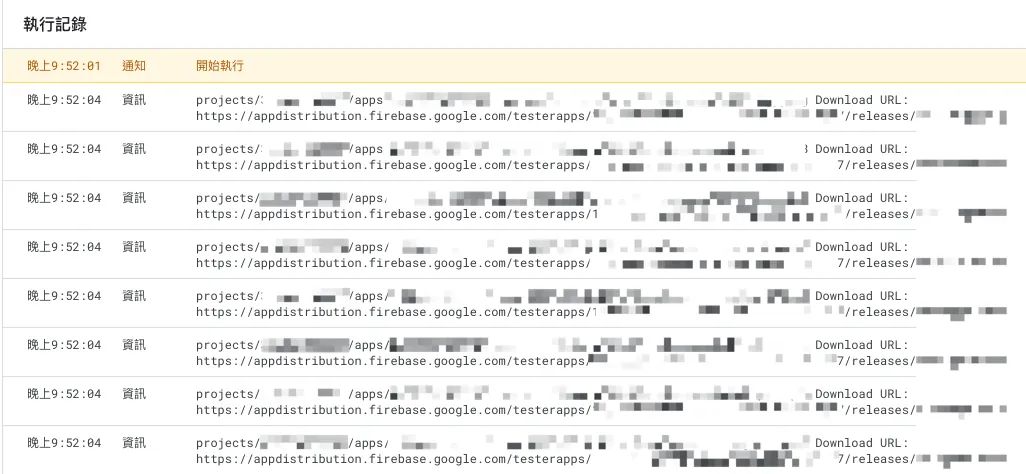
You can see that in less than 10 lines of code, you can seamlessly connect to Google APIs, which is very convenient. For those interested, you can check out the self-implemented authentication token exchange steps when connecting to Google APIs, which are quite complicated in comparison.
Next Steps:
Combined with the previous article “Using Google Apps Script Web App Form to Connect Github Action CI/CD Workflow,” the Firebase App Distribution download link is also displayed on the Web App for colleagues to download directly.
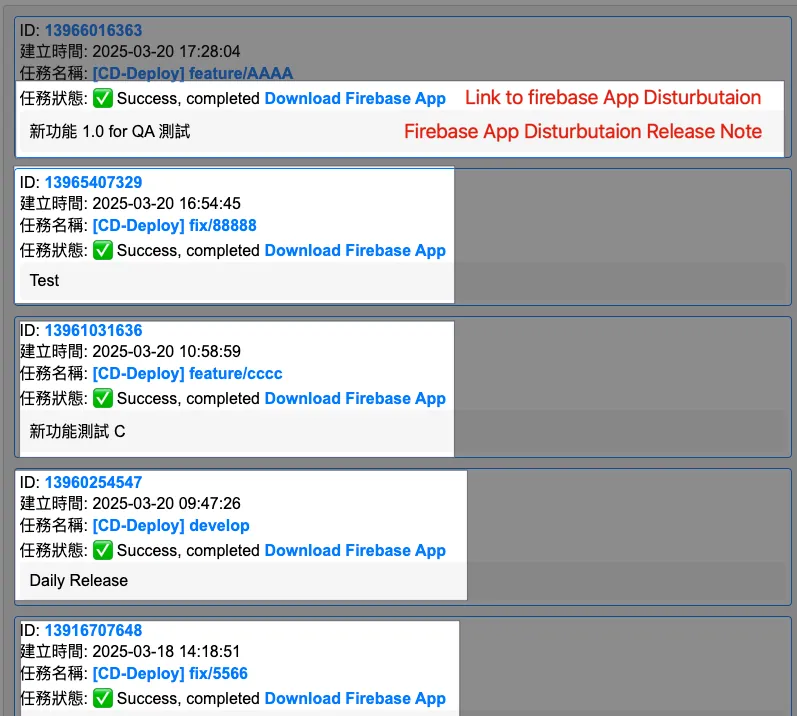
Demo Result
其他 Google APIs 也可以用相同方式串接。
2025/07 Update:
This feature has been integrated into an actual packaging tool. You can refer to the latest case study: “CI/CD Practical Guide (Part 4): Using Google Apps Script Web App to Connect GitHub Actions for Building a Free and Easy Packaging Tool Platform”


Comments