
[重灌筆記1]-Laravel Homestead + phpMyAdmin 環境建置
從 0 到 1 建置 Laravel 開發環境並搭配 phpMyAdmin GUI 管理 MySql 資料庫
最近把 Mac Reset 一遍,紀錄一下重新還原 Laravel 開發環境的步驟。
環境需求
- Vagrant :虛擬環境配置工具
- VirtualBox :免費虛擬機軟體,如果已有購買 Parallels 也可直接使 Parallels(但需要安裝 plug-in )
下載、安裝完這兩個軟體後,繼續下一步設定。
VirtualBox 安裝時會要求要重新開機還有要到「設定」->「安全性與隱私權」->「Allow VirtualBox」才能啟用所有服務。
配置 Homestead 環境
git clone https://github.com/laravel/homestead.git ~/Homestead
cd ~/Homestead
git checkout release
bash init.sh
phpMyAdmin
phpMyAdmin 是一個以PHP為基礎,以Web-Base方式架構在網站主機上的MySQL的資料庫管理工具,讓管理者可用Web介面管理MySQL資料庫。藉由此Web介面可以成為一個簡易方式輸入繁雜SQL語法的較佳途徑,尤其要處理大量資料的匯入及匯出更為方便。 — Wiki
到 phpMyAdmin 官網下載最新版本回來。
解壓縮 .zip -> 資料夾 -> 重新命名資料夾名稱 -> 「phpMyAdmin」:
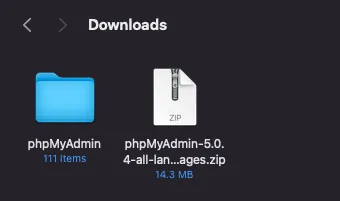
將 phpMyAdmin 資料夾移動到 ~/Homestead 資料夾中:

phpMyAdmin 設定
在 phpMyAdmin 資料夾中找到 config.sample.inc.php ,將其改名為 config.inc.php ,並使用編輯器打開,修改成以下設定:
<?php
/* vim: set expandtab sw=4 ts=4 sts=4: */
/**
 * phpMyAdmin sample configuration, you can use it as base for
 * manual configuration. For easier setup you can use setup/
 *
 * All directives are explained in documentation in the doc/ folder
 * or at <https://docs.phpmyadmin.net/>.
 *
 * @package PhpMyAdmin
 */
declare(strict_types=1);

/**
 * This is needed for cookie based authentication to encrypt password in
 * cookie. Needs to be 32 chars long.
 */
$cfg['blowfish_secret'] = ''; /* YOU MUST FILL IN THIS FOR COOKIE AUTH! */

/**
 * Servers configuration
 */
$i = 0;

/**
 * First server
 */
$i++;
/* Authentication type */
$cfg['Servers'][$i]['auth_type'] = 'config';
/* Server parameters */
$cfg['Servers'][$i]['host'] = 'localhost';
$cfg['Servers'][$i]['user'] = 'homestead';
$cfg['Servers'][$i]['password'] = 'secret';
$cfg['Servers'][$i]['compress'] = false;
$cfg['Servers'][$i]['AllowNoPassword'] = false;

/**
 * phpMyAdmin configuration storage settings.
 */

/* User used to manipulate with storage */
// $cfg['Servers'][$i]['controlhost'] = '';
// $cfg['Servers'][$i]['controlport'] = '';
// $cfg['Servers'][$i]['controluser'] = 'pma';
// $cfg['Servers'][$i]['controlpass'] = 'pmapass';

/* Storage database and tables */
// $cfg['Servers'][$i]['pmadb'] = 'phpmyadmin';
// $cfg['Servers'][$i]['bookmarktable'] = 'pma__bookmark';
// $cfg['Servers'][$i]['relation'] = 'pma__relation';
// $cfg['Servers'][$i]['table_info'] = 'pma__table_info';
// $cfg['Servers'][$i]['table_coords'] = 'pma__table_coords';
// $cfg['Servers'][$i]['pdf_pages'] = 'pma__pdf_pages';
// $cfg['Servers'][$i]['column_info'] = 'pma__column_info';
// $cfg['Servers'][$i]['history'] = 'pma__history';
// $cfg['Servers'][$i]['table_uiprefs'] = 'pma__table_uiprefs';
// $cfg['Servers'][$i]['tracking'] = 'pma__tracking';
// $cfg['Servers'][$i]['userconfig'] = 'pma__userconfig';
// $cfg['Servers'][$i]['recent'] = 'pma__recent';
// $cfg['Servers'][$i]['favorite'] = 'pma__favorite';
// $cfg['Servers'][$i]['users'] = 'pma__users';
// $cfg['Servers'][$i]['usergroups'] = 'pma__usergroups';
// $cfg['Servers'][$i]['navigationhiding'] = 'pma__navigationhiding';
// $cfg['Servers'][$i]['savedsearches'] = 'pma__savedsearches';
// $cfg['Servers'][$i]['central_columns'] = 'pma__central_columns';
// $cfg['Servers'][$i]['designer_settings'] = 'pma__designer_settings';
// $cfg['Servers'][$i]['export_templates'] = 'pma__export_templates';

/**
 * End of servers configuration
 */

/**
 * Directories for saving/loading files from server
 */
$cfg['UploadDir'] = '';
$cfg['SaveDir'] = '';

/**
 * Whether to display icons or text or both icons and text in table row
 * action segment. Value can be either of 'icons', 'text' or 'both'.
 * default = 'both'
 */
//$cfg['RowActionType'] = 'icons';

/**
 * Defines whether a user should be displayed a "show all (records)"
 * button in browse mode or not.
 * default = false
 */
//$cfg['ShowAll'] = true;

/**
 * Number of rows displayed when browsing a result set. If the result
 * set contains more rows, "Previous" and "Next".
 * Possible values: 25, 50, 100, 250, 500
 * default = 25
 */
//$cfg['MaxRows'] = 50;

/**
 * Disallow editing of binary fields
 * valid values are:
 *   false    allow editing
 *   'blob'   allow editing except for BLOB fields
 *   'noblob' disallow editing except for BLOB fields
 *   'all'    disallow editing
 * default = 'blob'
 */
//$cfg['ProtectBinary'] = false;

/**
 * Default language to use, if not browser-defined or user-defined
 * (you find all languages in the locale folder)
 * uncomment the desired line:
 * default = 'en'
 */
//$cfg['DefaultLang'] = 'en';
//$cfg['DefaultLang'] = 'de';

/**
 * How many columns should be used for table display of a database?
 * (a value larger than 1 results in some information being hidden)
 * default = 1
 */
//$cfg['PropertiesNumColumns'] = 2;

/**
 * Set to true if you want DB-based query history.If false, this utilizes
 * JS-routines to display query history (lost by window close)
 *
 * This requires configuration storage enabled, see above.
 * default = false
 */
//$cfg['QueryHistoryDB'] = true;

/**
 * When using DB-based query history, how many entries should be kept?
 * default = 25
 */
//$cfg['QueryHistoryMax'] = 100;

/**
 * Whether or not to query the user before sending the error report to
 * the phpMyAdmin team when a JavaScript error occurs
 *
 * Available options
 * ('ask' | 'always' | 'never')
 * default = 'ask'
 */
//$cfg['SendErrorReports'] = 'always';

/**
 * You can find more configuration options in the documentation
 * in the doc/ folder or at <https://docs.phpmyadmin.net/>.
 */
主要是新增修改這三項設定:
$cfg['Servers'][$i]['auth_type'] = 'config';
$cfg['Servers'][$i]['user'] = 'homestead';
$cfg['Servers'][$i]['password'] = 'secret';
homestead 預設 mysql 帳號密碼
homestead/secret。
配置 Homestead 設定
用編輯器打開 ~/Homestead/Homestead.yaml 設定檔。
---
ip: "192.168.10.10"
memory: 2048
cpus: 2
provider: virtualbox

authorize: ~/.ssh/id_rsa.pub

keys:
    - ~/.ssh/id_rsa

folders:
    - map: ~/Projects/Web
      to: /home/vagrant/code
    - map: ~/Homestead/phpMyAdmin
      to: /home/vagrant/phpMyAdmin

sites:
    - map: phpMyAdmin.test
      to: /home/vagrant/phpMyAdmin

databases:
    - homestead

features:
    - mysql: false
    - mariadb: false
    - postgresql: false
    - ohmyzsh: false
    - webdriver: false

#services:
#    - enabled:
#        - "postgresql@12-main"
#    - disabled:
#        - "postgresql@11-main"

# ports:
#     - send: 50000
#       to: 5000
#     - send: 7777
#       to: 777
#       protocol: udp
IP: 預設是192.168.10.10可改可不provider:預設是virtualbox,如果用 Parallels 才需要改folders:新增- map: ~/Homestead/phpMyAdmin to: /home/vagrant/phpMyAdmin
sites:新增- map: phpMyAdmin.test to: /home/vagrant/phpMyAdmin
如果已經有 Laravel 專案也可以一併在此新增,例如我專案都放在 ~/Projects/Web 下,所以我也先把目錄映射加上去。
sites 是設定本機虛擬網域與目錄映射,我們還需要修改本地 Hosts 檔增網域虛擬機映射:
使用 Finder -> Go -> /etc/hosts ,找到 hosts 檔案;複製到桌面(因無法直接修改)
網域名稱可隨意自訂,反正只有自己本機可以 Access。
打開複製出來的 Hosts 檔案,增加 sites 紀錄:
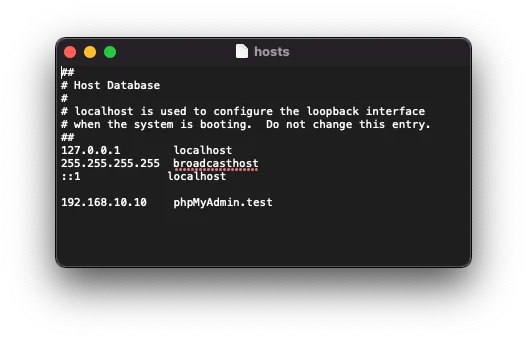
<homestead IP 位置> <網域名稱>
修改好之後儲存,然後再剪下貼回 /etc/hosts ,覆蓋掉即可。
安裝&啟動 Homestead Virtual Machine
cd ~/Homestead
vagrant up --provision
⚠️請注意 ,如果沒加
--provision則設定檔不會更新,輸入網址會出現no input file specified錯誤。
第一次啟動,需要下載 Homestead 環境包,需要較長的時間。
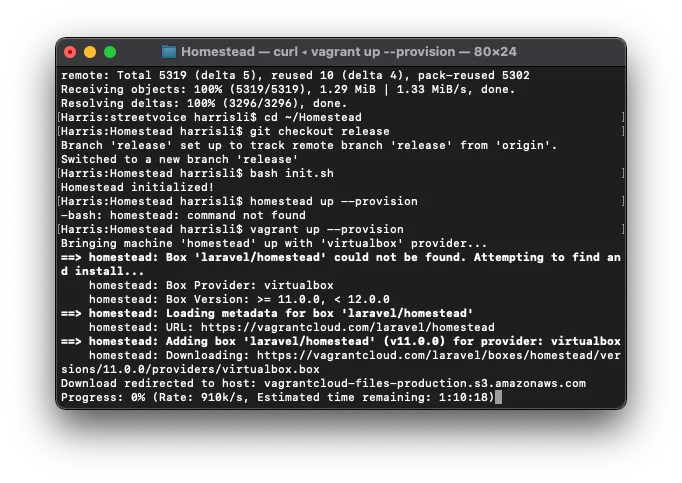
如果沒有出現特別的錯誤即表示啟動成功,可以下:
vagrant ssh
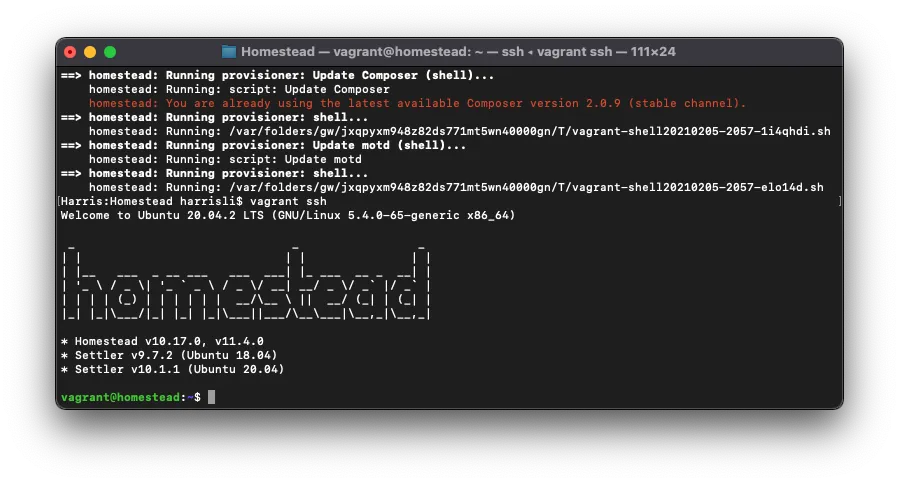
ssh 進入虛擬機。
檢查 phpMyAdmin 是否正確連線
前往 http://phpmyadmin.test/ 檢查是否正常開啟。
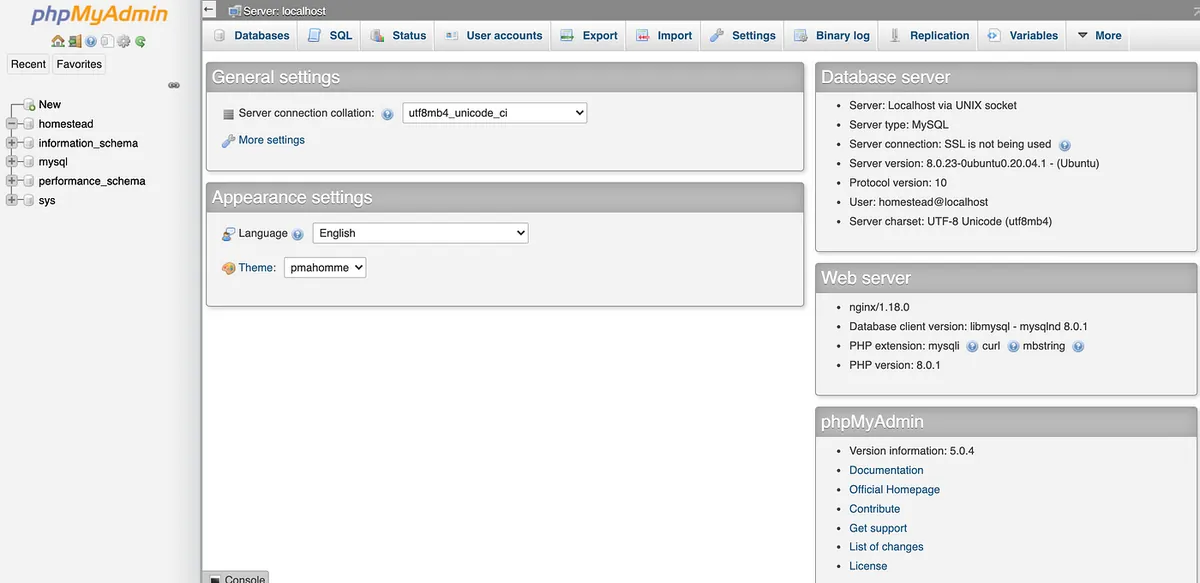
成功!我們遇到要操作資料庫的地方,直接進來這邊修改即可。
新建 Laravel 專案
如果你有已存在的專案,到這一步已經可以從瀏覽器在本地運行了,如果沒有,這邊補充一下新建 Laravel 專案的方式。
~/Homestead
vagrant ssh
vagrant ssh 進 VM,然後 cd 到 code 目錄:
cd ./code
下 laravel new 專案名稱,建立 Laravel 專案:(以 blog 為例)
laravel new blog
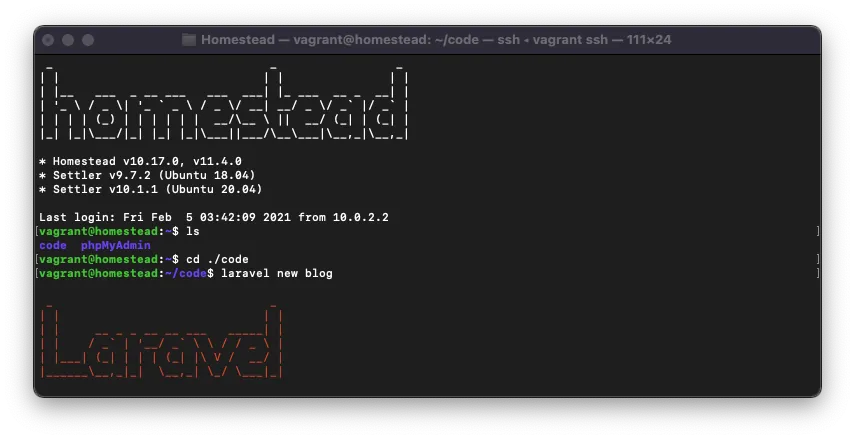
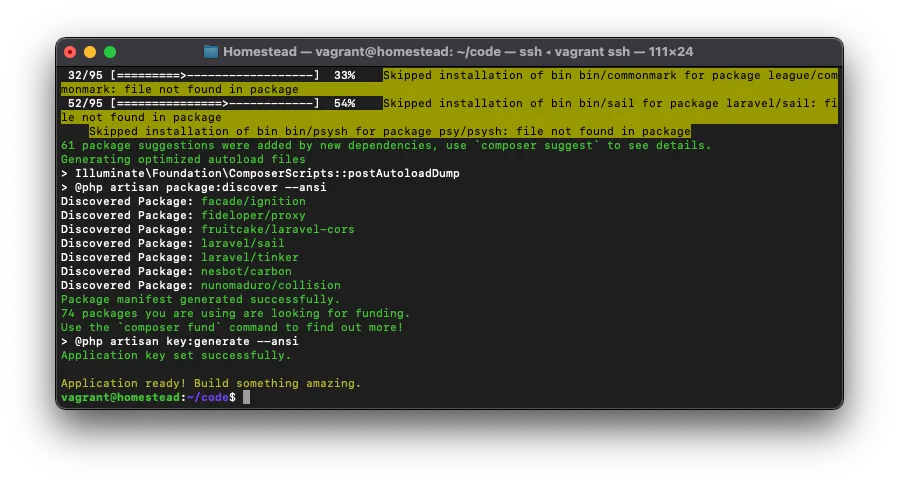
blog 專案建立成功!
再來我們要將專案設定本機器存取測試網域:
回頭打開編輯 ~/Homestead/Homestead.yaml 設定檔。
在 sites 中新增一筆紀錄:
sites:
  - map: myblog.test
  to: /home/vagrant/code/blog/public
記得 hosts 也要加上對應紀錄:
192.168.10.10. myblog.test
最後重啟 homestead:
vagrant reload --provision
在瀏覽器輸入 http://myblog.test 測試是否正確建立&運行:
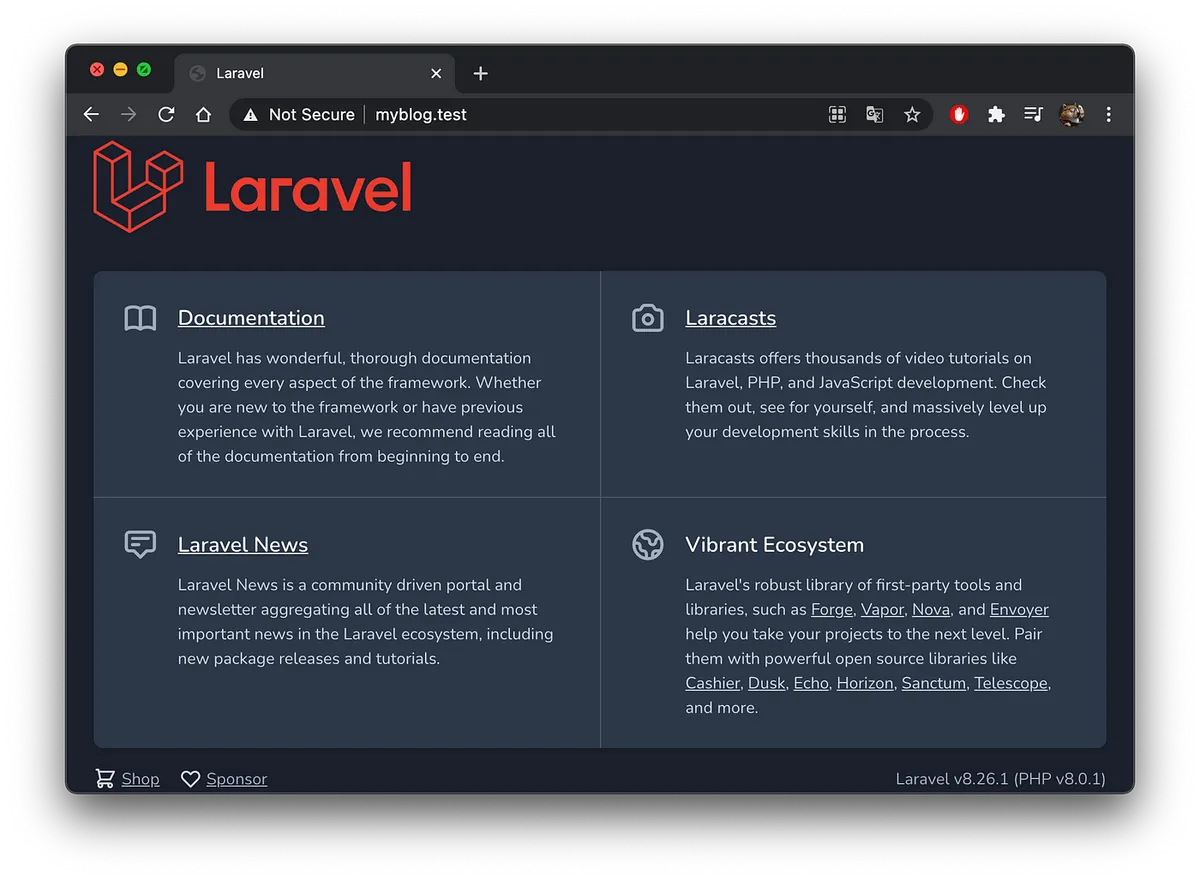
完成!
補充 — Mac 安裝 Composer
雖然已經有用 Homestead 可以不需要另外裝 Composer,但考慮到有的 PHP 專案並不一定使用 Laravel 所以還是要在本機上安裝 Composer。

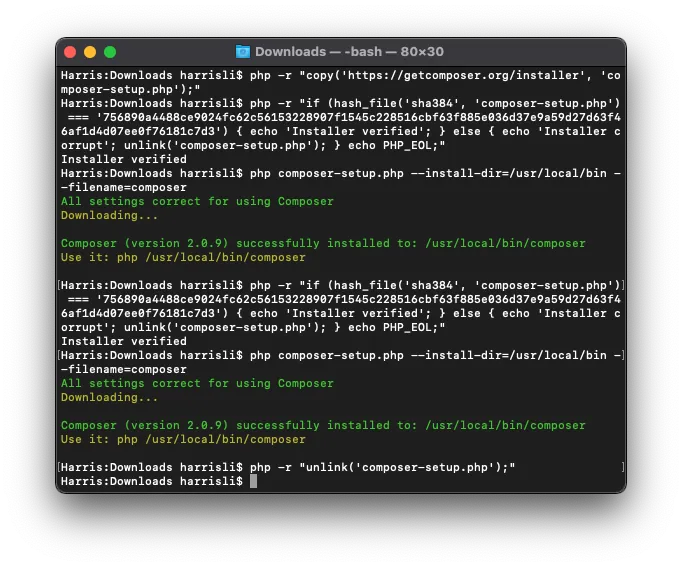
複製下載區段的指令,將 php composer-setup.php 替換為:
php composer-setup.php - install-dir=/usr/local/bin - filename=composer
Composer v2.0.9 範例:
php -r "copy('https://getcomposer.org/installer', 'composer-setup.php');"
php -r "if (hash_file('sha384', 'composer-setup.php') === '756890a4488ce9024fc62c56153228907f1545c228516cbf63f885e036d37e9a59d27d63f46af1d4d07ee0f76181c7d3') { echo 'Installer verified'; } else { echo 'Installer corrupt'; unlink('composer-setup.php'); } echo PHP_EOL;"
php composer-setup.php --install-dir=/usr/local/bin --filename=composer
php -r "unlink('composer-setup.php');"
並依序在 terminal 輸入指令。
⚠️請注意 ,不要直接複製使用以上範例,因為隨著 Composer 版本更新 hash check 碼也會跟著變。
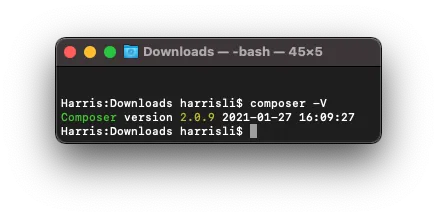
輸入 composer -V 確認版本&安裝成功!

留言 · Comments