
[Productivity Tool] Ditching Chrome for the Sidekick Browser
Introduction to Sidekick Browser Features & User Experience
2024 Update
Around early 2023, I switched to using Arc browser! The experience and features are better, with fewer bugs and support for cross-device sync.
Here’s a link to download Arc, the browser I was telling you about!
Introduction
I learned about the Sidekick browser from a colleague’s recommendation. Honestly, I didn’t have high expectations at first. Over the past few years, I’ve considered ditching Chrome and tried Safari, Safari Technology Preview, Firefox, Opera, and other third-party browsers based on open-source cores. But I kept failing and almost always ended up reinstalling Chrome after just a few days. Another reason is that I haven’t actively followed the browser market, so maybe there was already a browser that met my needs—I just didn’t know about it.
Reasons for Failure
The main reason is that the extensions I frequently use are not fully supported. I’m too reliant on and accustomed to Chrome’s extensions. Secondly, even though the Chromium core allows painless support, the features are not particularly outstanding and the experience is similar to using Google Chrome.
My Needs
-
Chromium core, because it needs to support the extensions I frequently use
-
More features to help boost productivity
-
Supports MacOS. I usually use Safari on iOS, so I don’t require cross-device support.
-
Excellent memory management
-
Enhanced privacy and anti-tracking
-
Effortless migration feature
Regarding productivity features, Chrome extensions offer tens of millions of tools to use, and you can search and combine them to achieve results; however, we haven’t conducted any research or surveys, so honestly, we’re not sure which workflows and features truly boost productivity.
About Sidekick
-
Development Team: Sidekick startup team founded in 11/2020 @ San Francisco / Currently fundraising
-
Browser Core: Chromium
-
Current Stage: early access
-
Core Value: A browser designed specifically to optimize workflows and boost productivity
-
Supported platforms: Windows, Mac OS, Mac OS (M1), Linux (deb), Linux (rpm)
-
Extensions: Supports all Chrome Store extensions (bitwarden, lastpass, 1password, grammarly, google translate…)
-
Official website: www.meetsidekick.com
Download and Start Using Immediately
-
Click “Download Now”
-
Choose the version that matches your operating system
-
Download & complete the installation
-
Open Sidekick
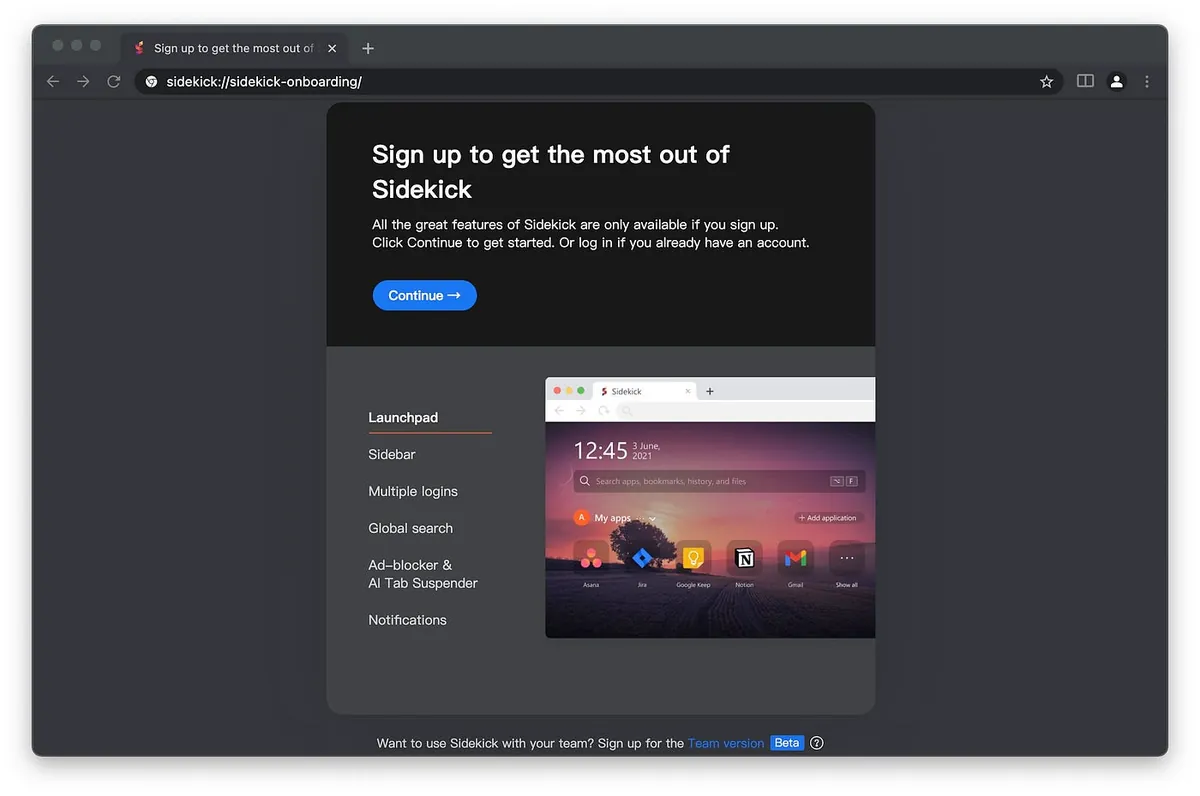
The Sidekick introduction page appears. Click “Continue” at the top to proceed.
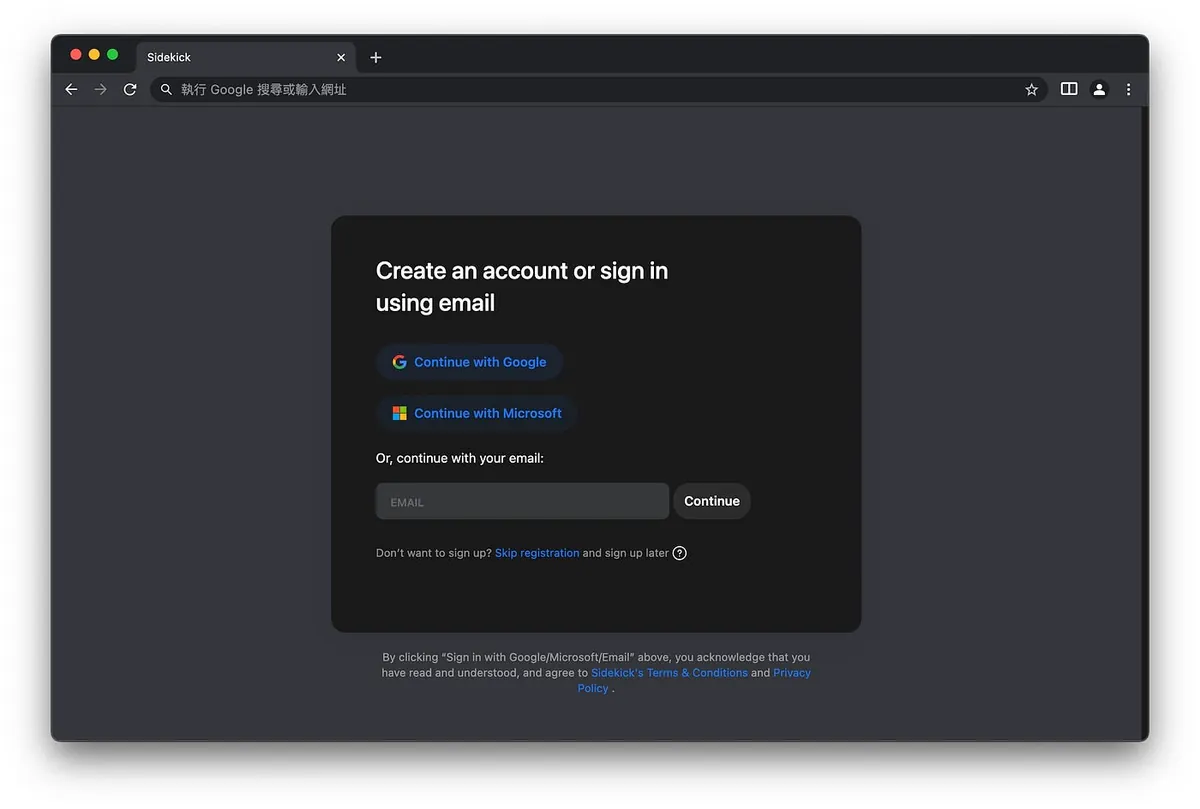
Use Google, Microsoft, or create a Sidekick account directly; this account is for Sidekick services and is not related to Google or Microsoft.
⬇️⬇️⬇️ If you are switching from Chrome to Sidekick, please read this entire section before creating an account ⬇️⬇️⬇️
Unlike Chrome, which binds and syncs browser data directly with your Google account upon login; you’ll find that after logging into Sidekick, no data is imported. This is because Google currently blocks all third-party services from accessing sync features, so Sidekick cannot sync or import data directly through your account.
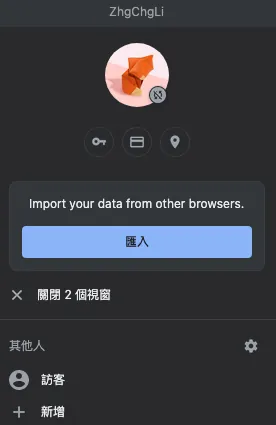
User account information cannot be synced with Google accounts either.

Sidekick Sync Settings: Only Poor Search Terms Are Synced
How to import data from Chrome?
The official method is very roundabout, but for now, it’s the only way.
If you are already a Chrome user, you can skip steps 1 to 3.
-
Download & Install Chrome
-
Sign in to Chrome
-
Complete syncing browser data from Google account to Chrome
-
Completely close Chrome (! Important ! MacOS users please make sure there is no small dot below the Chrome icon in the Dock)
-
Continue from the previous step to create an account
-
When you create an account for the first time, it will ask you which browser you want to import data from.
-
Choose Chrome
-
Wait for the import to complete
After importing, all bookmarks, browsing history, saved passwords, logged-in website sessions, and extensions are seamlessly transferred to Sidekick; only a few services require re-login, while the rest do not—truly a painless migration!
There is a small issue here: if you don’t create a new account (e.g., reinstall), you can only import bookmarks, browsing history, and saved passwords; extensions cannot be imported automatically. According to the official Q&A, you have to reinstall extensions yourself from the Chrome extension / app store.
Sync Issues?
Since Google blocks third-party access to cloud data, how can the bookmark sync issue across devices be resolved?
Sidekick will soon release Sidekick Sync to solve this issue .
This article uses my personal computer, not a work device; therefore, social and entertainment websites are mixed in. Please kindly understand.
Features
Seamless Migration
As mentioned in the installation steps, after opening and creating an account for the first time, you can seamlessly transfer all bookmarks, browsing history, saved passwords, logged-in website sessions, and extensions from existing Safari, Chrome, or Edge browsers.
Logged-in website sessions and extensions provide the best experience in my opinion. Previous browsers only transferred bookmarks, but you had to log in to all websites again and reinstall all extensions, which was very frustrating.
Powerful Home Page Features
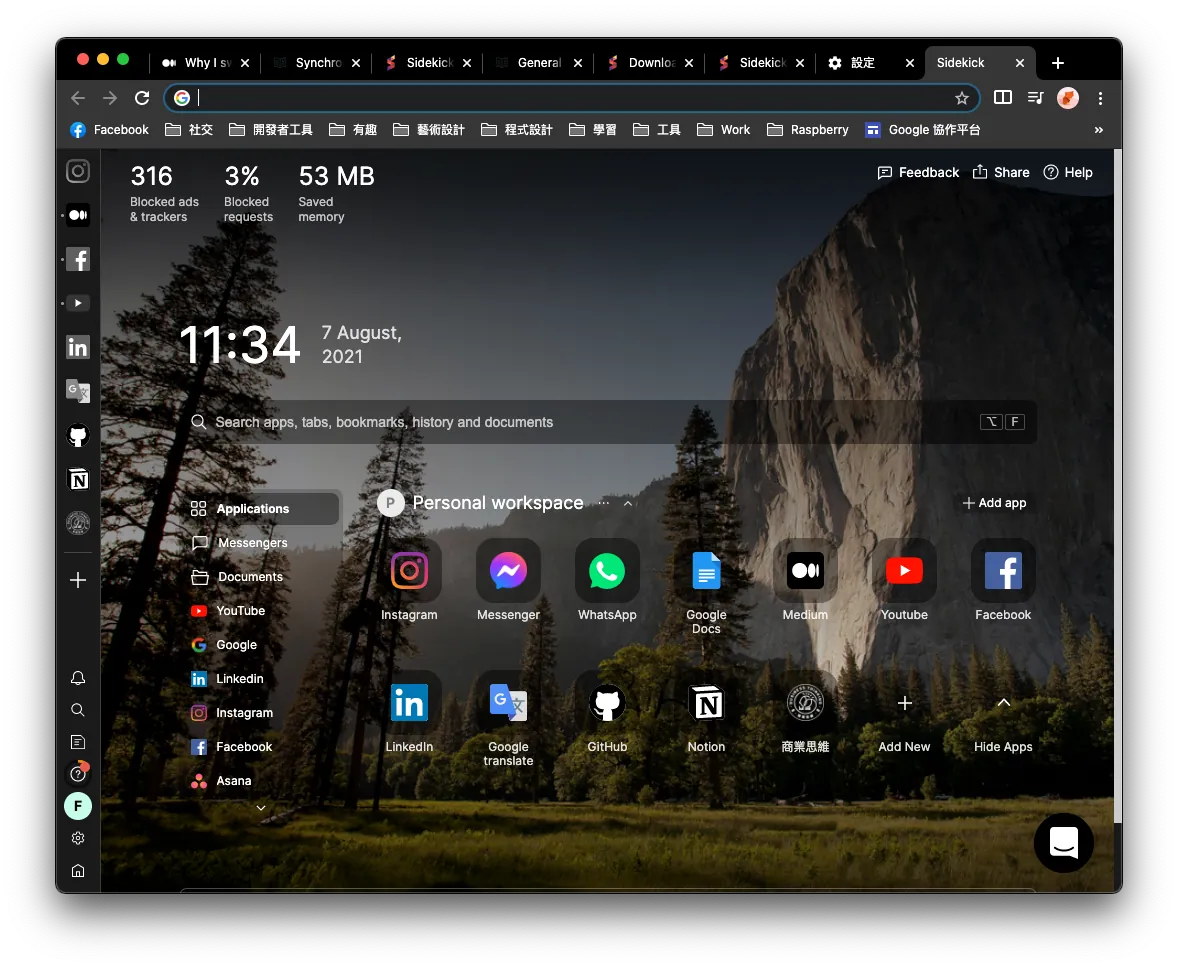
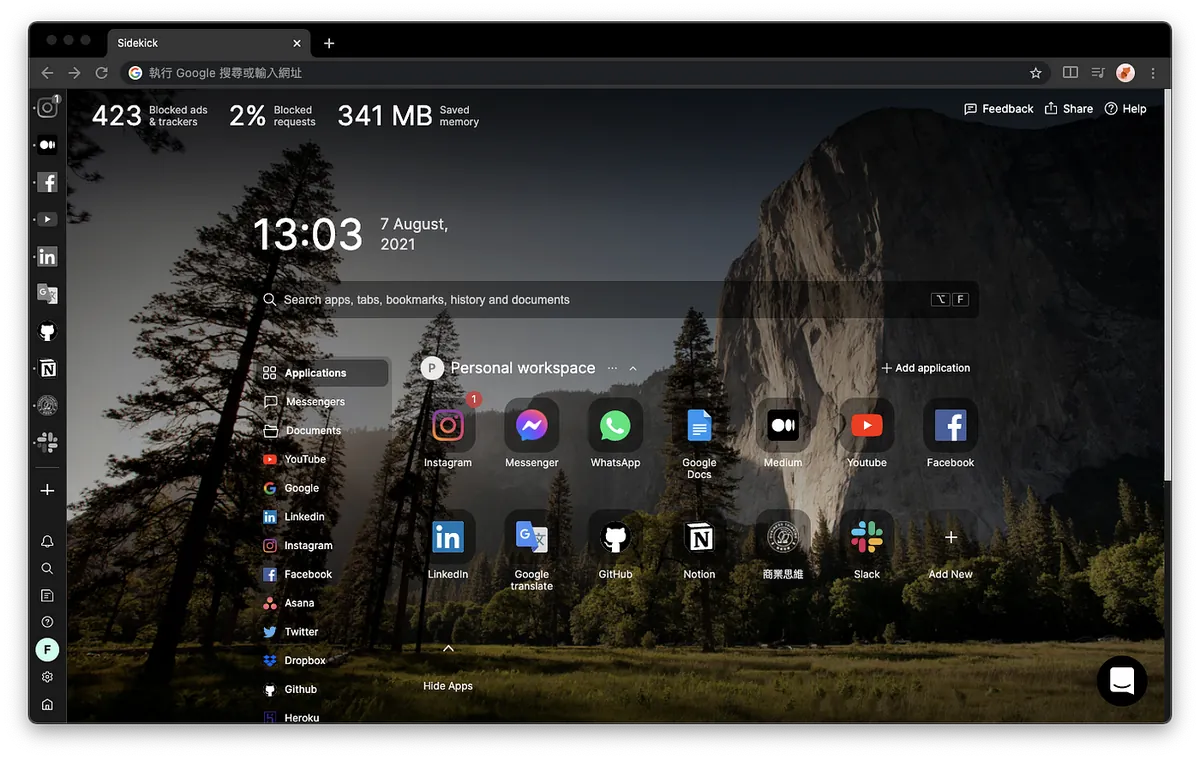
Unlike Chrome’s monotonous homepage, Sidekick comes with a beautiful and convenient built-in homepage, so you don’t need to spend time finding a homepage solution.
-
The search box can search browsing history and bookmarks; if no results are found, it automatically switches to Google search.
-
The top left corner shows data on anti-tracking, memory management, and ad-blocking status.
-
Displays today’s date and current time.
-
The top section is called the Tab, and the upper part of the left toolbar is called the Application.
-
The homepage background image can be customized or set to automatically display scenic photos.
Application Feature
Not just a quick access to websites, the Application feature works like the MacOS Dock. When an Application site is active, it stays resident in the browser (indicated by a small dot on the left) while managing memory efficiently. If the active site has notifications, it will show a numbered badge as an alert.
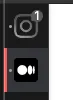
Applications can be quickly added from the homepage, created from a tab, or manually added by entering the URL and ICON image.
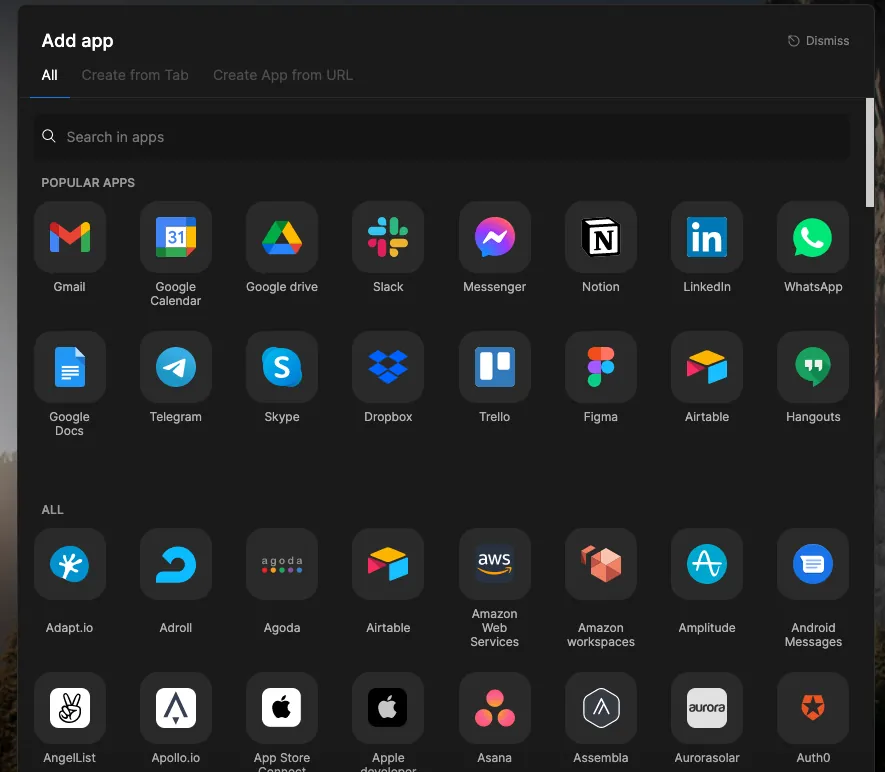
Sidekick has built-in support for hundreds of productivity tool websites, allowing quick addition to Applications.
If an Application added from the homepage doesn’t appear in the left Sidebar, you can drag it there manually.
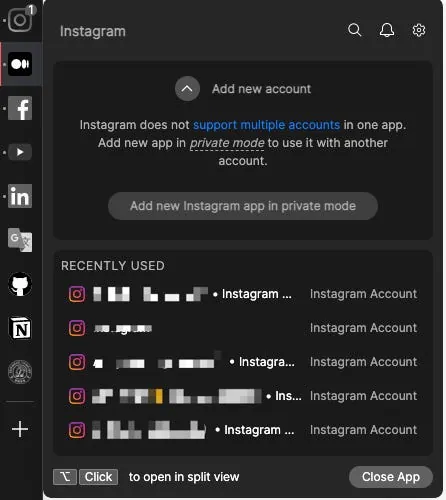
Right-clicking on an Application allows quick access to recent browsing, and it also supports multiple account switching.
Not many websites support multi-account switching; for unsupported sites, you can use Private Mode. Currently, Slack and Notion are supported.
- The Application section on the left and the Tabs at the top do not affect each other. The Application area is independent and does not appear in the top Tabs.
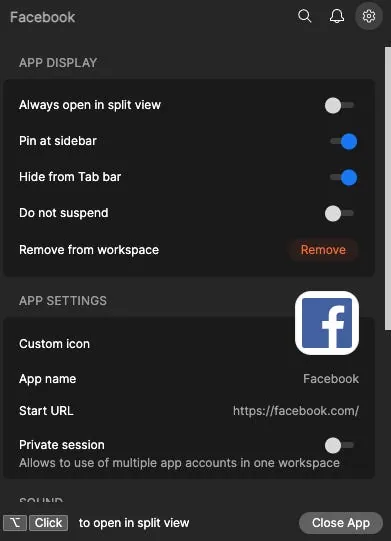
Each app can be configured individually, such as turning off notifications or disabling badges.
Window Split Feature
Although MacOS has a built-in window split feature, I rarely use it; unless I want to fully focus. Most of the time, I need to view web content side-by-side while using other MacOS apps, so the browser’s split window function is very useful!
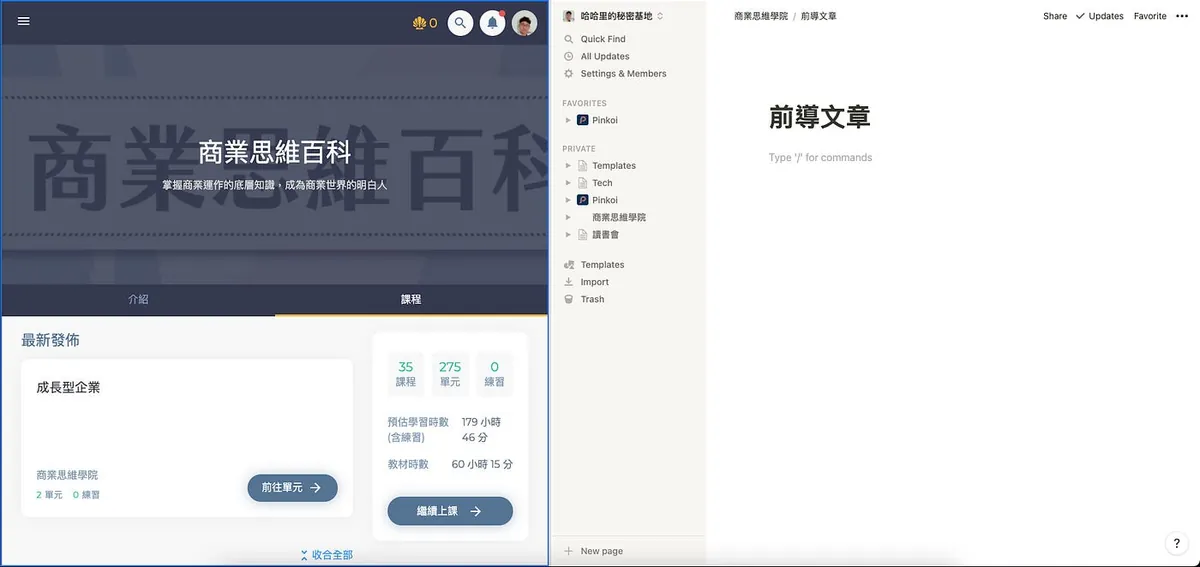
For example, this allows you to attend online classes and take notes at the same time.
The divider size in the middle can be freely dragged and adjusted.
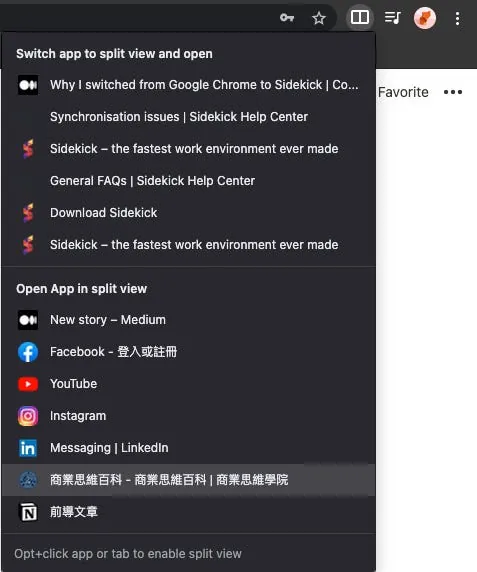
How to use: simply click the split window button at the top right of the browser, select the window to add to the left side, and click again to close the split.
Spotlight Feature
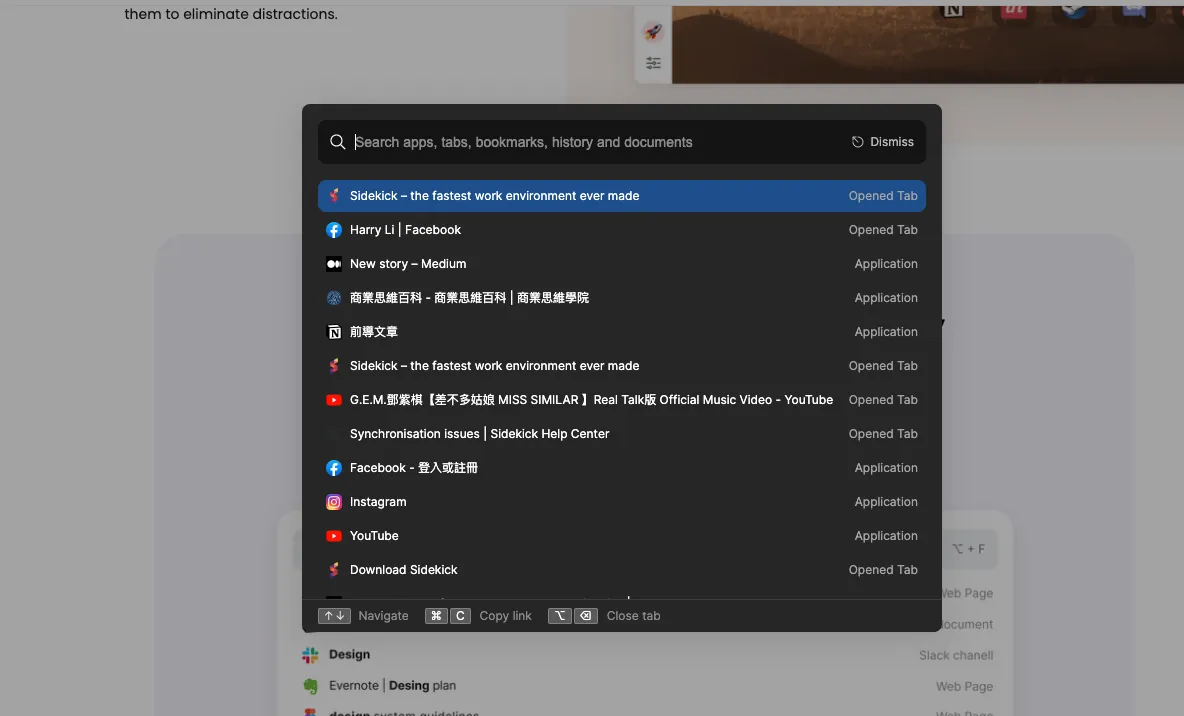
Similar to macOS Spotlight, you can press “Option” + “f” in any window to perform a full browser search.
-
You can use “Option” + “z” or “Control” + “tab” to quickly switch between tabs.
-
“Option” + “1–9” quickly switches to tabs in positions 1 to 9
Tab Saver (Save Sessions) Feature
Like the popular Tab Saver extension on Chrome, it allows you to quickly save currently open tabs and switch between them, making it easier to manage different work states.
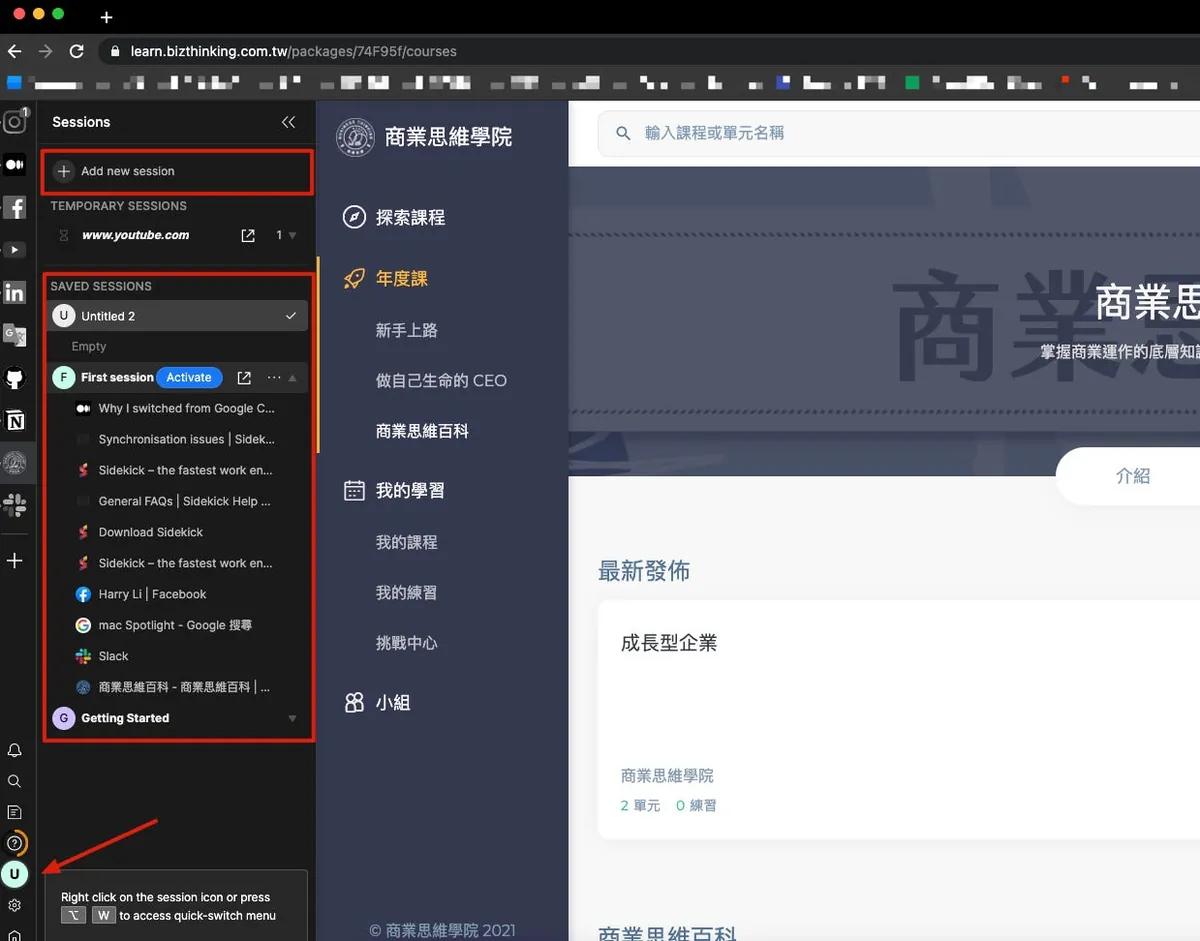
Click the “F” (First Session) at the bottom left to enter the Session management page.
Click “Add new session” above to save the current tab state and open a fresh, clean browsing environment.
You can switch between Sessions and click “Activate” to restore the Tabs.
Sessions do not affect the active Application on the left.
-
You can quickly switch sessions using the shortcut “Option” + “W”.
-
“Option” + “⬆️” + “W” for Session Management
Excellent Application Notification Feature
In fact, from now on, any web-based communication service can be used directly through the Sidekick Application without needing to install a separate desktop app. As mentioned earlier, the Application’s notification feature works just like a desktop app, providing real-time and complete alerts.
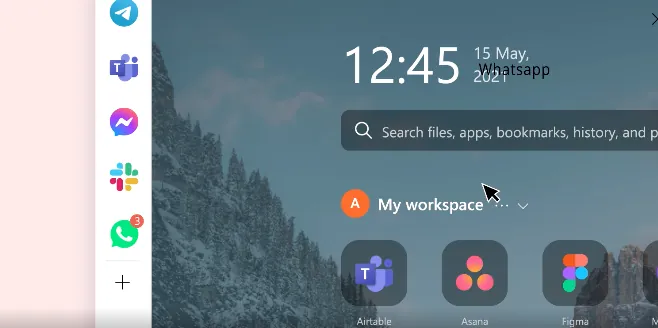
- Remember to authorize Sidekick to send desktop notifications; this way, web notifications will pop up on your computer.
Note-taking Feature
Built-in integration with Google Keep cloud notes allows you to quickly open Google Keep for note-taking by clicking the document icon at the bottom left.
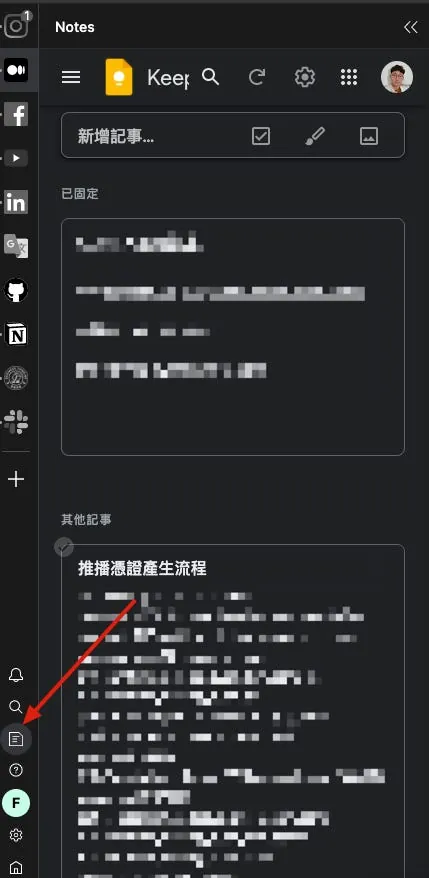
Google Keep is stored in the cloud via Google Account, supporting cross-platform and cross-device note syncing and access.
You can use this feature to quickly record notes.
Not sure if they will switch to their own Sidekick Sync in the future, as that would allow better optimization and integration.
- You can quickly switch Sessions using the shortcut “Option” + “N”.
Built-in Anti-Tracking, Ad-Blocking, and Memory Management Features
With the rise of the privacy wave, major companies are gradually focusing on user privacy, with Apple as the main leader. The new Safari also includes built-in privacy protection features. However, as the biggest beneficiary of privacy data through Google Ads, I think it will be hard to see changes in Google Chrome.
Chromium != Chrome, Chromium is the open-source project that forms the core technology of the browser.
Although Chromium is also led by Google, its open-source nature allows any developer to optimize based on its core; Sidekick uses this approach to improve upon Chromium, retaining Chrome’s features while enhancing the functions Chrome lacks.

Details
-
For dual monitor users, you can also drag a tab into a separate window; the separate window will not have the toolbar on the left.
-
Supports all Chrome extensions, available for direct download from the store
More features await your exploration and experience!
Cost
“Not making a profit as a business is a sin (If you don’t make money, it’s a sin against society because we use society’s funds and talent. Without sufficient profits, we waste valuable social resources that could be used more effectively elsewhere.)” - Panasonic Founder — Konosuke Matsushita (Text referenced from Business Mind Academy)
A good product needs a healthy cash flow to provide better services and sustain long-term; below are Sidekick’s pricing details:
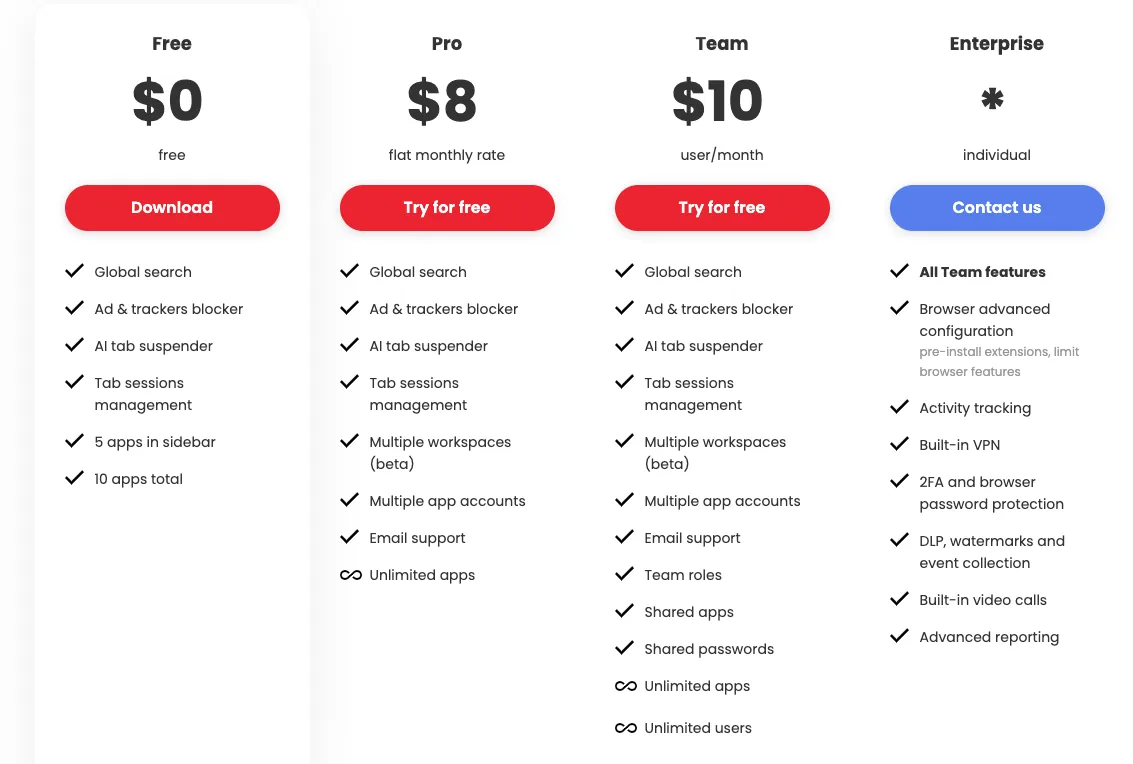
For personal use, the free plan is more than enough, but if you can, consider supporting the development team!
-
Currently, all users who joined are on the Early Access plan, which seems unaffected by the Free plan (I have more than 5 Sidebar apps without any issues).
-
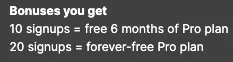
Currently offering a plan to invite 10 users for 6 months of Pro / invite 20 users for lifetime Pro; so if you like this article, you can download and install via the in-article link to support me and Sidekick!
Summary of User Experience
After using it for a while, thanks to the painless migration, I have completely abandoned Chrome. There’s nothing that absolutely requires me to go back to Chrome. The best feature is still the Applications on the left, where you can add frequently used work websites for quick switching and receiving the latest notifications.
I used to get lost in a chaotic mess of tabs or could only use Pin Tab to keep important work services fixed at the front; but switching between them was still painful and required searching.
Now when I do a code review, I just click Github; when I submit an app for review, I click App Store Connect; when I check projects, I click Asana. It makes work very efficient.
Regarding memory management, I haven’t done specific research or testing; I’m not sure about the optimization effects, but having it is better than not.
The only concern is that this product is still very new, and it’s uncertain how far it will go; if mismanaged, development and maintenance might stop, which would be a great loss! So please help promote and support it!
Comments