
Simple 3 Steps — Build a Free GA4 Automated Data Notification Bot
Using Google Apps Script for RPA: Connecting GA4 + Telegram Bot Data Notification Robot by Yourself

Photo by BoliviaInteligente
Introduction
Since around 2020, I have been exploring how to use available tools to implement RPA. Initially, it was just to automate personal routine tasks. Later, at work, I joined larger organizations and often encountered cross-team or person-dependent tasks, as well as repetitive tasks. That’s when I realized the true benefits of RPA automation.
For example: a repetitive task occurs 10 times a month, each time taking 30 minutes to handle, and 60 people are involved. The team spends 3,600 hours per year on this. If 100 hours are invested to develop automation, the time saved afterward can be used for more valuable work; effectively, 3,600 hours of wasted labor plus 3,600 hours of more worthwhile output.
For more details, please refer to my previous article:
Other RPAs I Have Done:
-
[GMail to Slack] Forward Gmail Messages to Slack Using Google Apps Script
-
[Google Form x Google Sheet x Slack] Create a Fully Automated WFH Employee Health Status Reporting System with Slack
-
[Big Query x Slack ] Crashlytics + Big Query: Building a More Real-Time and Convenient Crash Tracking Tool
-
[Google Analytics x Slack] Crashlytics + Google Analytics Automatic Query for App Crash-Free Users Rate
-
[Github Webhook x Line Notify] Create a Free Github Repo Star Notifier in 3 Steps Using Google Apps Script
-
[Slack x OpenAI (ChatGTP)] Slack & ChatGPT Integration
-
[Google Analytics x Google Sheet] Automate Daily Data Reports with Google Apps Script RPA
-
[iOS Shortcut x Line x Reminders] iOS Shortcut Automation Use Case — Auto Forward SMS and Auto Create Reminder Tasks
-
[Apple Store API x Google Play Console API x Github Action] Github Action x ZReviewTender Free and Fast Deployment of Your App Store Review Monitoring Bot
-
[Telegram Bot] 10-Minute Quick Migration from Line Notify to Telegram Bot Notifications
-
[Medium to Jekyllrb] Effortlessly Migrate Medium to a Self-Hosted Website
From the backend data, many articles have been indexed by ChatGPT and various GenAI services, indirectly helping many non-engineers who want to try using RPA to solve problems. Therefore, I will continue to share RPA scenarios from my life and work, along with my solutions — ZRealm Robotic Process Automation.
Commercial Time
If you and your team need automation tools or process integration, whether it’s Slack App development, Notion, Asana, Google Sheets, Google Forms, GA data, or any other integration needs, feel free to contact me for development.
This Article: Google Analytics 4 x Telegram Bot
This integration scenario follows the previous article “10-Minute Quick Migration from Line Notify to Telegram Bot Notifications”. I realized that my Medium backup site “zhgchg.li” has not been monitored for GA4 website data. So, I thought of creating a notification bot to send the past 7 days’ website data daily to a specified Telegram Channel to keep me informed.
This article is just a brief note. For a complete automated data report, please refer to the previous article “Using Google Apps Script to Implement Daily Data Report RPA Automation”.
Also, a previous article on fetching GA4 App Crash-free rate can be found here: “Crashlytics + Google Analytics Automatic Query for App Crash-Free Users Rate”.
-
The free limits, detailed usage, deployment, and features of Google Apps Script will not be further explained in this article. Please refer to the previous article.
-
Creating and using a Telegram Bot will not be further explained in this article. Please refer to the previous article.
Results
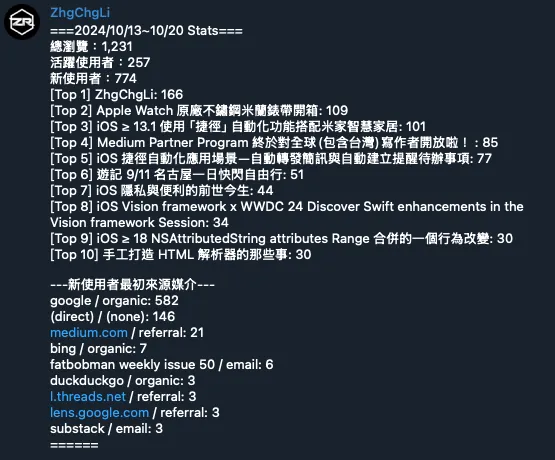
First, the final result: Google Apps Script automatically fetches my desired Google Analytics 4 website data between 12–1 PM every day, formats it into a message, and sends it to my Telegram Channel via a Telegram Bot. I can quickly review the website data from the past 7 days.
The data I want to monitor is:
-
Total page views
screenPageViewsin the last 7 days7daysAgo ~ today -
Active Users
active7DayUsers -
New Users
newUsers -
Top 10 Page Views
screenPageViews/pageTitle -
New Users Initial Source Medium
newUsers/firstUserSourceMedium
You can customize and generate queries according to your own needs using GA Dev Tools.
Step 1. Use the GA4 Query Explorer official tool to generate data report query parameters
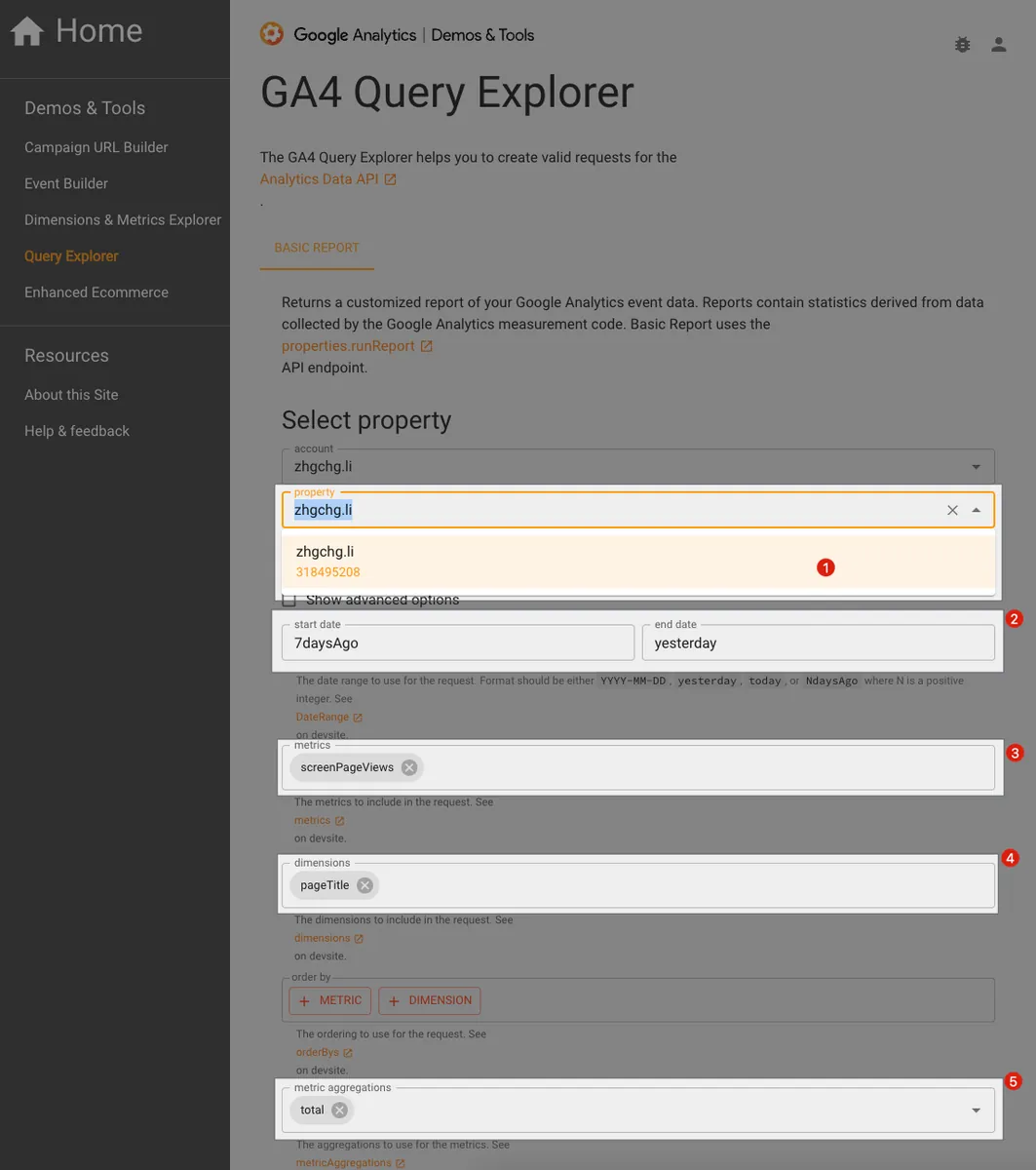
First, we need to use the official GA4 Query Explorer tool to generate the query parameters for the data report we need:
-
Select Property: Note down your
property ID
The property ID will be used later when writing the Google Apps Script. -
start date, end date: The date range for the report, can use
YYYY-MM-DDor the magic variablesyesterday,today,NdaysAgo. -
metrics: Choose the metrics you want to query
-
dimensions: Select the dimensions you want to query
-
metric aggregations: Data aggregation rules
Here is an example based on my scenario:
-
property ID:
318495208 -
start_date:
7daysAgo -
end_date:
yesterday
Because GA data reports have a delay, querying data from the previous day to seven days ago is the most accurate. -
metric aggregations:
total
Other filters and limits can be set according to your needs:
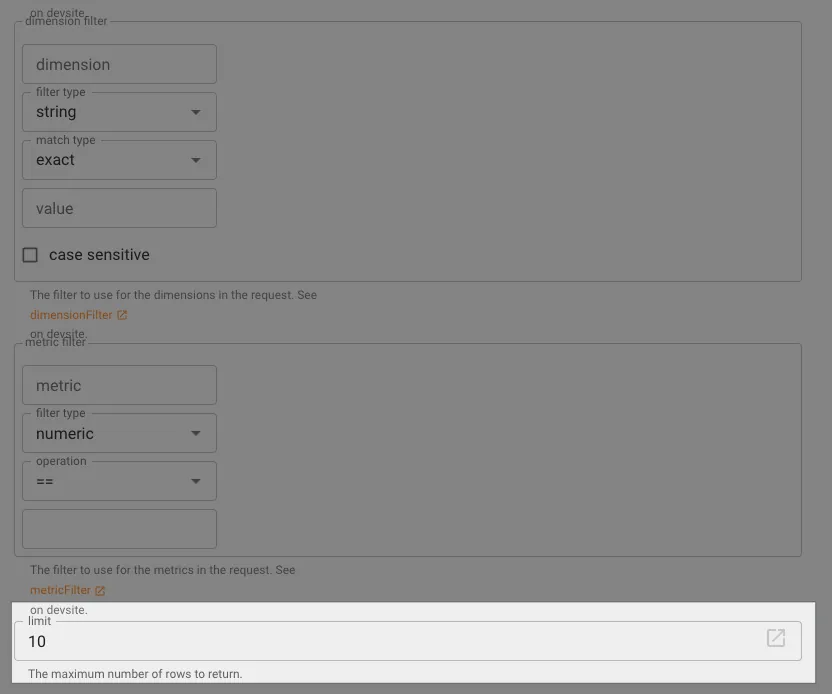
Leave the filter empty since I don’t need it; I set the limit to 10 because I only want to know the Top 10.
Click “MAKE REQUEST” to generate the corresponding data report query parameters and results:
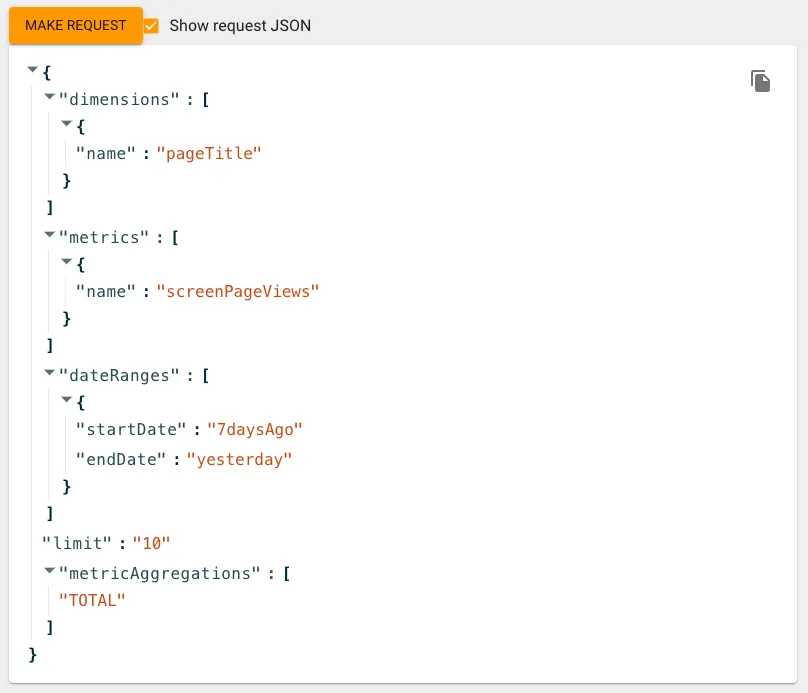
Note the following request parameters, which will be used later when writing the Google Apps Script:
{
  "dimensions": [
    {
      "name": "pageTitle"
    }
  ],
  "metrics": [
    {
      "name": "screenPageViews"
    }
  ],
  "dateRanges": [
    {
      "startDate": "7daysAgo",
      "endDate": "yesterday"
    }
  ],
  "limit": "10",
  "metricAggregations": [
    "TOTAL"
  ]
}
Result:
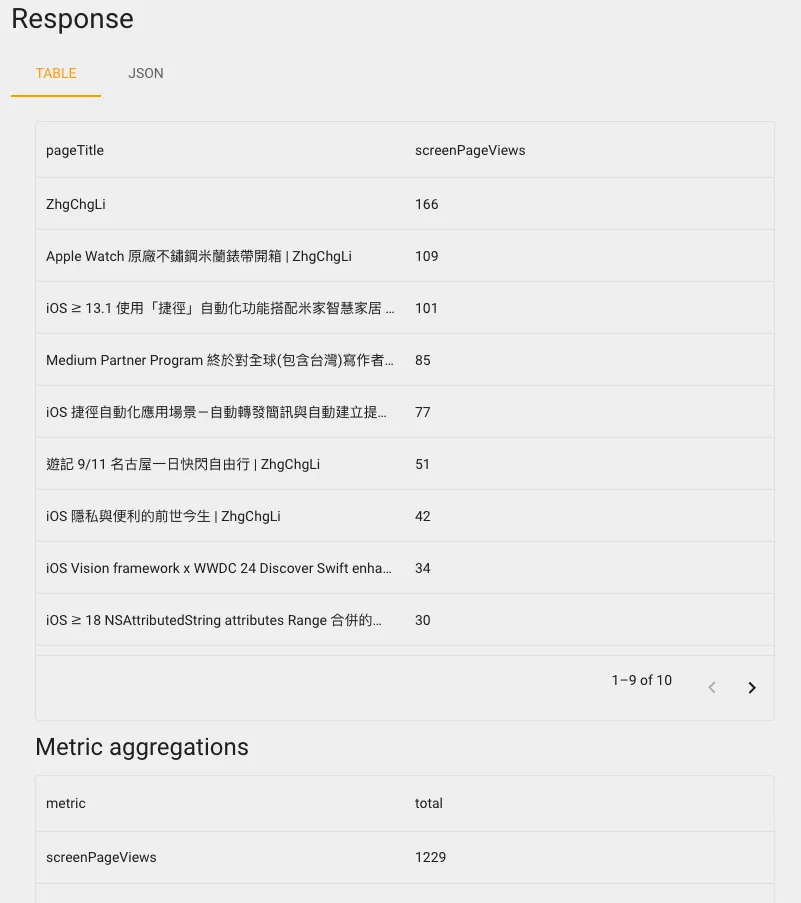
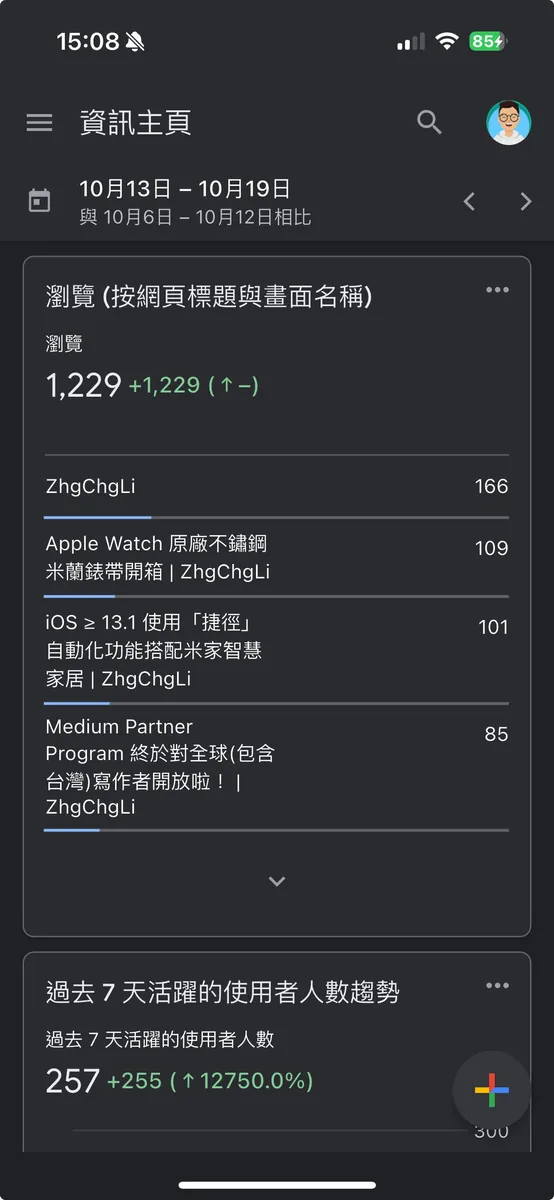
- Compare with the data on GA to ensure accuracy, correctly matched ✅✅✅
Step 2. Create Google Apps Script & Use Google Analytics Data API to Query Data
-
Create a new project and name it
-
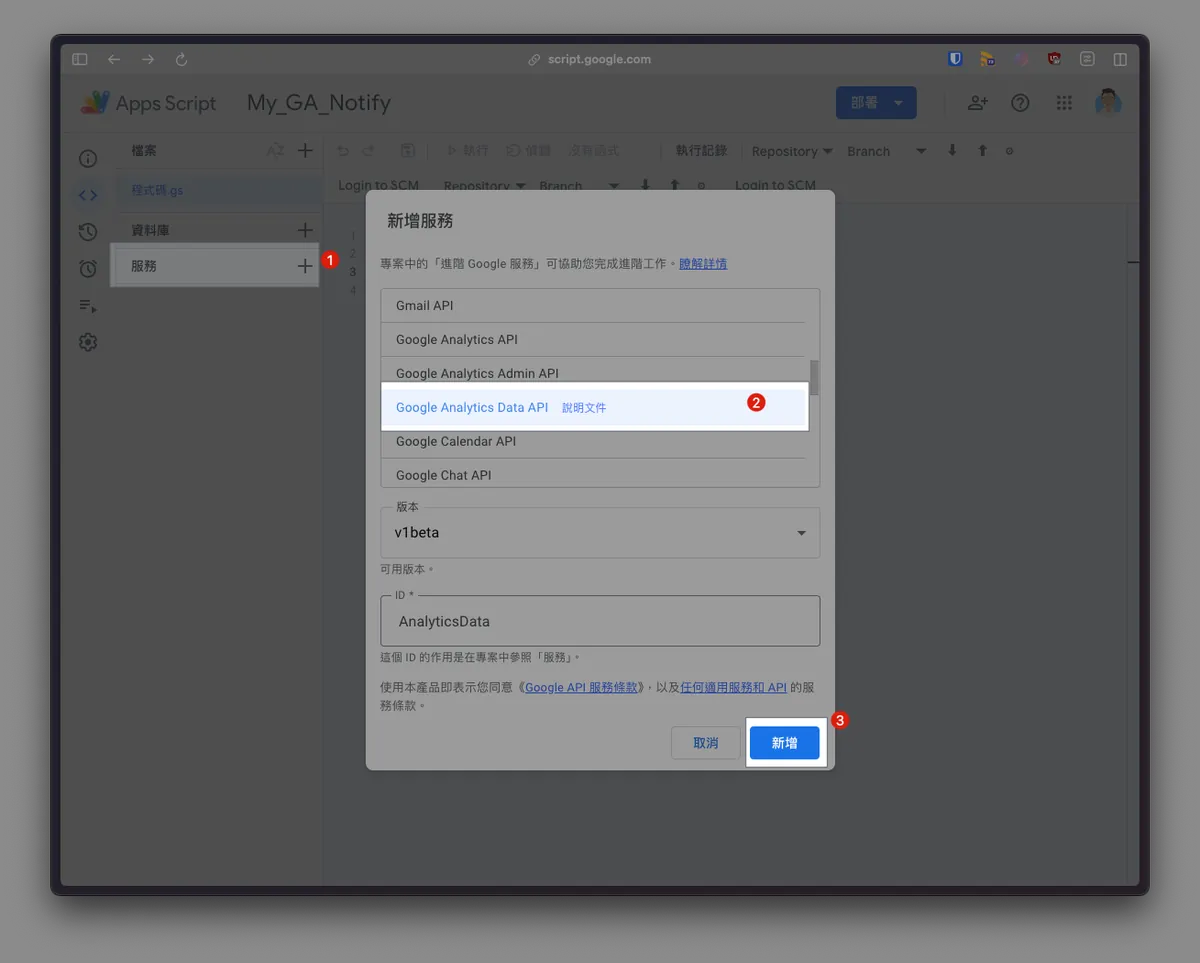
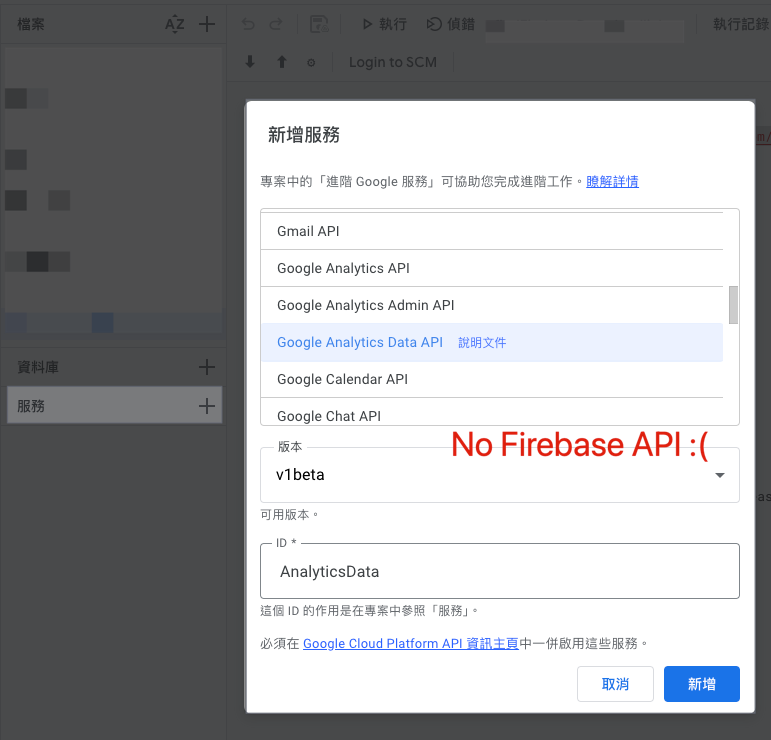
Click “Services” -> “+” to add a new service
-
Select “Google Analytics Data API”
-
Click “Add”
Paste the Google Analytics Data API query code and combine:
The report query parameters generated from the previous steps:
{
  "dimensions": [
    {
      "name": "pageTitle"
    }
  ],
  "metrics": [
    {
      "name": "screenPageViews"
    }
  ],
  "dateRanges": [
    {
      "startDate": "7daysAgo",
      "endDate": "yesterday"
    }
  ],
  "limit": "10",
  "metricAggregations": [
    "TOTAL"
  ]
}
Convert to Code:
function execute() {
  Logger.log(JSON.stringify(fetchScreenPageViews("318495208")));
}

// Split into a separate function for easier reuse...
// Default startDate=7daysAgo, endDate=yesterday
// Other usages:
// e.g. fetchScreenPageViews("1111", "3daysAgo", "yesterday")
// e.g. fetchScreenPageViews("2222", "yesterday", "today")
function fetchScreenPageViews(propertyId, startDate = "7daysAgo", endDate = "yesterday") {
  const screenPageViewsMetric = AnalyticsData.newMetric();
  screenPageViewsMetric.name = "screenPageViews";

  const dateRange = AnalyticsData.newDateRange();
  dateRange.startDate = startDate;
  dateRange.endDate = endDate;

  const pageTitleDimension = AnalyticsData.newDimension();
  pageTitleDimension.name = "pageTitle";

  const request = AnalyticsData.newRunReportRequest();
  request.dimensions = [pageTitleDimension];
  request.metrics = [screenPageViewsMetric];
  request.dateRanges = dateRange;

  request.limit = 10;
  request.metricAggregations = "TOTAL";

  return AnalyticsData.Properties.runReport(request, "properties/" + propertyId);
}
Code Analysis:
// Metrics can be multiple, declare them separately...
const screenPageViewsMetric = AnalyticsData.newMetric();
screenPageViewsMetric.name = "screenPageViews";

// For example, another metric active1DayUsers:
const active1DayUsersMetric = AnalyticsData.newMetric();
active1DayUsersMetric.name = "active1DayUsers";

// Declare date range
const dateRange = AnalyticsData.newDateRange();
dateRange.startDate = startDate;
dateRange.endDate = endDate;

// Dimensions can be multiple, declare them separately...
const pageTitleDimension = AnalyticsData.newDimension();
pageTitleDimension.name = "pageTitle";

// For example, another dimension:
const firstUserSourceMediumDimension = AnalyticsData.newDimension();
firstUserSourceMediumDimension.name = "firstUserSourceMedium";

//

// Create Request object
const request = AnalyticsData.newRunReportRequest();
request.metrics = [active1DayUsersMetric, active1DayUsersMetric]; // Include all metrics...
request.dimensions = [pageTitleDimension, firstUserSourceMediumDimension]; // Include all dimensions...

request.dateRanges = dateRange;

// Only need top 10 rows
request.limit = 10;

// Set metric aggregation logic: Total (SUM)
request.metricAggregations = "TOTAL";

// Generate query result
return AnalyticsData.Properties.runReport(request, "properties/" + propertyId).rows;
The first time you run, authorization is required (if new permissions are needed due to code updates, re-authorization will be required):
In fact, you are authorizing Google Apps Script to run these programs using your account identity in the future, so you need to ensure that the account you choose has access to the corresponding GA reports.
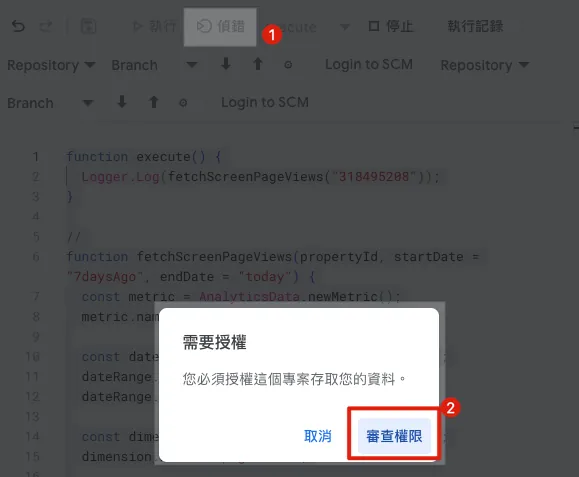
- After writing the code, click “Debug” -> then click “Review Permissions”
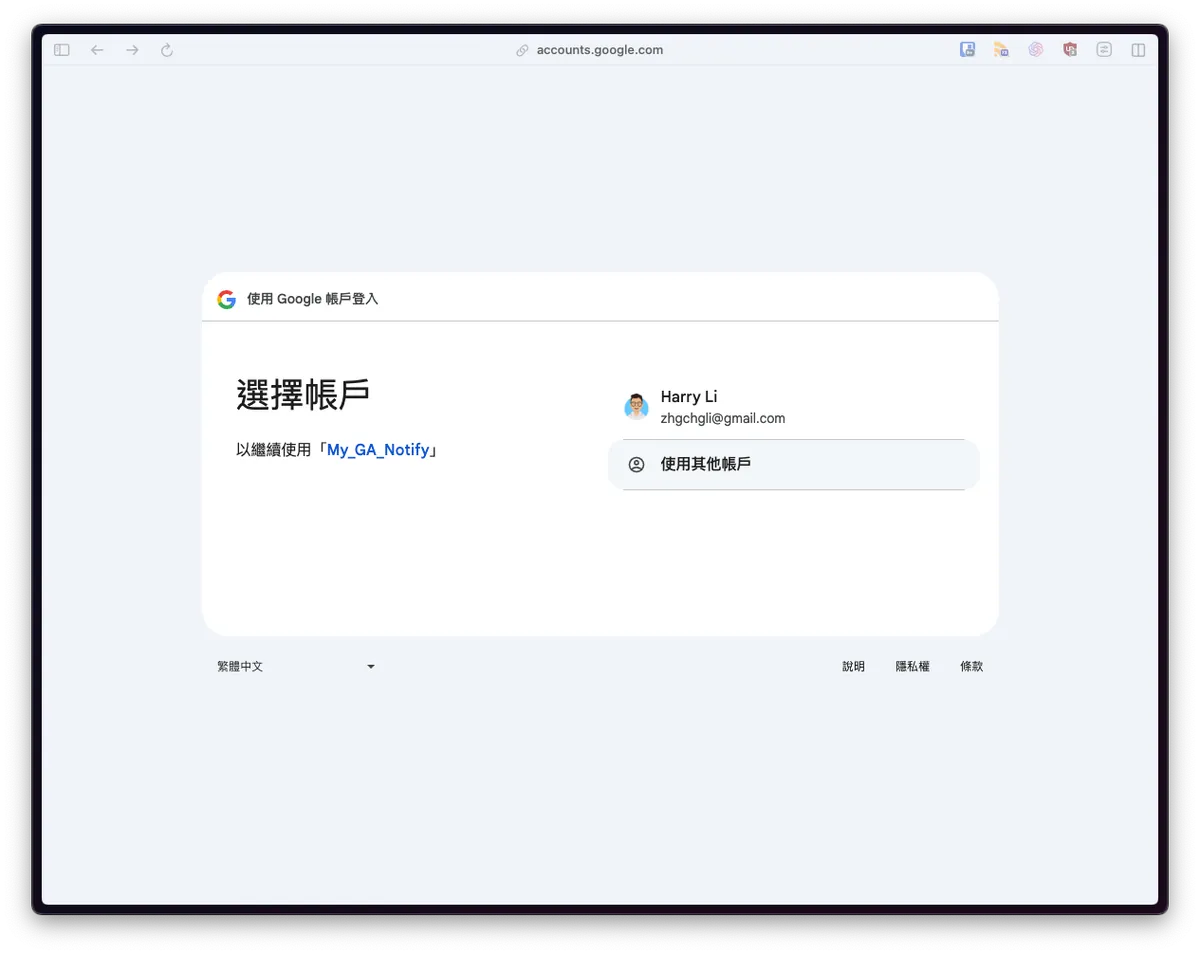
- Select the account to execute, usually the current Google Apps Script account.
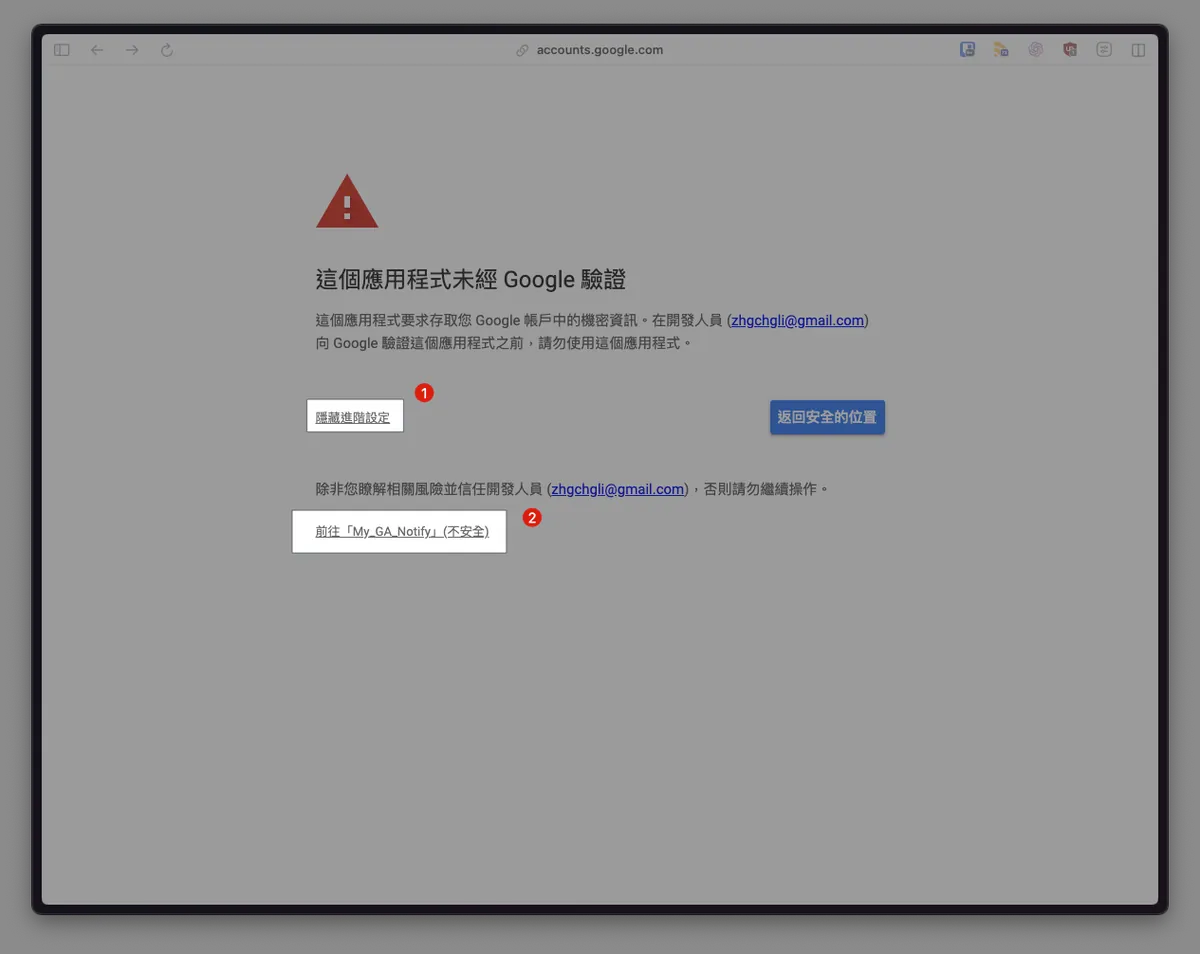
- Select “Advanced” to expand -> Click “Go to XXX”
This is an app we made for our own use, so it does not require Google verification.
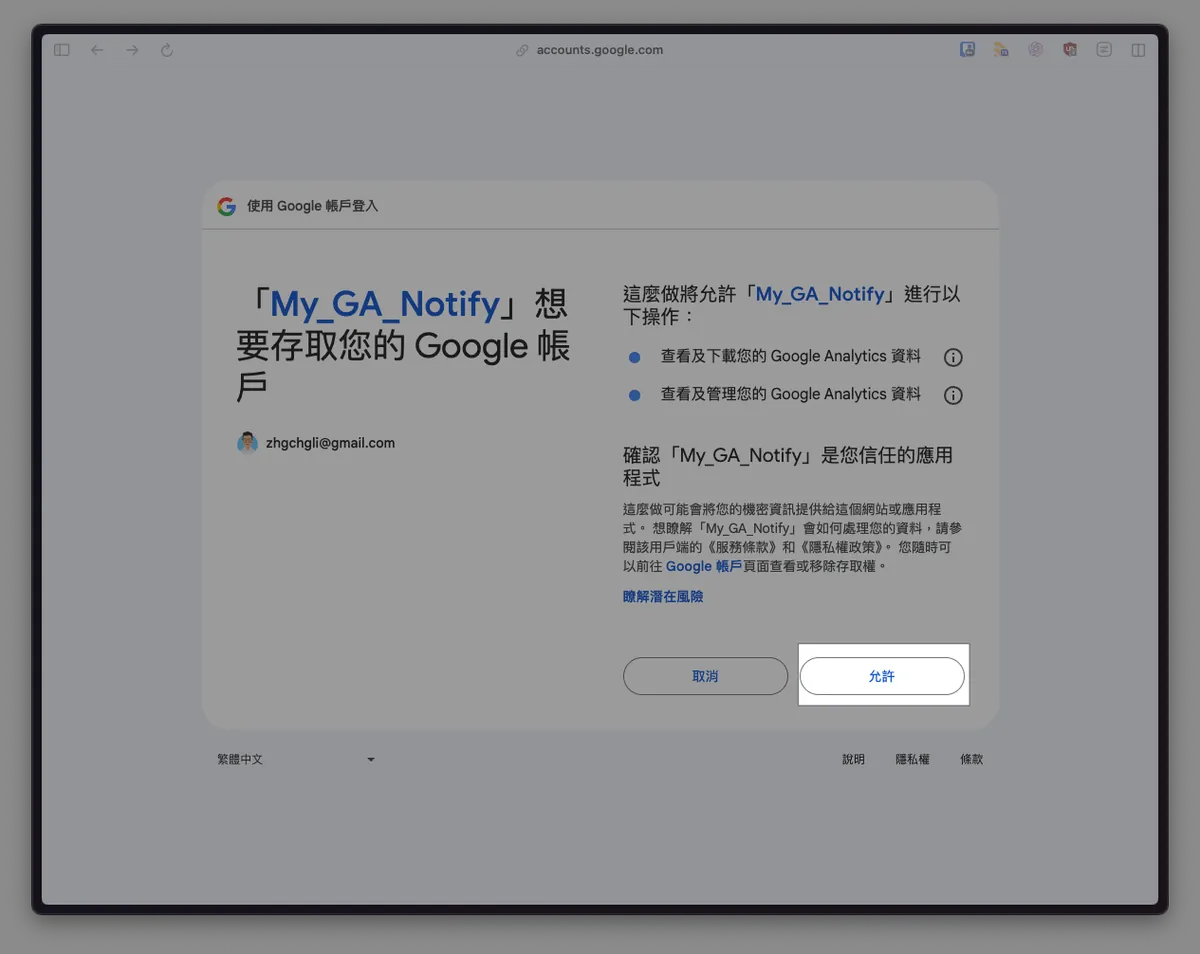
- Click “Allow”
Allowing you to click “Debug” or “Run” later to execute the script:
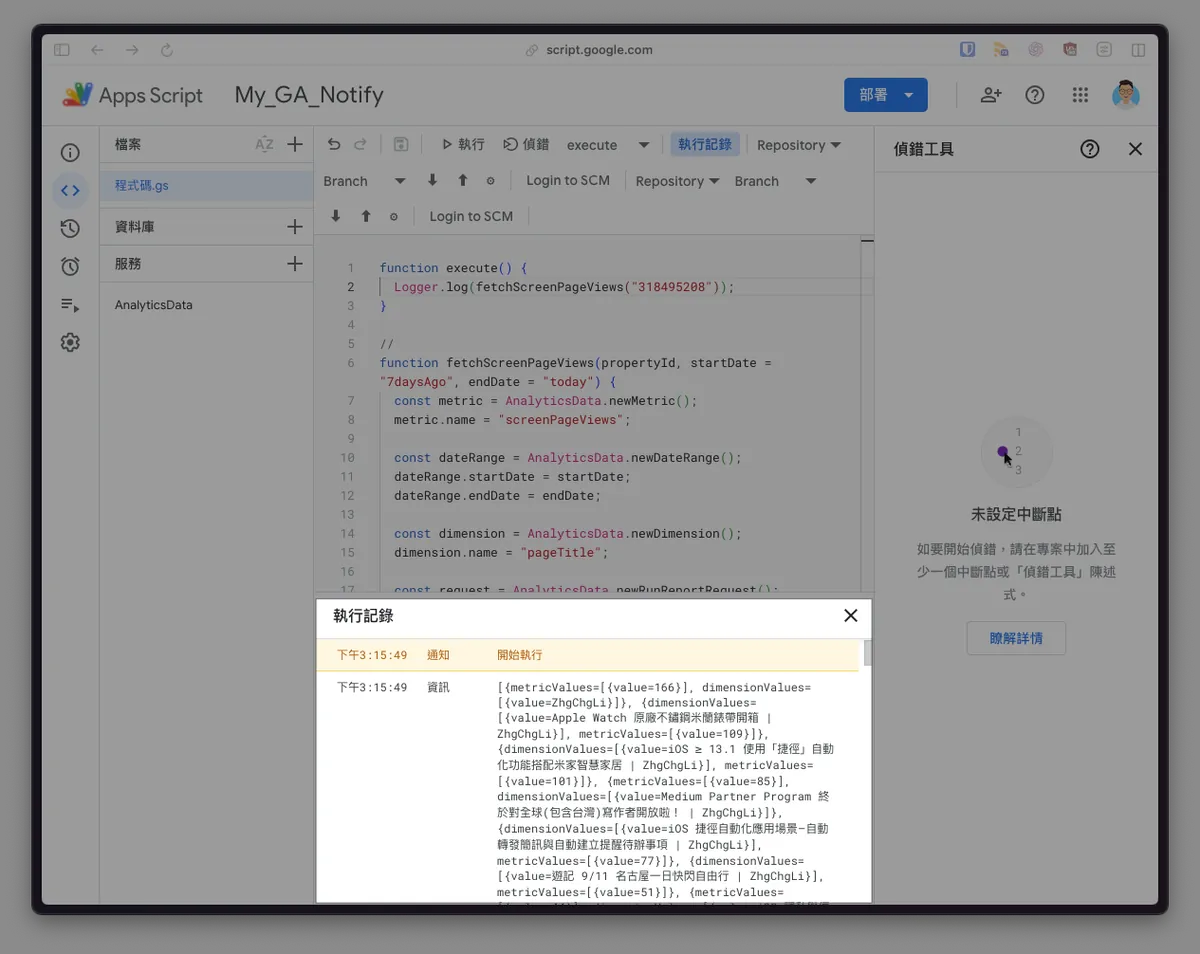
Here, we first use Logger.log(JSON.stringify()) to get the output result:
{
  "kind": "analyticsData#runReport",
  "dimensionHeaders": [
    {
      "name": "pageTitle"
    }
  ],
  "rowCount": 71,
  "metadata": {
    "currencyCode": "TWD",
    "timeZone": "Asia/Taipei"
  },
  "rows": [
    {
      "dimensionValues": [
        {
          "value": "ZhgChgLi"
        }
      ],
      "metricValues": [
        {
          "value": "166"
        }
      ]
    },
    {
      "metricValues": [
        {
          "value": "109"
        }
      ],
      "dimensionValues": [
        {
          "value": "Apple Watch Original Stainless Steel Milanese Band Unboxing \\| ZhgChgLi"
        }
      ]
    },
    {
      "dimensionValues": [
        {
          "value": "iOS ≥ 13.1 Using 'Shortcuts' Automation with Mijia Smart Home \\| ZhgChgLi"
        }
      ],
      "metricValues": [
        {
          "value": "101"
        }
      ]
    },
    {
      "dimensionValues": [
        {
          "value": "Medium Partner Program Finally Open to Global (Including Taiwan) Writers! \\| ZhgChgLi"
        }
      ],
      "metricValues": [
        {
          "value": "85"
        }
      ]
    },
    {
      "metricValues": [
        {
          "value": "77"
        }
      ],
      "dimensionValues": [
        {
          "value": "iOS Shortcuts Automation Use Cases — Auto Forward SMS and Auto Create Reminders \\| ZhgChgLi"
        }
      ]
    },
    {
      "metricValues": [
        {
          "value": "51"
        }
      ],
      "dimensionValues": [
        {
          "value": "Travelogue 9/11 Nagoya One-Day Flash Free Trip \\| ZhgChgLi"
        }
      ]
    },
    {
      "metricValues": [
        {
          "value": "42"
        }
      ],
      "dimensionValues": [
        {
          "value": "The Past and Present of iOS Privacy and Convenience \\| ZhgChgLi"
        }
      ]
    },
    {
      "dimensionValues": [
        {
          "value": "iOS Vision framework x WWDC 24 Discover Swift enhancements in the Vision framework Session \\| ZhgChgLi"
        }
      ],
      "metricValues": [
        {
          "value": "34"
        }
      ]
    },
    {
      "dimensionValues": [
        {
          "value": "iOS ≥ 18 NSAttributedString attributes Range Merging Behavior Change \\| ZhgChgLi"
        }
      ],
      "metricValues": [
        {
          "value": "30"
        }
      ]
    },
    {
      "metricValues": [
        {
          "value": "30"
        }
      ],
      "dimensionValues": [
        {
          "value": "The Story of Manually Building an HTML Parser \\| ZhgChgLi"
        }
      ]
    }
  ],
  "metricHeaders": [
    {
      "type": "TYPE_INTEGER",
      "name": "screenPageViews"
    }
  ],
  "totals": [
    {
      "dimensionValues": [
        {
          "value": "RESERVED_TOTAL"
        }
      ],
      "metricValues": [
        {
          "value": "1229"
        }
      ]
    }
  ]
}
- Google Apps Script Successfully Requested GA Data! 🎉🎉🎉
Step 3. Put It All Together! Google Apps Script + GA4 + Telegram Bot
Follow the previous article “10-minute Quick Migration from Line Notify to Telegram Bot Notification” to create your Telegram Bot and get the Bot Token & the Channel Chat ID where you want to send messages.
const telegramToken = "XXXX" // Insert your Telegram Bot Token
//

function execute() {
  const screenPageViewsReport = fetchScreenPageViews("318495208");

  //
  const total = parseInt(screenPageViewsReport.totals[0].metricValues[0].value);
  var message = "Total Views: "+total.toLocaleString()+"\n";

  screenPageViewsReport.rows.forEach(function(element, index) {
    const pageTitle = element.dimensionValues[0].value;
    const value = parseInt(element.metricValues[0].value);

    message += "[Top "+(index + 1)+"] "+pageTitle+": "+value.toLocaleString()+"\n";
  });

  sendNotifyMessage(message, -xxxx); // Insert your Channel Chat ID
}


// Send message to the specified Telegram Channel Chat ID
function sendNotifyMessage(message, chatId) {
  var url = "https://api.telegram.org/bot"+telegramToken+"/sendMessage";

  const payload = {
    "chat_id": chatId,
    "text": message,
    "disable_web_page_preview": true
  }
  const options = {
    'method': 'post',
    'contentType': 'application/json',
    'muteHttpExceptions': true,
    'payload': JSON.stringify(payload)
  };

  const response = UrlFetchApp.fetch(url, options);
  const data = JSON.parse(response.getContentText());

  if (data["ok"] == undefined \\|\\| data["ok"] != true) {
    if (data["error_code"] != undefined && data["error_code"] == 429) {
      Utilities.sleep(1000);
      sendNotifyMessage(message, chatId);
    }
  }
}

function fetchScreenPageViews(propertyId, startDate = "7daysAgo", endDate = "yesterday") {
  const screenPageViewsMetric = AnalyticsData.newMetric();
  screenPageViewsMetric.name = "screenPageViews";

  const dateRange = AnalyticsData.newDateRange();
  dateRange.startDate = startDate;
  dateRange.endDate = endDate;

  const pageTitleDimension = AnalyticsData.newDimension();
  pageTitleDimension.name = "pageTitle";

  const request = AnalyticsData.newRunReportRequest();
  request.dimensions = [pageTitleDimension];
  request.metrics = [screenPageViewsMetric];
  request.dateRanges = dateRange;

  request.limit = 10;
  request.metricAggregations = "TOTAL";

  return AnalyticsData.Properties.runReport(request, "properties/" + propertyId);
}
Code Analysis:
//...
  // Find the total position in the report's returned JSON, parseInt converts the string to an INT number format
  // .toLocaleString() -> formats the number, 123456 -> 123,456
  const total = parseInt(screenPageViewsReport.totals[0].metricValues[0].value);
  var message = "Total Views: "+total.toLocaleString()+"\n";

  // Iterate through the data in the report's returned JSON to compose the message
  screenPageViewsReport.rows.forEach(function(element, index) {
    const pageTitle = element.dimensionValues[0].value;
    const value = parseInt(element.metricValues[0].value);

    message += "[Top "+(index + 1)+"] "+pageTitle+": "+value.toLocaleString()+"\n";
  });
//...
Run: Click “Run” or “Debug” above and make sure the method name selected is execute:
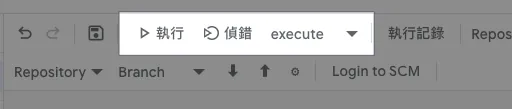
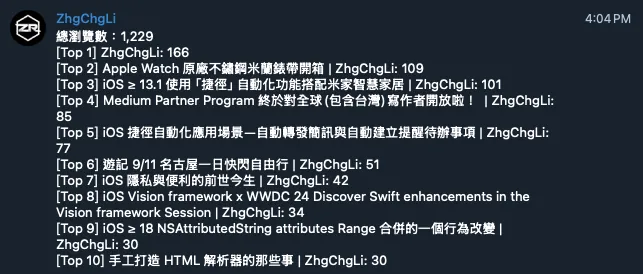
- Success! 🎉🎉🎉
Set Up Scheduled Automatic Execution
The final step is to have the report bot run automatically on a schedule. Go to “Triggers” from the left menu:
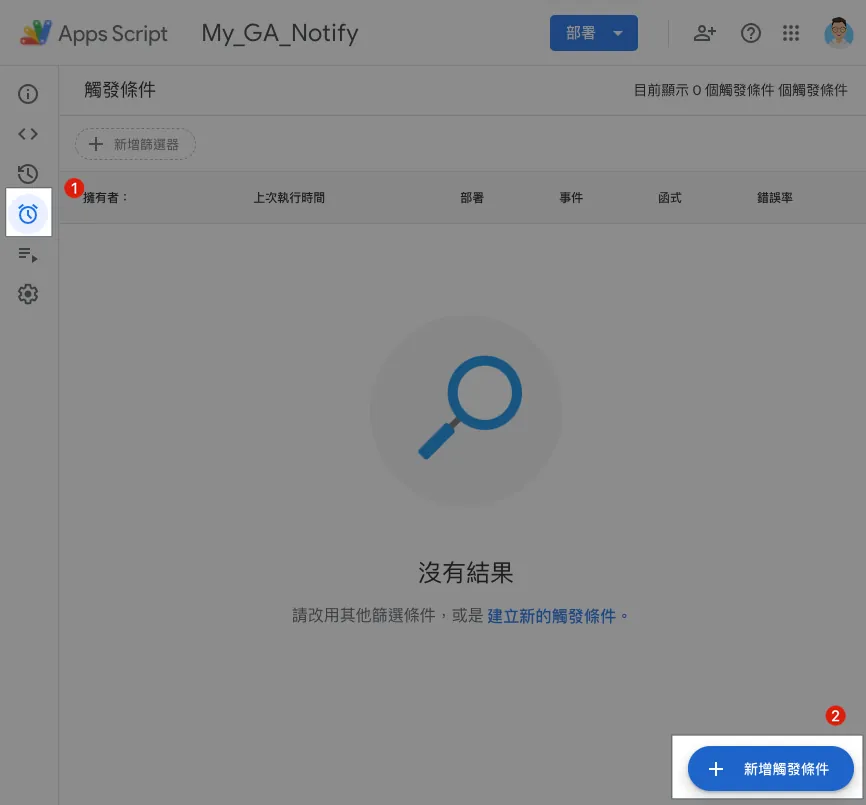
- Select the “Add Trigger” button at the bottom right corner
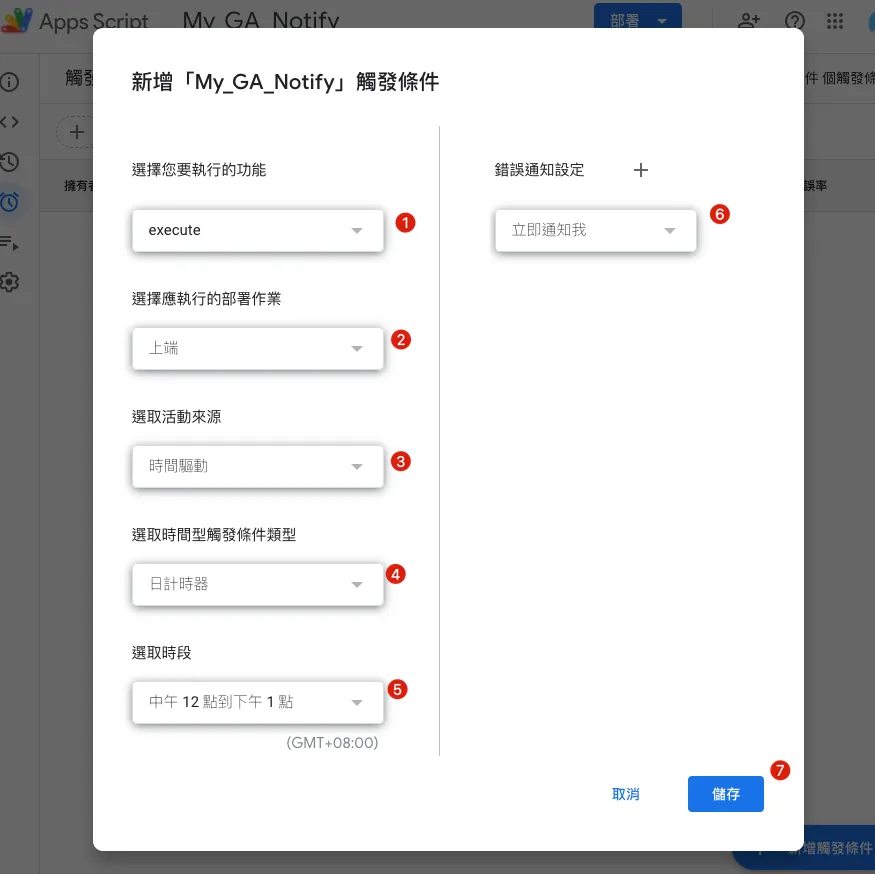
-
Select the function to execute: choose the method name “
execute” -
Select the deployment to run: choose “
Head” -
Select Event Source: Choose “
Time-driven” -
Select the time-based trigger type: choose your desired trigger frequency
-
Select Time Period: Choose the time you want the daily automatic trigger to run
-
If Execution Fails… Setting the Frequency of Notification Emails
-
Save
Done! It will now run automatically at the scheduled time. 🎉🎉🎉
Extended Tasks
Other data such as new users, source/medium, etc., can be obtained using the same code above. I won’t repeat it here—consider it your homework.

Comments