
ZReviewTender — Free Open-Source App Reviews Monitoring Bot
Real-time monitoring of the latest app reviews with instant feedback to improve collaboration efficiency and customer satisfaction

ZhgChgLi / ZReviewTender
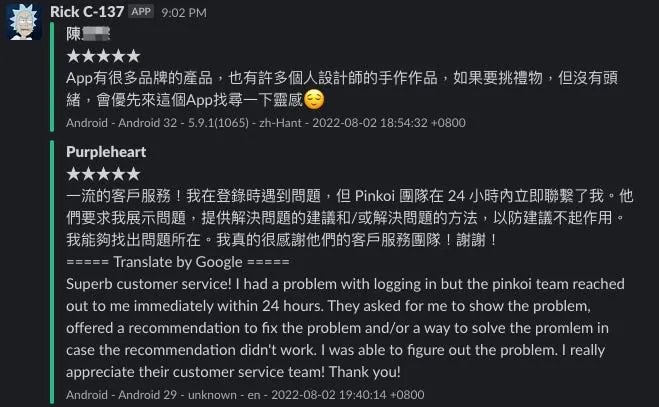
App Reviews to Slack Channel
ZReviewTender — Automatically monitors the latest user reviews for iOS/macOS apps on the App Store and Android apps on Google Play, providing continuous integration tools to connect with your team workflow, enhancing collaboration efficiency and customer satisfaction.
Features
-
Fetch the review list of App Store iOS/macOS apps and Google Play Android apps, then filter out the latest reviews that have not been crawled yet.
-
[Default Feature] Forwards the latest crawled reviews to Slack. Clicking the message Timestamp link quickly directs you to the backend to reply to the review.
-
[Default Feature] Supports using Google Translate API to automatically translate reviews not in the specified language or region into your language
-
[Default Feature] Supports automatic recording of reviews to Google Sheet
-
Supports flexible expansion. Besides the default features, you can develop and integrate additional functions according to your team’s workflow.
e.g. Forward reviews to Discord, Line, Telegram… -
Use timestamps to record crawl positions and prevent duplicate review fetching
-
Supports filtering features, allowing you to specify to crawl only reviews with certain ratings, containing specific keywords, or from particular regions/languages.
-
Apple provides a stable and reliable source of App Store app review data based on the brand new App Store Connect API, unlike previously using unreliable XML data or Fastlane Spaceship Sessions that expire and require manual maintenance
-
Android also uses the official AndroidpublisherV3 API to fetch review data
-
Supports deployment using Github Repo with Github Action, allowing you to quickly and freely set up the ZReviewTender App Reviews bot.
-
100% Ruby @ RubyGem
TL;DR [2024/09/27] Update
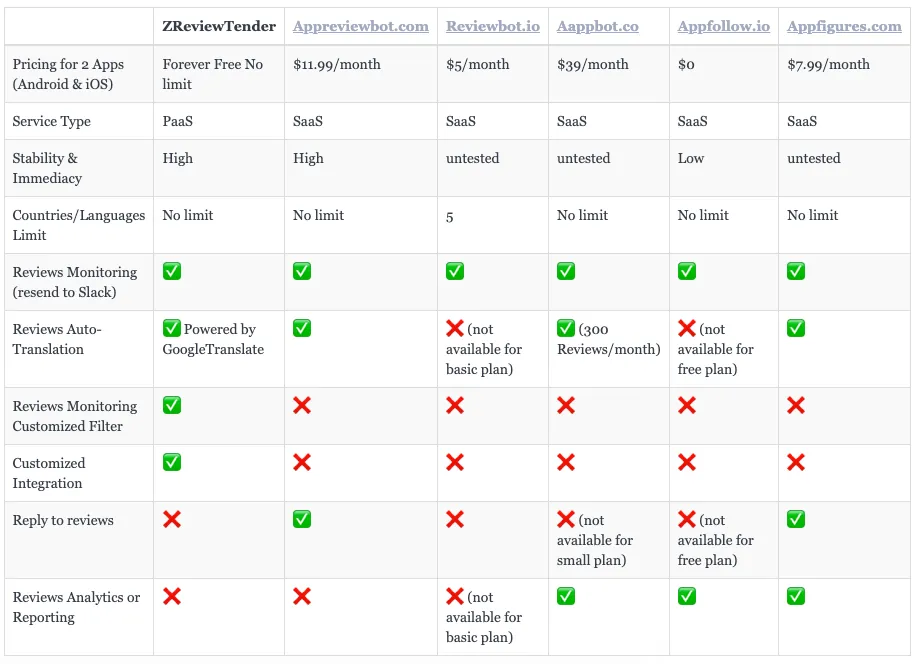
Comparison with Similar Services
App Reviews Workflow Integration Example (in Pinkoi)
Problem:
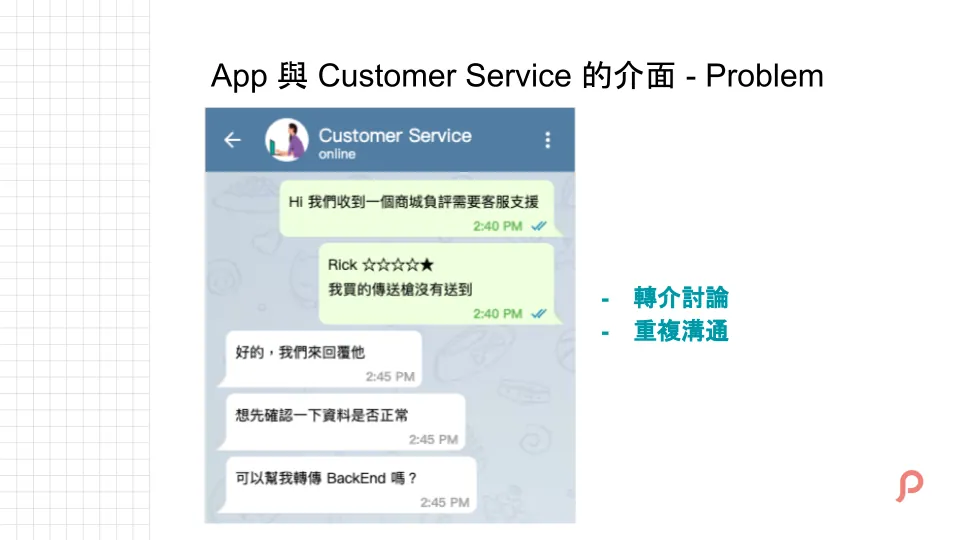
Store reviews are very important for products, but managing them is a very manual and repetitive referral communication task.
Because someone needs to manually check new reviews from time to time, and if there are customer service issues, forward them to the support team for assistance, it becomes repetitive and manual.
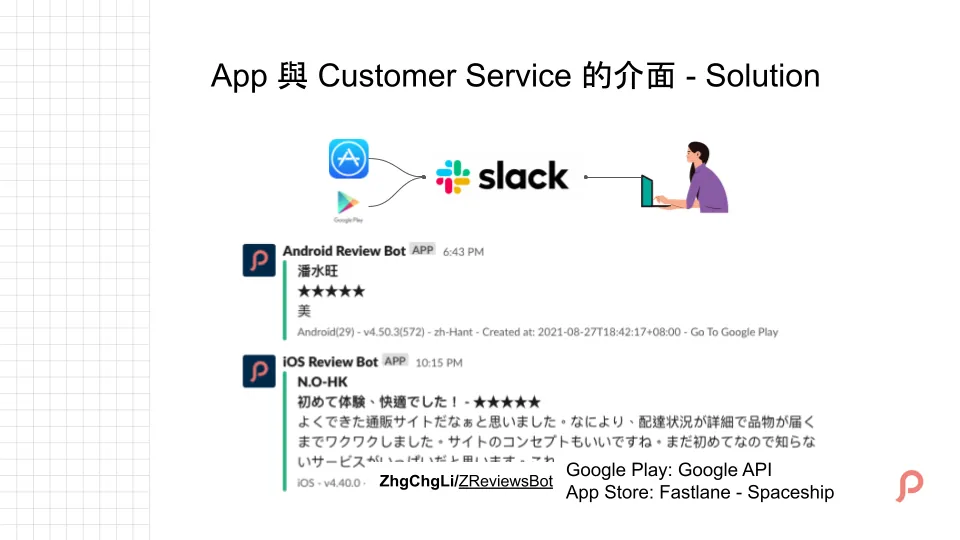
With the ZReviewTender review bot, reviews are automatically forwarded to the Slack channel, allowing everyone to quickly receive the latest feedback, track, and discuss it in real time. It also helps the entire team understand current user opinions and suggestions about the product.
For more information, please refer to: 2021 Pinkoi Tech Career Talk — Secrets of a High-Efficiency Engineering Team .
Deployment — Using Default Features Only
If you only need the default features of ZReviewTender (to Slack/Google Translate/Filter), you can use the following quick deployment method.
ZReviewTender has been packaged and published on RubyGems, allowing you to quickly and easily install and use ZReviewTender via RubyGems.
[Recommended] Deploy Directly Using Github Repo Template
-
No server space needed ✅
-
No environment requirements needed ✅
-
No need to understand engineering principles ✅
-
Complete the Config file setup to finish the deployment ✅
-
Deploy in 8 Easy Steps ✅
-
Completely Free ✅
Github Action offers over 2,000 minutes of runtime per account per month. Running ZReviewTender to fetch reviews takes only about 15~30 seconds each time.
By default, it runs every 6 hours, 4 times a day, using only about 60 minutes of quota per month.
Github Private Repos can be created for free without limits.
- Go to the ZReviewTender Template Repo: ZReviewTender-deploy-with-github-action
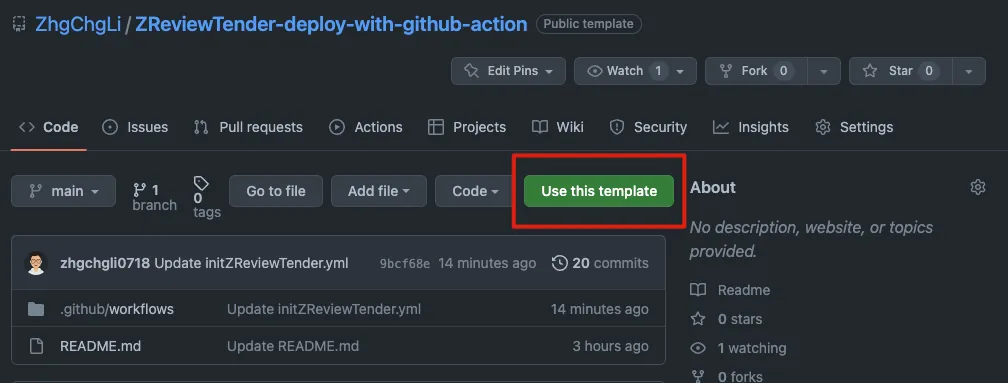
Click the “Use this template” button at the top right.
- Create a Repo
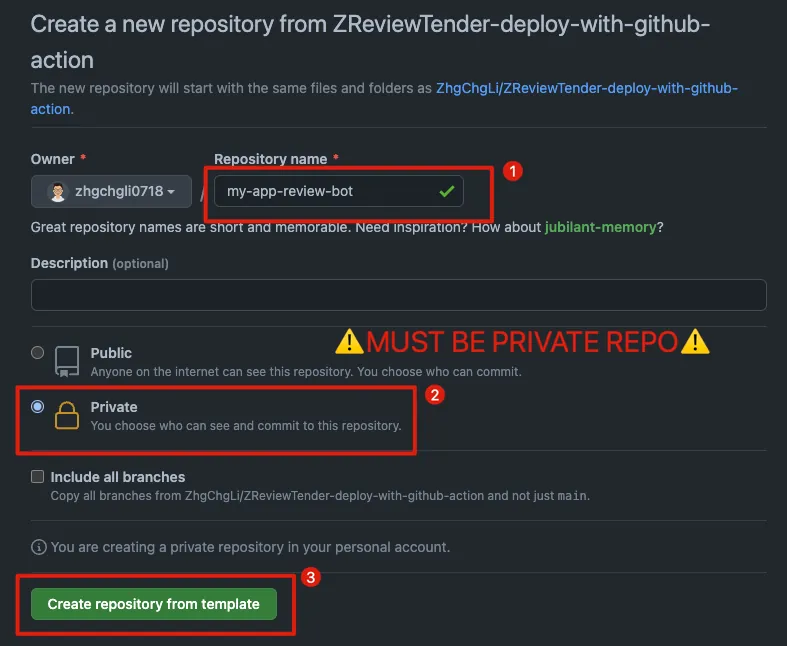
-
Repository name: Enter the desired Repo project name
-
Access: Private
⚠️⚠️ Please make sure to create a Private Repo ⚠️⚠️
Because you will upload configuration and private keys to the project
Finally, click the “Create repository from template” button below.
- Make sure the Repo you create is a Private Repo
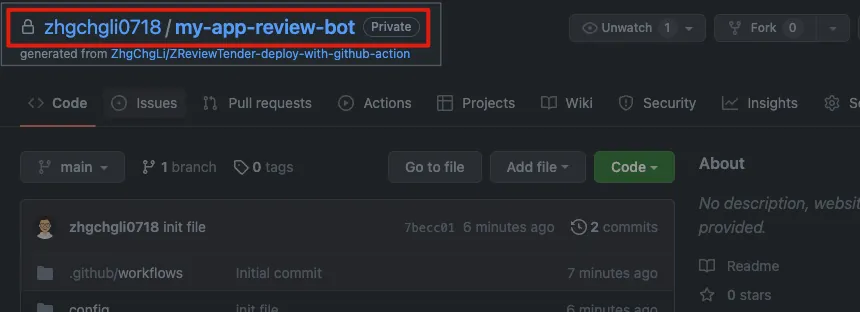
Make sure the repo name in the top right shows the “🔒” icon and the Private label.
If not, it means your created repository is a Public Repo and very risky. Please go to the top Tab “Settings” -> “General” -> bottom “Danger Zone” -> “Change repository visibility” -> “Make private” to change it back to a Private Repo.
- Wait for the Project init to succeed
Can be placed in the Repo homepage Readme under the section
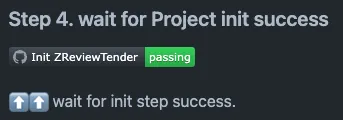
Check the badge in the block; if it shows passing, it means the init was successful.
Or click the top tab “Actions” -> Wait for the “Init ZReviewTender” workflow to complete:
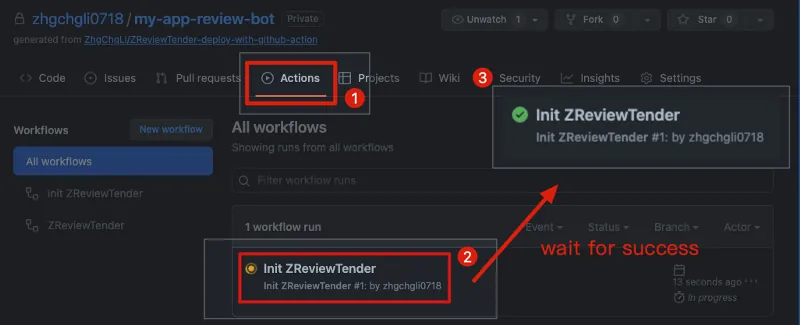
The execution status will change to 3 “✅ Init ZReviewTender” -> Project init successful.
- Confirm that the init files and directories are correctly created
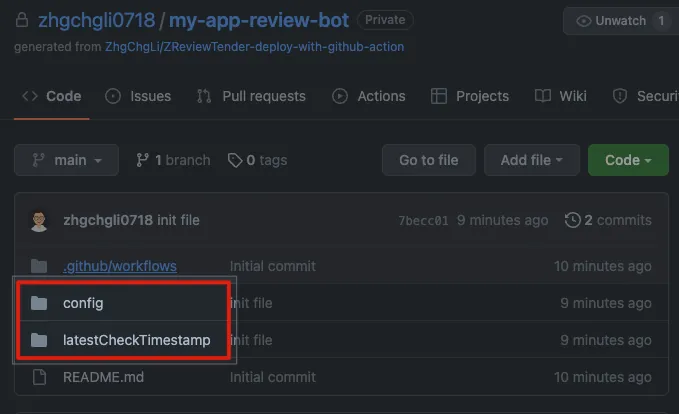
Click the “Code” tab above to return to the project directory. If the project initialization is successful, you will see:
-
Table of Contents:
config/ -
File:
config/android.yml -
File:
config/apple.yml -
Table of Contents:
latestCheckTimestamp/ -
File:
latestCheckTimestamp/.keep
- Complete Configuration by setting up
android.yml&apple.yml
Go to the config/ directory to complete the configuration of the android.yml & apple.yml files.
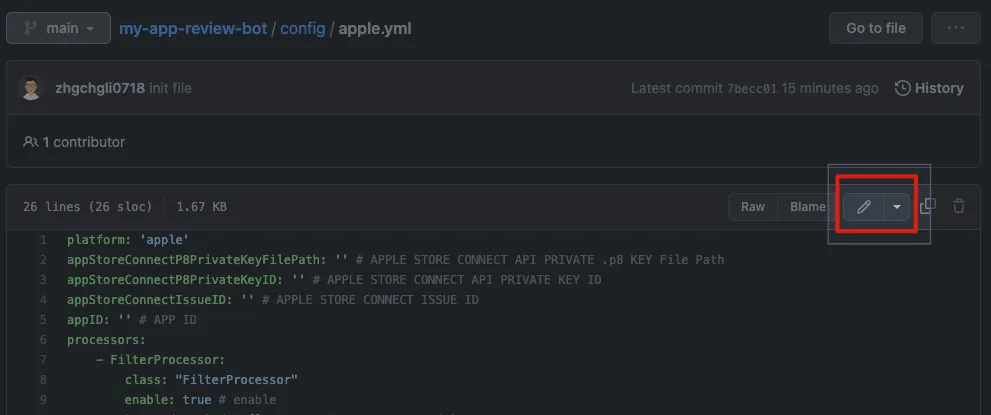
Click to open the confi YML file you want to edit, then click the “✏️” icon at the top right to edit the file.
Refer to the “Settings” section below to complete the configuration of android.yml & apple.yml.
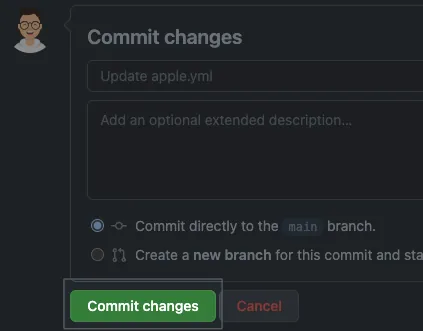
After editing, you can directly save the settings by clicking “Commit changes” below.
Upload the corresponding key files to the config/ directory:
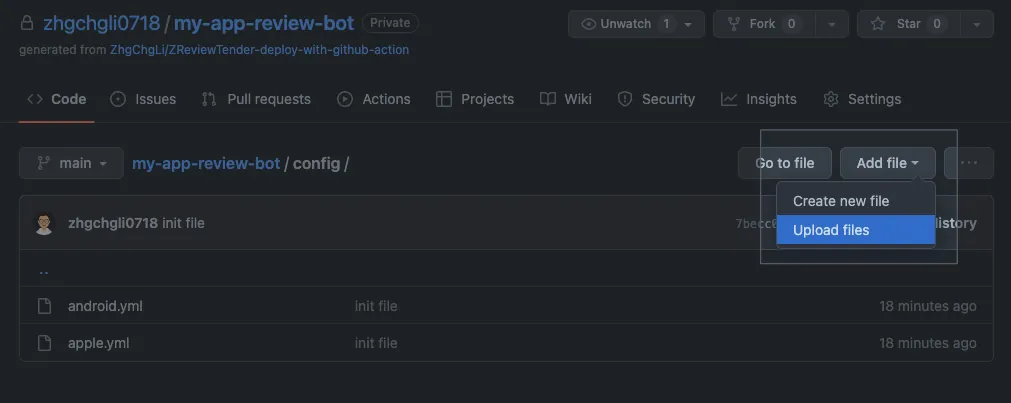
In the config/ directory, click “Add file” in the top right corner -> “Upload files”
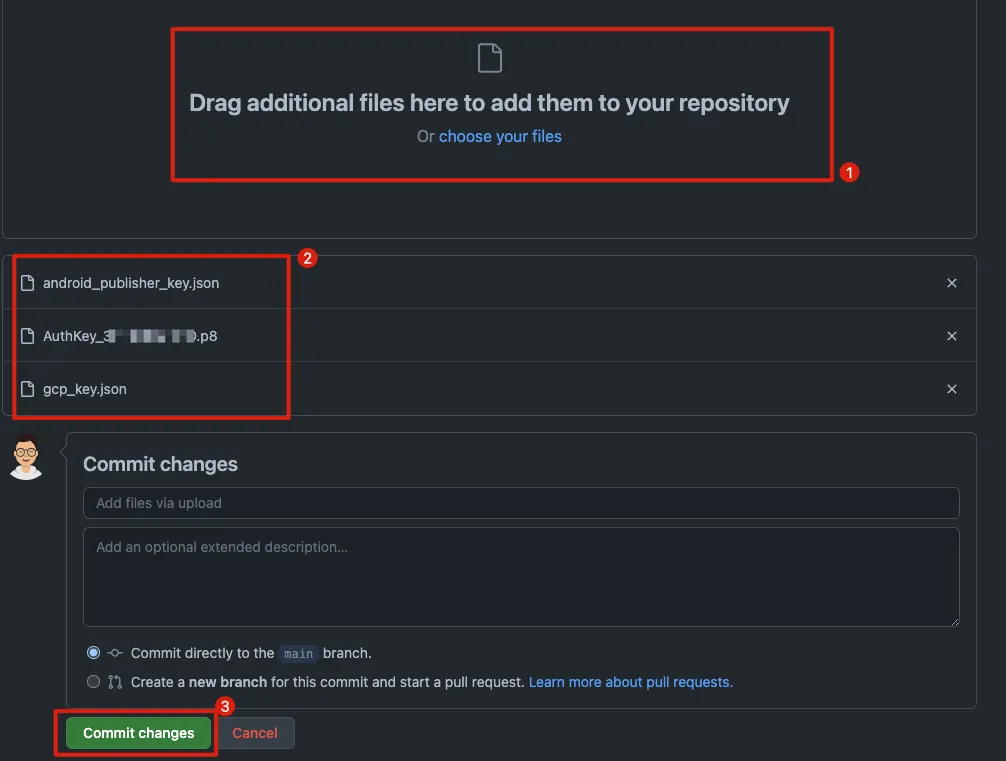
Upload the corresponding keys and external file paths configured in the config yml to the config/ directory. Drag the files to the “upper block” -> wait for the upload to complete -> then directly click “Commit changes” below to save.
After uploading, go back to the /config directory to check if the files are correctly saved and uploaded.
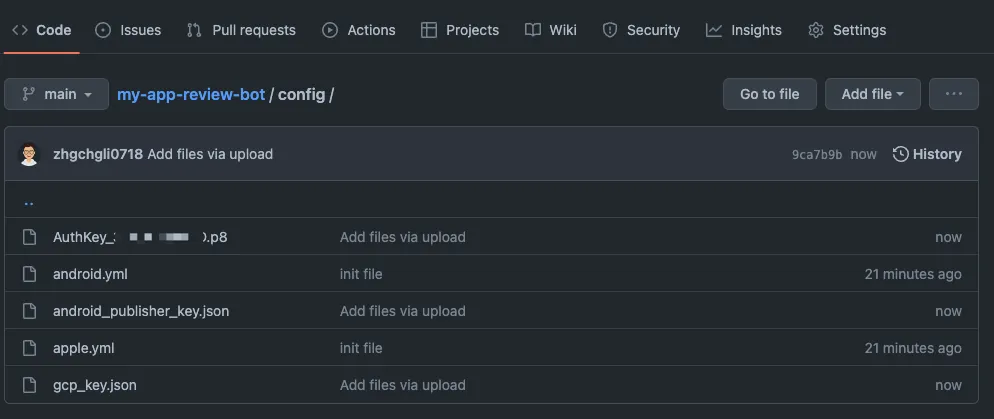
- Initialize ZReviewTender (manually trigger execution once)
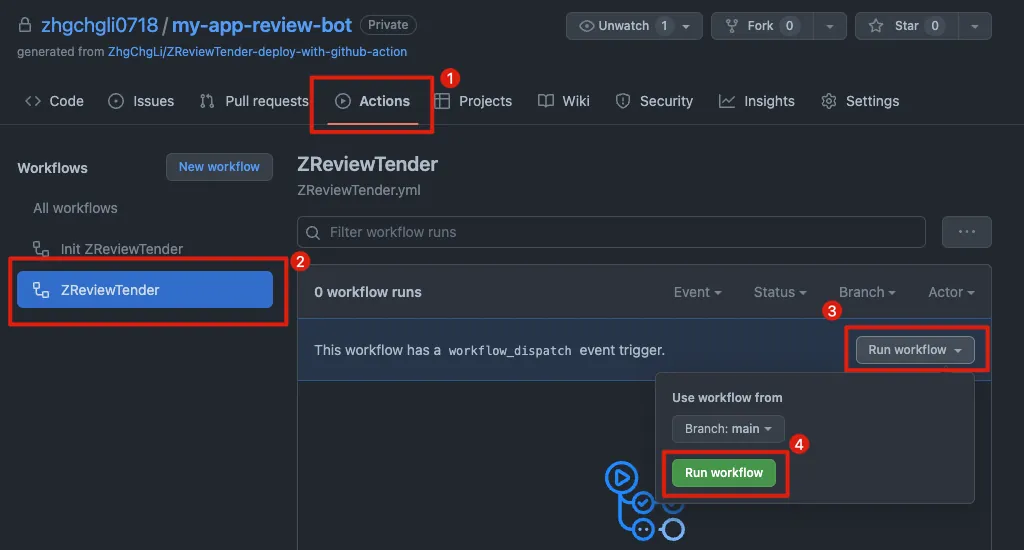
Click the “Actions” tab above -> select “ZReviewTender” on the left -> click the “Run workflow” button on the right -> click the “Run workflow” button to execute ZReviewTender once.
After clicking, the page will refresh and display:
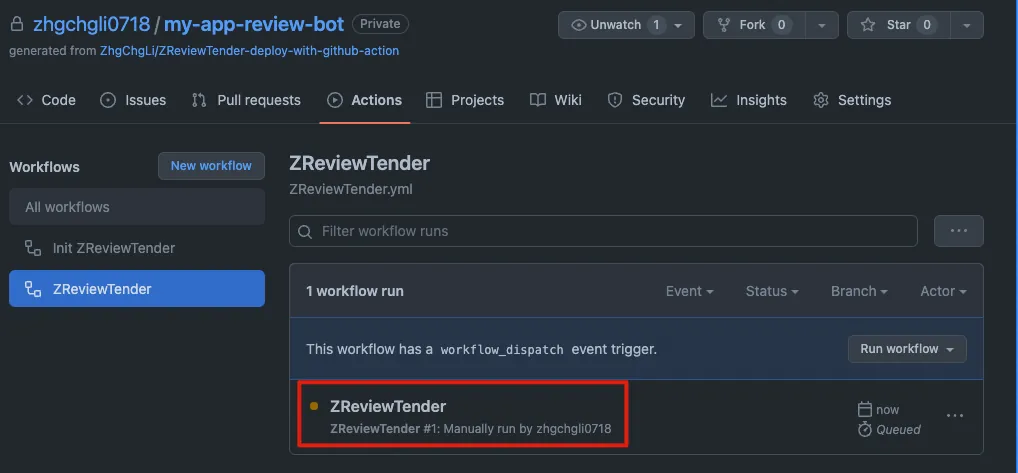
Click “ZReviewTender” to check the execution status.
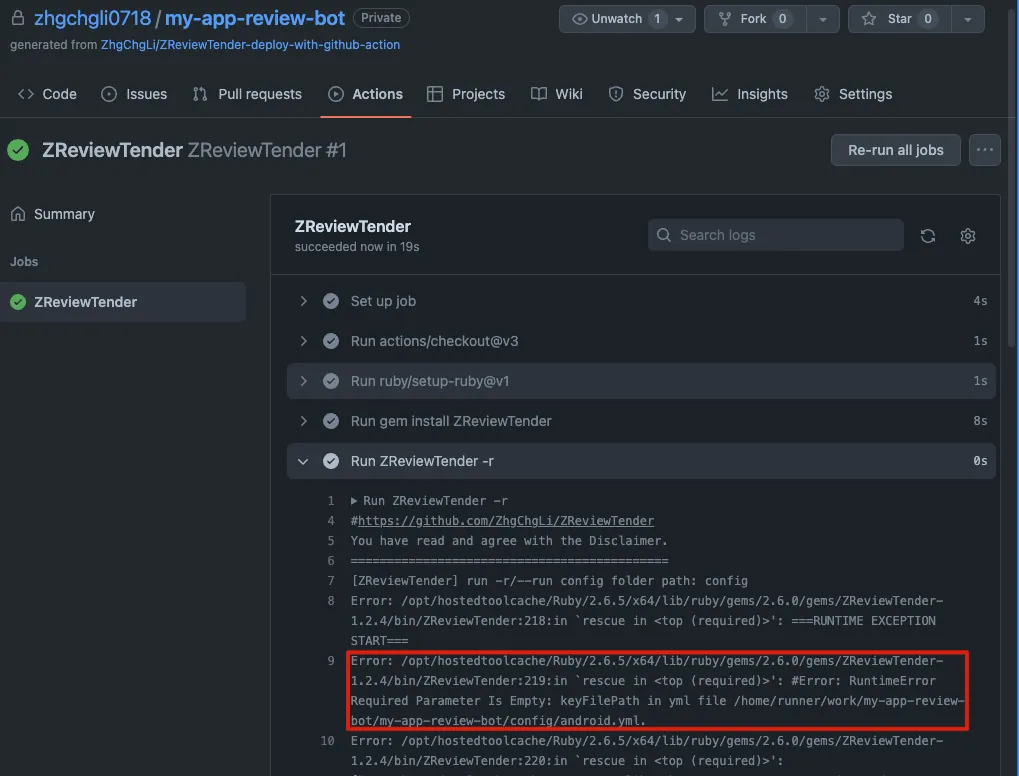
Expand the “Run ZreviewTender -r” block to view the execution log.
Here you can see an Error because I haven’t set up my config yml file yet.
After adjusting the android/apple config yml, go back to step 6 and trigger the execution again from the beginning.

Check the log in the 「 ZReviewTender -r 」 section to confirm successful execution!
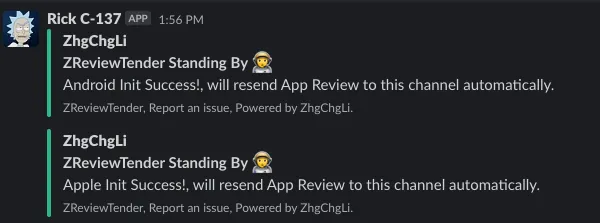
The Slack channel designated to receive the latest review messages will also show the “init Success” success message 🎉
- Done! 🎉 🎉 🎉
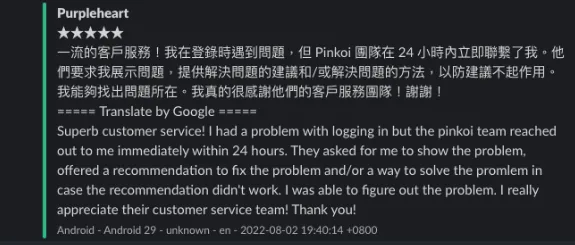
Configuration complete! From now on, the latest reviews within each period will be automatically fetched every 6 hours and forwarded to your Slack Channel!
You can check the latest run status at the top of the Readme on the Repo homepage:

If an Error occurs, it means the execution failed. Please check the logs under Actions -> ZReviewTender; if there is an unexpected error, please create an Issue and attach the log information. It will be fixed as soon as possible!
❌❌❌If an error occurs during execution, Github will also send an email notification, so you don’t have to worry about the bot crashing without anyone noticing!
Github Action Adjustments
You can also configure the Github Action execution rules according to your own needs.
Click the top tab “Actions” -> left side “ZReviewTender” -> top right “ ZReviewTender.yml “
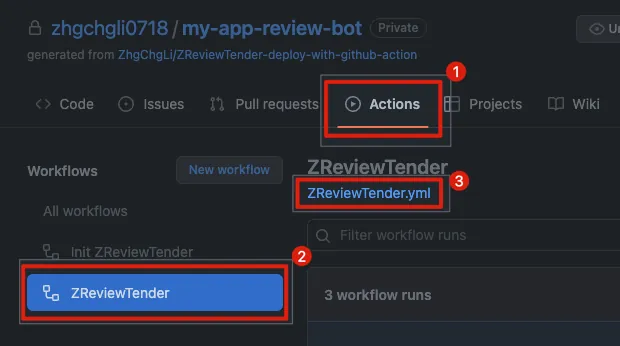
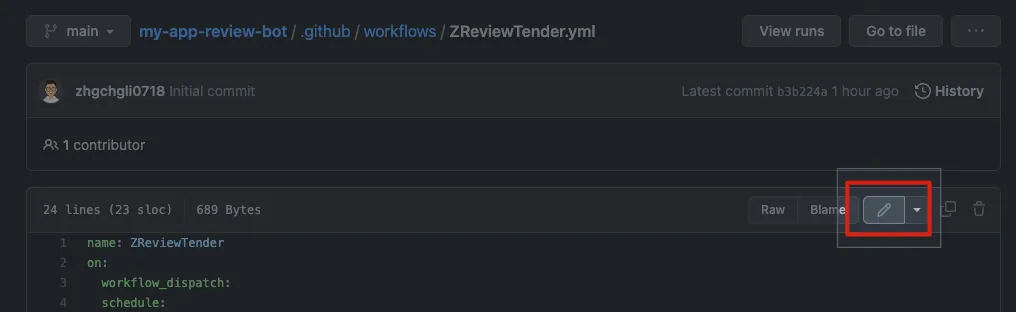
Click the “✏️” at the top right to edit the file.
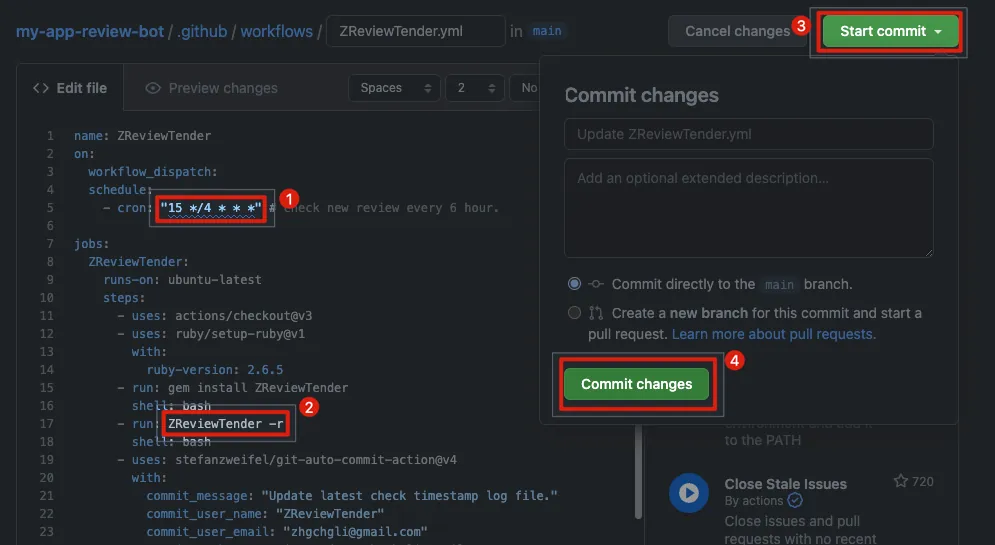
There are two adjustable parameters:
cron: Sets how often to check for new reviews. The default is 15 */6 * * *, which means it runs every 6 hours at 15 minutes past the hour.
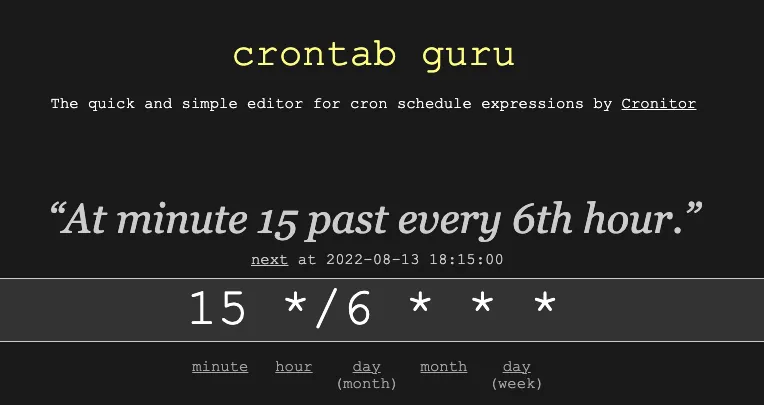
You can refer to crontab.guru to configure according to your needs.
Please note:
- Github Action uses the UTC time zone
- Higher execution frequency will consume more GitHub Action minutes.
run : Set the command to execute. Refer to the “Run” section below. The default is ZReviewTender -r
-
Default run for Android App & Apple (iOS/macOS App):
ZReviewTender -r -
Only run Android App:
ZReviewTender -g -
Run Apple (iOS/macOS App) only:
ZReviewTender -a
After editing, click “Start commit” at the top right and select “Commit changes” to save the settings.
Manually Triggering ZReviewTender Execution
Refer to the previous section “6. Initialize ZReviewTender (manually trigger execution once)”
Install Using Gem
If you are familiar with Gems, you can install ZReviewTender directly using the following command:
gem install ZReviewTender
Install Using Gem (For Those Unfamiliar with Ruby/Gems)
If you’re not familiar with Ruby or Gems, you can follow the steps below to install ZReviewTender step by step.
-
macOS comes with Ruby pre-installed, but it is recommended to use rbenv or rvm to install a new Ruby version and manage Ruby versions (I use
2.6.5). -
Use rbenv or rvm to install Ruby 2.6.5 and switch to the Ruby version managed by rbenv/rvm.
-
Use
which rubyto confirm that the current Ruby in use is not the system Ruby at/usr/bin/ruby. -
After setting up the Ruby environment, install
ZReviewTenderusing the following command:
gem install ZReviewTender
Deployment — Want to Extend Features Yourself
Manual
-
git clone ZReviewTender Source Code
-
Confirm & Improve Ruby Environment
-
Go to the directory and run
bundle installto install dependencies for ZReviewTender.
You can refer to the following article for how to create a Processor.
Configuration
ZReviewTender — Configure Apple/Google review bot using a YAML file.
[Recommended] Use the execution command below the article directly — “Generate Configuration File”:
ZReviewTender -i
Generate blank apple.yml & android.yml configuration files directly.
Apple (iOS/macOS App)
Reference the apple.example.yml file:
⚠️ After downloading
apple.example.yml, remember to rename the file toapple.yml
apple.yml:
platform: 'apple'
appStoreConnectP8PrivateKeyFilePath: '' # APPLE STORE CONNECT API PRIVATE .p8 KEY File Path
appStoreConnectP8PrivateKeyID: '' # APPLE STORE CONNECT API PRIVATE KEY ID
appStoreConnectIssueID: '' # APPLE STORE CONNECT ISSUE ID
appID: '' # APP ID
...
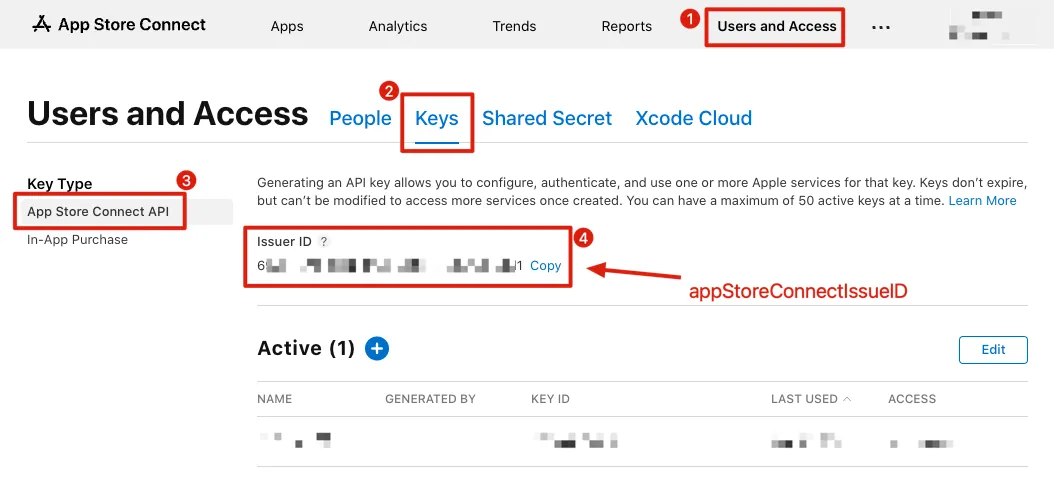
appStoreConnectIssueID:
-
App Store Connect -> Keys -> App Store Connect API
-
Issuer ID:
appStoreConnectIssueID
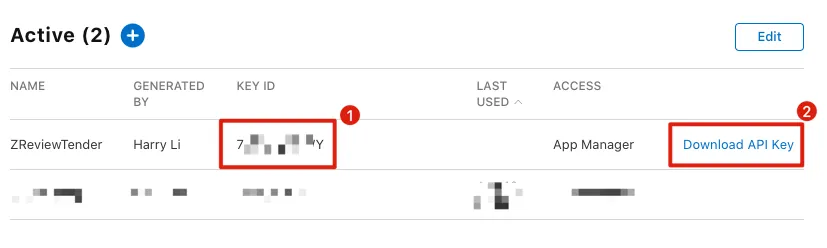
appStoreConnectP8PrivateKeyID & appStoreConnectP8PrivateKeyFilePath:

-
Name:
ZReviewTender -
Access:
App Manager
-
appStoreConnectP8PrivateKeyID:
Key ID -
appStoreConnectP8PrivateKeyFilePath:
/AuthKey_XXXXXXXXXX.p8, download the API Key and place the file in the same directory as the config yml.
appID:
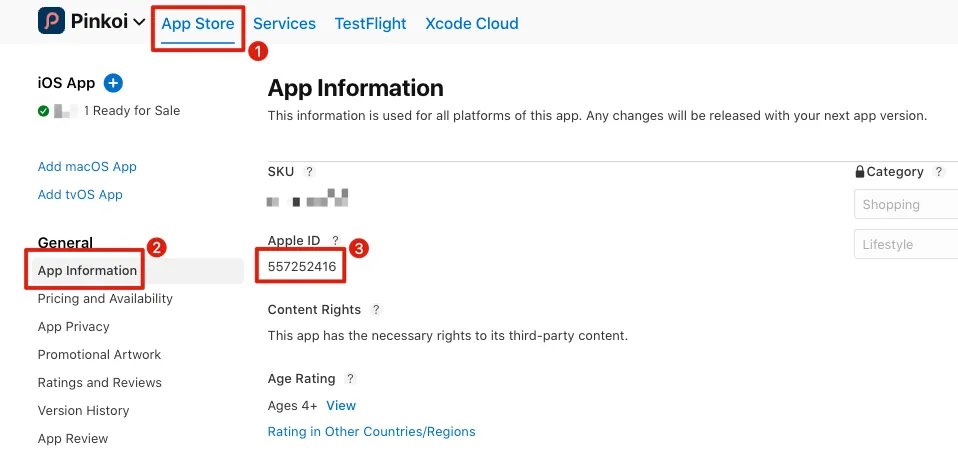
appID: App Store Connect -> App Store -> General -> App Information -> Apple ID
GCP Service Account
The Google API services used by ZReviewTender (fetching store reviews, Google Translate, Google Sheet) all use Service Account authentication.
First, follow the official steps to create GCP & Service Account to download and save the GCP Service Account key (*.json).
-
To use the automatic translation feature, please ensure that the
Cloud Translation APIis enabled in GCP and the Service Account being used has the necessary permissions. -
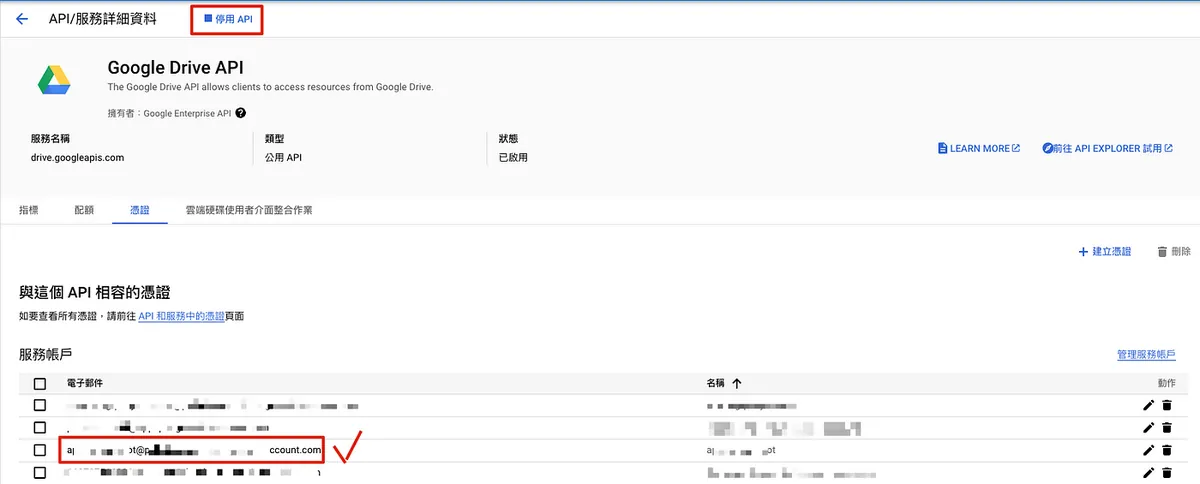
To use the logging to Google Sheet feature, please ensure that the GCP has enabled the
Google Sheets APIandGoogle Drive API, and the Service Account used has been added as well.
Google Play Console (Android App)
Reference the android.example.yml file:
⚠️ After downloading
android.example.yml, remember to rename the file toandroid.yml
android.yml:
platform: 'android'
packageName: '' # Android App Package Name
keyFilePath: '' # Google Android Publisher API Credential .json File Path
playConsoleDeveloperAccountID: '' # Google Console Developer Account ID
playConsoleAppID: '' # Google Console App ID
......
packageName:
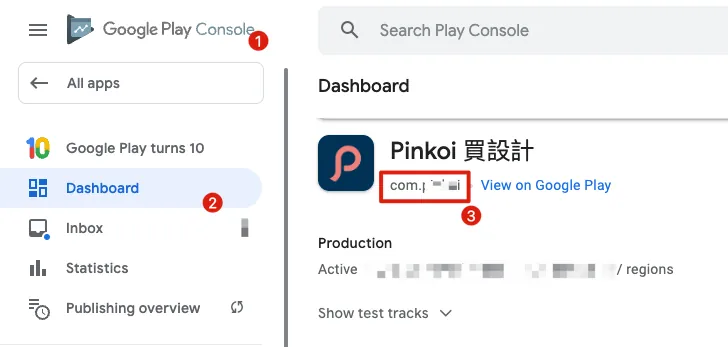
packageName: com.XXXXX can be found in Google Play Console -> Dashboard -> App
playConsoleDeveloperAccountID & playConsoleAppID:
Can be obtained from the Google Play Console -> Dashboard -> App page URL:
Used to compose review message links, allowing the team to quickly access the backend review reply page by clicking the link.
keyFilePath:
The most important information, GCP Service Account identity permission key ( *.json )
Follow the steps in the official documentation to create a Google Cloud Project & Service Account. Then, go to Google Play Console -> Setup -> API Access to enable the Google Play Android Developer API and link the project. Finally, download the service account JSON key from GCP.
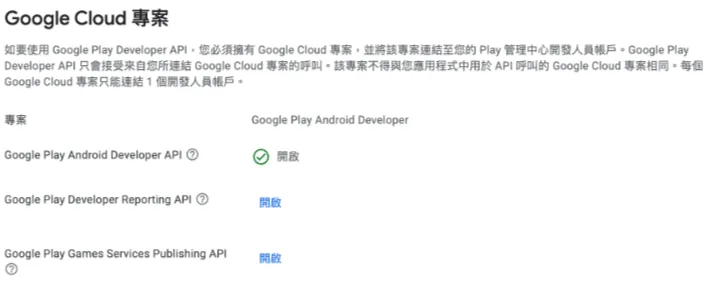
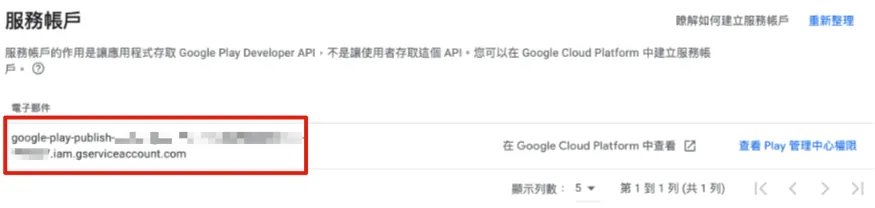
Example content of JSON key:
gcp_key.json:
{
    "type": "service_account",
    "project_id": "XXXX",
    "private_key_id": "XXXX",
    "private_key": "-----BEGIN PRIVATE KEY-----\nXXXX\n-----END PRIVATE KEY-----\n",
    "client_email": "[email protected]",
    "client_id": "XXXX",
    "auth_uri": "https://accounts.google.com/o/oauth2/auth",
    "token_uri": "https://oauth2.googleapis.com/token",
    "auth_provider_x509_cert_url": "https://www.googleapis.com/oauth2/v1/certs",
    "client_x509_cert_url": "https://www.googleapis.com/robot/v1/metadata/x509/XXXX.iam.gserviceaccount.com"
}
- keyFilePath:
/gcp_key.jsonPath to the key file, place the file in the same directory as the config yml.
Processors
processors:
    - FilterProcessor:
        class: "FilterProcessor"
        enable: true # enable
        keywordsInclude: [] # keywords you want to filter out
        ratingsInclude: [] # ratings you want to filter out
        territoriesInclude: [] # territories you want to filter out
    - GoogleTranslateProcessor: # Google Translate Processor, will translate review text to your language, you can remove whole block if you don't need it.
        class: "GoogleTranslateProcessor"
        enable: false # enable
        googleTranslateAPIKeyFilePath: '' # Google Translate API Credential .json File Path
        googleTranslateTargetLang: 'zh-TW' # Translate to what language
        googleTranslateTerritoriesExclude: ["TWN","CHN"] # Review origin territory (language) that you don't want to translate.
    - SlackProcessor: # Slack Processor, resend App Review to Slack.
        class: "SlackProcessor"
        enable: true # enable
        slackTimeZoneOffset: "+08:00" # Review Created Date TimeZone
        slackAttachmentGroupByNumber: "1" # 1~100, how many review messages in 1 slack message.
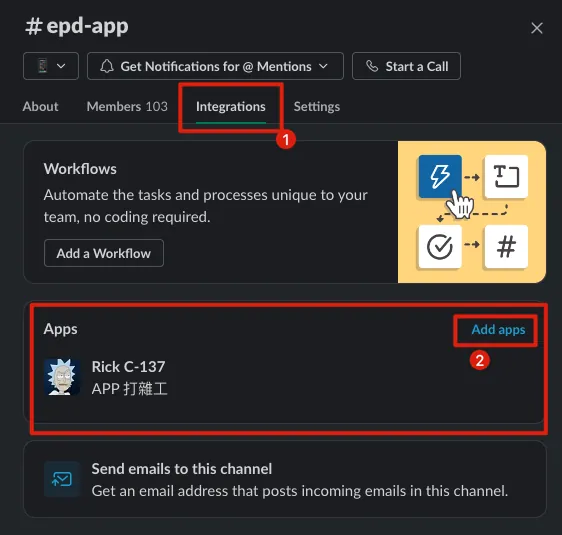
        slackBotToken: "" # Slack Bot Token, send slack message through Slack Bot.
        slackBotTargetChannel: "" # Slack Bot Token, send slack message through Slack Bot. (recommended, first priority)
        slackInCommingWebHookURL: "" # Slack Incoming WebHook URL, send slack message through Incoming WebHook, not recommended, deprecated.
    ...More Processors...
ZReviewTender comes with four Processors, and their order affects the data processing flow: FilterProcessor->GoogleTranslateProcessor->SlackProcessor->GoogleSheetProcessor.
FilterProcessor:
Filter and fetch reviews based on specified criteria, processing only those that meet the conditions.
-
class:
FilterProcessorrequires no adjustment, points to lib/Processors/FilterProcessor.rb -
enable:
true/falseEnable this Processor or not -
keywordsInclude: [“
keyword1”,“keyword2”…] Filter reviews containing these keywords -
ratingsInclude: [
1,2…] Filter reviews that include these rating scores from 1 to 5 -
territoriesInclude: [“
zh-hant”,”TWN”…] Filter reviews that include these regions (Apple) or languages (Android)
GoogleTranslateProcessor:
Translate reviews into the specified language.
-
class:
GoogleTranslateProcessorrequires no changes, points to lib/Processors/GoogleTranslateProcessor.rb -
enable:
true/falseEnable or disable this Processor -
googleTranslateAPIKeyFilePath:
/gcp_key.jsonThe file path for the GCP Service Account credential key*.json. Place the file in the same directory as the config yml. For a sample content, refer to the Google Play Console JSON key example above.
(Please ensure the service account in the JSON key hasCloud Translation APIaccess permission) -
googleTranslateTargetLang:
zh-TW,en… target translation languages -
googleTranslateTerritoriesExclude: [“
zh-hant”,”TWN”…] Regions (Apple) or languages (Android) excluded from translation
SlackProcessor:
Forward reviews to Slack.
-
class:
SlackProcessorrequires no adjustment, points to lib/Processors/SlackProcessor.rb -
enable:
true/falseEnable this Processor or not -
slackTimeZoneOffset:
+08:00Timezone for displaying review time -
slackAttachmentGroupByNumber:
1sets how many reviews are combined into one message for faster sending; default is 1 review per Slack message -
slackBotToken:
xoxb-xxxx-xxxx-xxxxSlack Bot Token. Slack recommends creating a Slack Bot with thepostMessagesscope and using it to send Slack messages -
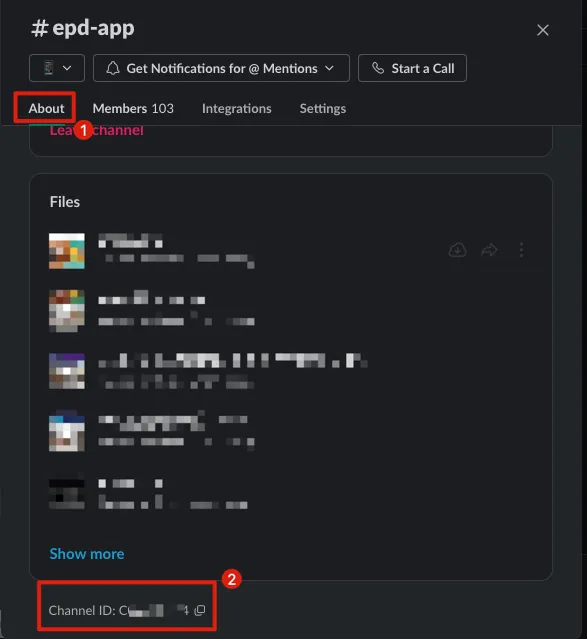
slackBotTargetChannel:
CXXXXXXgroup ID (not the group name), the Slack Bot will send messages to this channel; you need to add your Slack Bot to this channel -
slackInCommingWebHookURL:
https://hooks.slack.com/services/XXXXX
Using the old Incoming WebHook URL to send messages to Slack. Note! Slack no longer recommends this method for sending messages.
Please note, this is a legacy custom integration — an outdated method for teams to integrate with Slack. These integrations lack newer features and will be deprecated and possibly removed in the future. We do not recommend using them. Instead, we suggest you check out their replacement: Slack apps .
- slackBotToken and slackInCommingWebHookURL, SlackProcessor will prefer to use slackBotToken
GoogleSheetProcessor
Record reviews to Google Sheet.
-
class:
GoogleSheetProcessorrequires no changes, points to lib/Processors/SlackProcessor.rb -
enable:
true/falseEnable this Processor or not -
googleSheetAPIKeyFilePath:
/gcp_key.json
GCP Service Account credential key file path*.json. Place the file in the same directory as the config yml. Refer to the above Google Play Console JSON key example for file content.
(Please ensure the service account in the JSON key has access toGoogle Sheets APIandGoogle Drive API) -
googleSheetTimeZoneOffset:
+08:00Review time display timezone -
googleSheetID:
Google Sheet ID
Can be obtained from the Google Sheet URL: https://docs.google.com/spreadsheets/d/googleSheetID/ -
googleSheetName: Sheet name, e.g.
Sheet1 -
keywordsInclude: [“
keyword1”,“keyword2”…] Filter reviews containing these keywords -
ratingsInclude: [
1,2…] Filter reviews that include these rating scores from 1 to 5 -
territoriesInclude: [“
zh-hant”,”TWN”…] Filter reviews that include these regions (Apple) or languages (Android) -
values: [] Combination of review information fields
%TITLE% Review Title
%BODY% Review Content
%RATING% Rating Score 1~5
%PLATFORM% Review Source Platform Apple or Android
%ID% Review ID
%USERNAME% Reviewer
%URL% Review Link
%TERRITORY% Review Region (Apple) or Review Language (Android)
%APPVERSION% Reviewed App Version
%CREATEDDATE% Review Creation Date
For example, my Google Sheet columns are as follows:
Rating Score,Review Title,Review Content,Review Info
Then values can be set to:
values: ["%TITLE%","%BODY%","%RATING%","%PLATFORM% - %APPVERSION%"]
Customize Processor to Integrate Your Own Workflow
If you need to customize the Processor, please use manual deployment, as the ZReviewTender gem is packaged and cannot be dynamically adjusted.
You can refer to lib/Processors/ProcessorTemplate.rb to create your extensions:
$lib = File.expand_path('../lib', File.dirname(__FILE__))

require "Models/Review"
require "Models/Processor"
require "Helper"
require "ZLogger"

# Add to config.yml:
#
# processors:
#   - ProcessorTemplate:
#       class: "ProcessorTemplate"
#       parameter1: "value"
#       parameter2: "value"
#       parameter3: "value"
#       ...
#

class ProcessorTemplate < Processor

    def initialize(config, configFilePath, baseExecutePath)
        # initialize Processor
        # get parameter from config e.g. config["parameter1"]
        # configFilePath: file path of config file (apple.yml/android.yml)
        # baseExecutePath: user execute path
    end

    def processReviews(reviews, platform)
        if reviews.length < 1
            return reviews
        end

        ## do what you want to do with reviews...

        ## return result reviews
        return reviews
    end
end
initialize will provide:
-
config Object: Corresponds to the settings in the config yml file
-
configFilePath: Path to the config yml file used
-
baseExecutePath: The path where the user runs ZReviewTender
processReviews(reviews, platform):
After fetching new reviews, this function is called to give the Processor a chance to handle them. Please return the processed Reviews after handling.
Review data structure is defined in lib/Models/ Review.rb
Notes
XXXterritorXXX parameter:
-
Apple Usage Regions: TWM/JPN…
-
Android Supported Languages: zh-hant/en/…
If a Processor is not needed:
You can set enable: false or simply remove the Processor Config Block.
The execution order of Processors can be adjusted according to your needs:
e.g. run Filter first, then Translation, then Slack, and finally Log to Google Sheet…
Execution
⚠️ When using the Gem, you can run
ZReviewTenderdirectly. For manual project deployment, usebundle exec ruby bin/ZReviewTenderto execute.
Generate Configuration File:
ZReviewTender -i
Generate apple.yml & android.yml from apple.example.yml & android.example.yml into the config/ directory in the current execution path.
Running Apple & Android Review Crawling:
ZReviewTender -r
- By default, reads the
apple.yml&android.ymlsettings under/config/
Run Apple & Android Review Crawling & Specify Config Directory:
ZReviewTender --run=config_directory
- By default, reads the
apple.yml&android.ymlsettings under/config/
Only Run Apple Review Crawling:
ZReviewTender -a
- By default, reads the
apple.ymlsettings under/config/
Run Only Apple Review Crawling & Specify Config File Location:
ZReviewTender --apple=apple.yml configuration file location
Run only Android review scraping:
ZReviewTender -g
- By default, reads the
android.ymlconfiguration under/config/
Run only Android review scraping & specify config file location:
ZReviewTender --googleAndroid=path_to_android.yml_config_file
Clear Execution Records to Reset to Initial Settings
ZReviewTender -d
It will delete the Timestamp record file in /latestCheckTimestamp, returning to the initial state. Running the crawl again will receive the init success message once more:

Current ZReviewTender Version
ZReviewTender -v
Display the current latest version number of ZReviewTender on RubyGem.
Update ZReviewTender to the Latest Version (rubygem only)
ZReviewTender -n
First Run
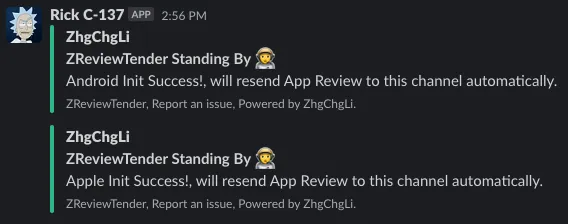
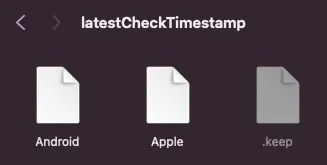
On the first successful run, an initialization success message will be sent to the specified Slack channel, and files latestCheckTimestamp/Apple and latestCheckTimestamp/Android will be created in the corresponding execution directory to record the timestamp of the last fetched reviews.
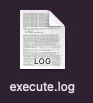
An execute.log file will also be generated to record execution errors.
Set Up Scheduled Continuous Execution
Set a scheduled task ( crontab ) to continuously fetch new reviews. ZReviewTender will crawl new reviews with timestamps from the last latestCheckTimestamp to the current fetch time and update the timestamp record file.
e.g. crontab: 15 */6 * * * ZReviewTender -r
Also, note that since the Android API only provides queries for reviews added or edited in the last 7 days, the scheduling cycle should not exceed 7 days to avoid missing any reviews.

https://developers.google.com/android-publisher/reply-to-reviews#retrieving_a_set_of_reviews
Github Action Deployment
ZReviewTender App Reviews Automatic Bot
name: ZReviewTender
on:
  workflow_dispatch:
  schedule:
    - cron: "15 */6 * * *" # Runs every six hours, you can refer to the above crontab to modify the schedule

jobs:
  ZReviewTender:
    runs-on: ubuntu-latest
    steps:
    - name: ZReviewTender Automatic Bot
      uses: ZhgChgLi/ZReviewTender@main
      with:
        command: '-r' # Execute Apple & iOS App review check, you can change this command as shown above
⚠️️️️️ Warning Again!
Make sure your configuration files and keys are not publicly accessible, as sensitive information may lead to unauthorized access to your App/Slack permissions; the author is not responsible for any misuse.
If an unexpected error occurs, please create an Issue and include the log information. We will fix it as soon as possible!
Done
The tutorial ends here. Next is a behind-the-scenes development story.
=========================
The War with App Reviews
I thought last year’s summaries, AppStore APP’s Reviews Slack Bot Stories and the related implementation ZReviewsBot — Slack App Review Notification Bot, had wrapped up the integration of the latest app reviews into company workflows; unexpectedly, Apple updated the App Store Connect API this year, allowing this process to continue evolving.
The solution for fetching Apple iOS/macOS App reviews summarized last year:
-
Public URL API (RSS) ⚠️: No flexible filtering, limited information, quantity limits, and occasional data corruption issues make it unstable; it may be deprecated by the official source in the future.
-
Using Fastlane — SpaceShip, we encapsulate complex web operations and session management to fetch review data from the App Store Connect backend (essentially acting as a web emulator crawler to scrape data from the backend).
According to last year’s approach, only method two could be used to achieve this, but the results were not ideal; the session would expire, requiring manual periodic updates, and it couldn’t be placed on a CI/CD server because the session would expire immediately if the IP changed.

important-note-about-session-duration by Fastlane
After receiving the news that Apple updated the App Store Connect API this year, I immediately started redesigning the new review bot. Besides switching to the official API, I also optimized the previous architecture and became more familiar with Ruby usage.
Issues Encountered During Development with App Store Connect API
- List All Customer Reviews for an App This endpoint does not provide app version information
It’s strange, but the only workaround is to first call this endpoint to filter the latest reviews, then call List All App Store Versions for an App & List All Customer Reviews for an App Store Version to combine the app version information.
Issues Encountered in AndroidpublisherV3 Development
-
The API does not provide a method to retrieve the entire list of reviews; it can only fetch reviews added or edited within the last 7 days.
-
Using JWT to connect to Google API (without relying on related libraries e.g. google-apis-androidpublisher_v3)
-
Here is an example of generating and using a Google API JWT:
require "jwt"
require "time"

payload = {
  iss: "client_email field in the GCP API service account key (*.json) file",
  sub: "client_email field in the GCP API service account key (*.json) file",
  scope: ["https://www.googleapis.com/auth/androidpublisher"].join(' '),
  aud: "token_uri field in the GCP API service account key (*.json) file",
  iat: Time.now.to_i,
  exp: Time.now.to_i + 60*20
}

rsa_private = OpenSSL::PKey::RSA.new("private_key field in the GCP API service account key (*.json) file")
token = JWT.encode payload, rsa_private, 'RS256', header_fields = {kid:"private_key_id field in the GCP API service account key (*.json) file", typ:"JWT"}

uri = URI("token_uri field in the GCP API service account key (*.json) file")
https = Net::HTTP.new(uri.host, uri.port)
https.use_ssl = true
request = Net::HTTP::Post.new(uri)
request.body = "grant_type=urn%3Aietf%3Aparams%3Aoauth%3Agrant-type%3Ajwt-bearer&assertion=#{token}"

response = https.request(request).read_body

bearer = result["access_token"]

### use bearer token

uri = URI("https://androidpublisher.googleapis.com/androidpublisher/v3/applications/APP_PACKAGE_NAME/reviews")
https = Net::HTTP.new(uri.host, uri.port)
https.use_ssl = true

request = Net::HTTP::Get.new(uri)
request['Authorization'] = "Bearer #{bearer}";

response = https.request(request).read_body

result = JSON.parse(response)

# success!

Comments